

Migrate Media
Move existing local product and category images to R2.
Before you start. Save a working credential, turn Enable Cloudflare R2 on, and have a queue worker running.
From the admin
The fastest way — one button.
Open it from: Cloudflare R2 → Credential
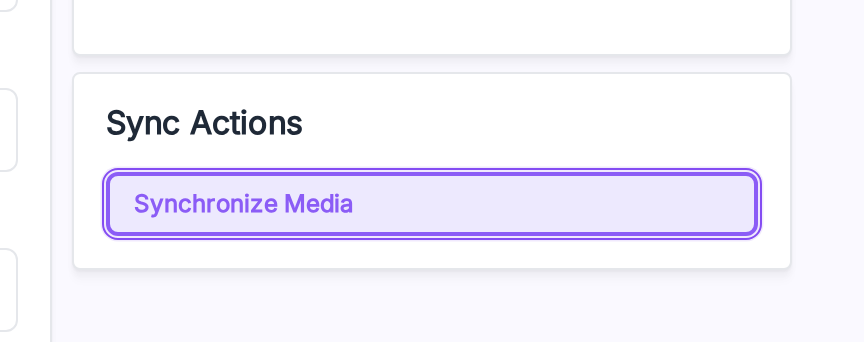
- Scroll to the Sync Actions card on the right.
- Click Synchronize Media.
- Confirm in the modal.
The job is dispatched to the queue. The button is disabled until Enable Cloudflare R2 is on.
Re-map without re-uploading
Already uploaded your files to R2 by hand or with another tool? Don't re-upload.
- Turn on Re-Synchronize Without Uploading in the right column.
- Click Synchronize Media.
The job runs a HEAD against each file on R2. If it's there, the mapping row is written without a re-upload.
From the CLI
Same migration, no admin needed:
bash
php artisan cloudflare_r2:move_existing_filesUseful flags:
| Flag | What it does |
|---|---|
--dry-run | List files that would be uploaded — don't upload. |
--prefix=public/product/cat-1 | Limit the run to one local folder. |
--resume | Resume from the last checkpoint. |
--metadata-only | Write mapping rows without uploading (same as Re-Synchronize Without Uploading). |
See CLI Commands for the full list.
Clean up local copies
After a successful migration:
bash
php artisan cloudflare_r2:remove_media_filesIt checks each file exists on R2 before deleting the local copy.
CAUTION
Always back up your local media before running the cleanup.