

Use it from the AI agent
If your UnoPim has the AI Agent extension installed, you can ask the agent to translate products in chat.
Before you start. AI Agent installed, a DeepL key, AI Translate ticked on every field (see Mark fields), and your role needs translate permission.
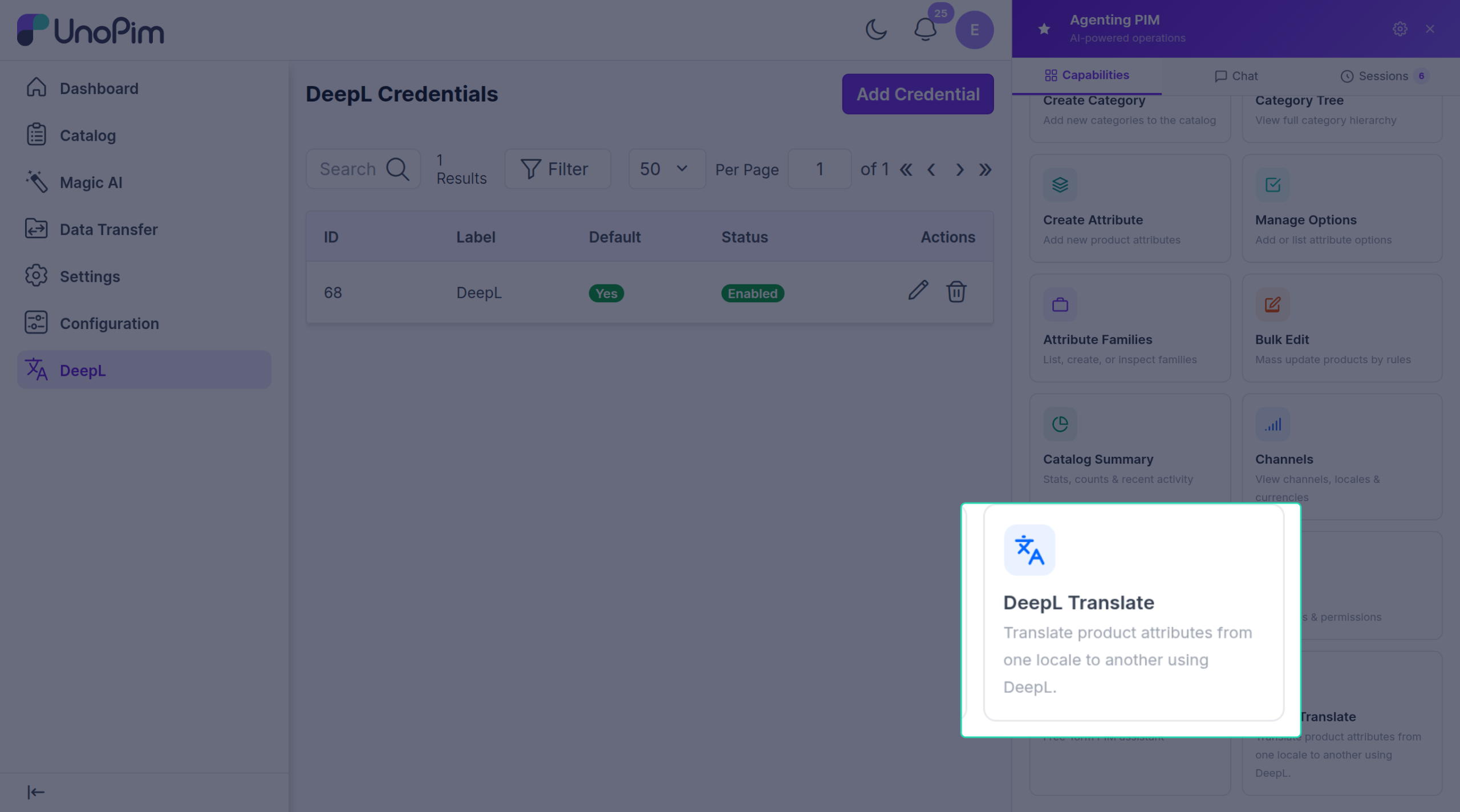
How to use it
- Open the AI chat.
- Click the Capabilities tab.
- Click the DeepL Translate tile.
- The chat opens with a starter prompt — replace
:skuwith a real SKU and send.
Example:
Translate product
WIDGET-001fromen_USintofr_FRandde_DEusing DeepL.
What you can ask for
The agent can:
- Translate one product by SKU or by ID.
- Pick which fields to translate (or every text field by default).
- Preview only — return a preview without saving.
The agent never overwrites text that's already there — it only fills empty translations.
If the agent says No translatable source content found
Either the source language has no text on the product, or the field list you picked has nothing on this product.