

Translate many products
Translate many products at once from the products list.
Before you start. Add a DeepL key, tick AI Translate on every field you want translated (see Mark fields), and your role needs bulk translate permission.
Steps
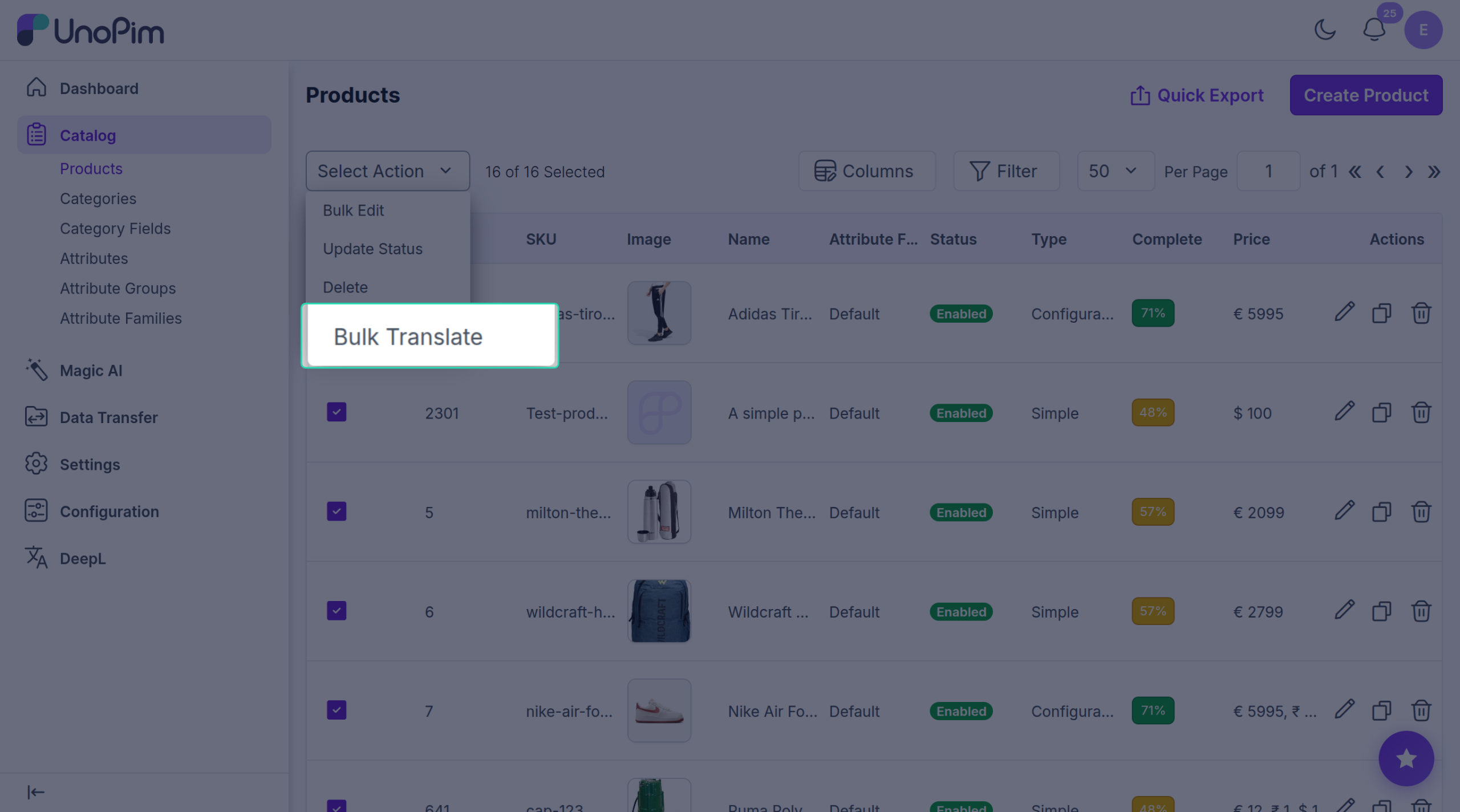
- Open Catalog → Products.
- Tick the products you want to translate.
- Click Selected actions → Bulk Translate.
A wizard opens.
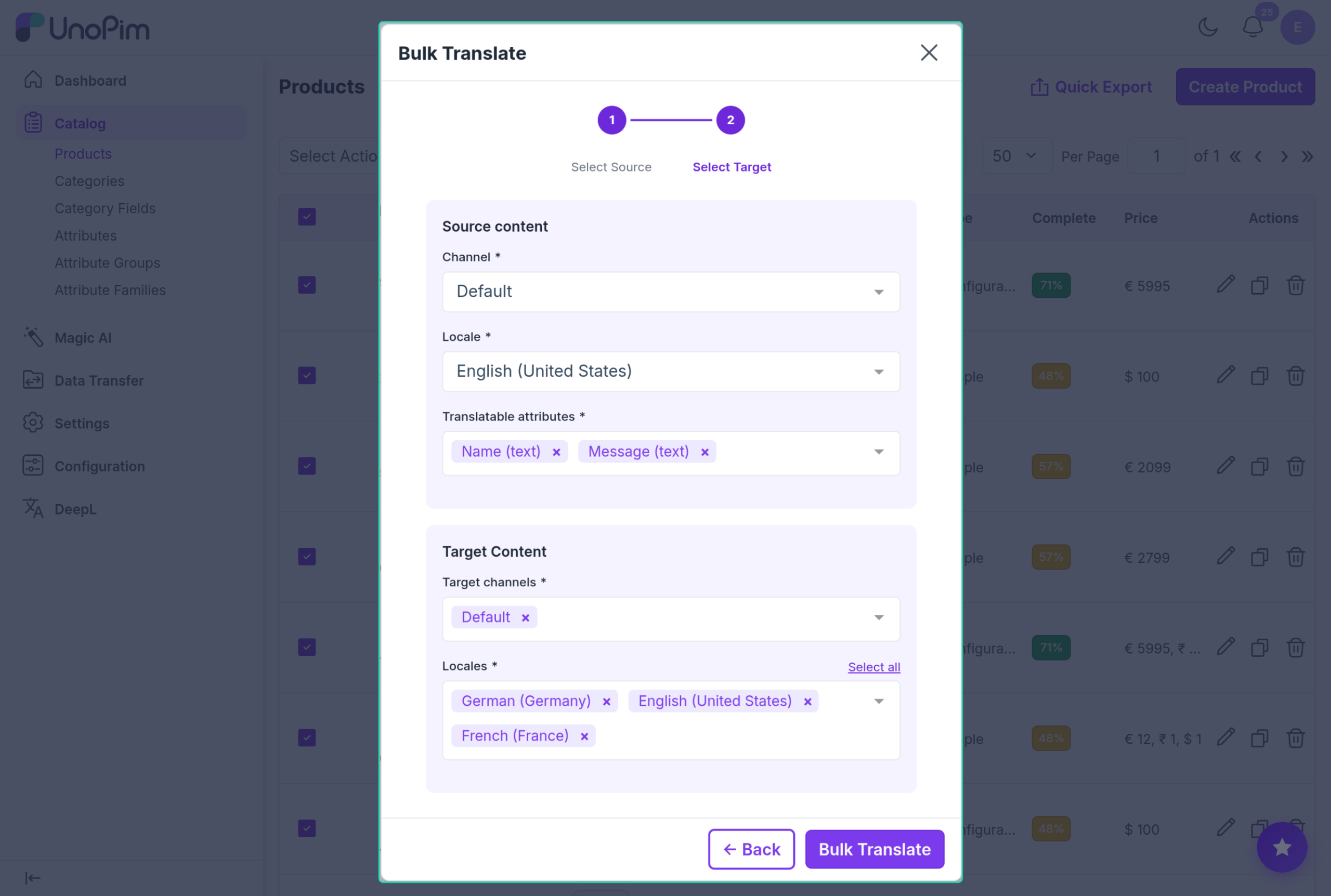
Step 1 — Source + fields
Pick:
- Channel — where the original text lives.
- Locale — what language to translate from.
- Translatable attributes — pick the fields to translate (e.g. name, description, short_description).
Click Next →.
Step 2 — Target
Pick:
- Target channels — one or more.
- Locales — one or more. Select all picks every available language.
Click Bulk Translate.
You'll see X product(s) queued for DeepL translation.
Watch the progress
Open Settings → Data Transfer → Tracker. The job appears with a progress counter. See Watch progress for details.