

Translate one field
The fastest way to translate a single field on a product.
Before you start. Add a DeepL key and tick AI Translate on the field (see Mark fields).
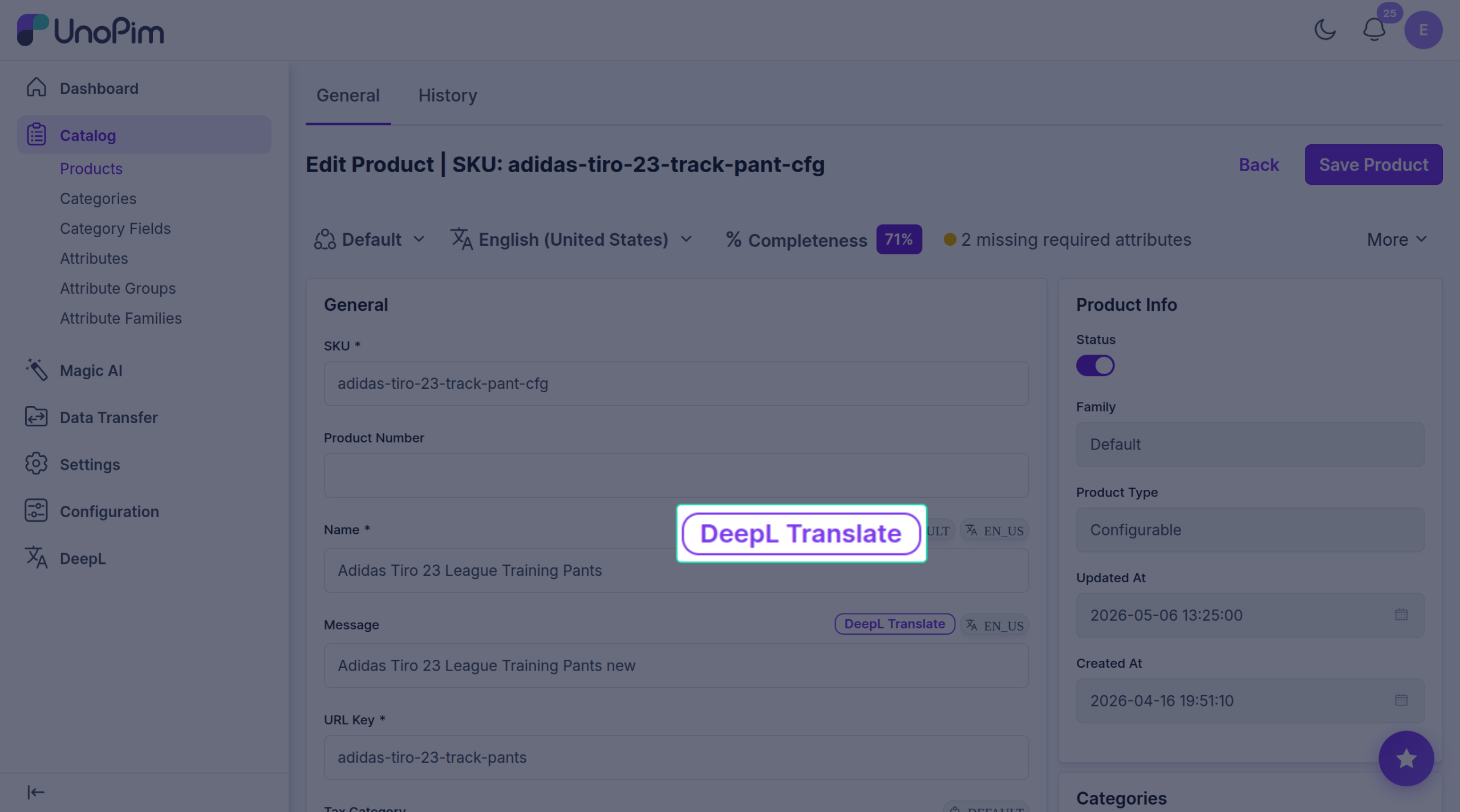
Steps
- Open the product.
- Find the field you want to translate.
- Click DeepL Translate next to the field.
A short wizard opens.
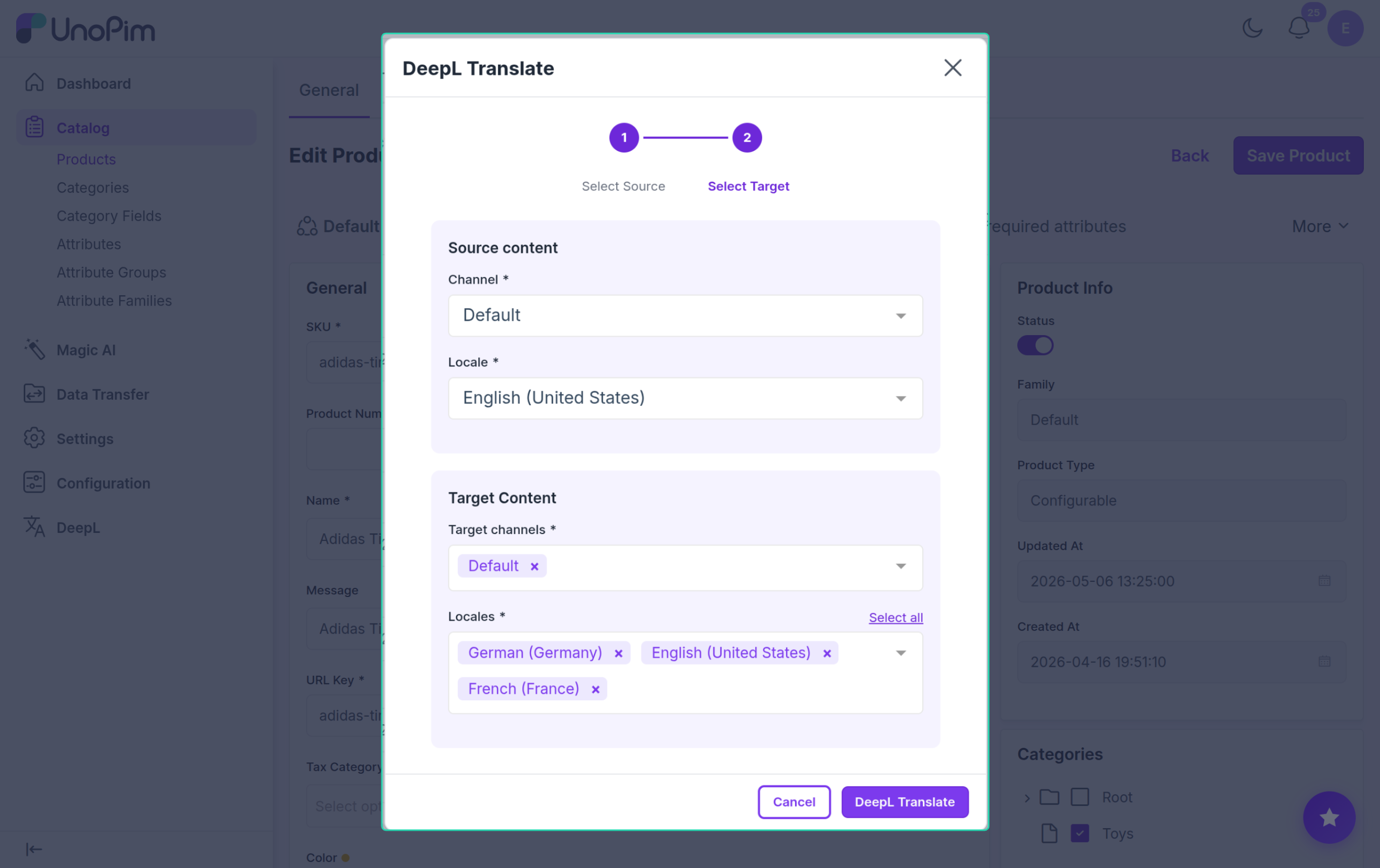
Step 1 — Source
Pick:
- Source channel
- Source locale
These are pre-filled with the page you're already on.
Click Next →.
Step 2 — Target
Pick:
- Target channels — one or more.
- Target locales — one or more. Select all picks every available language.
Click DeepL Translate.
Step 3 — Preview & save
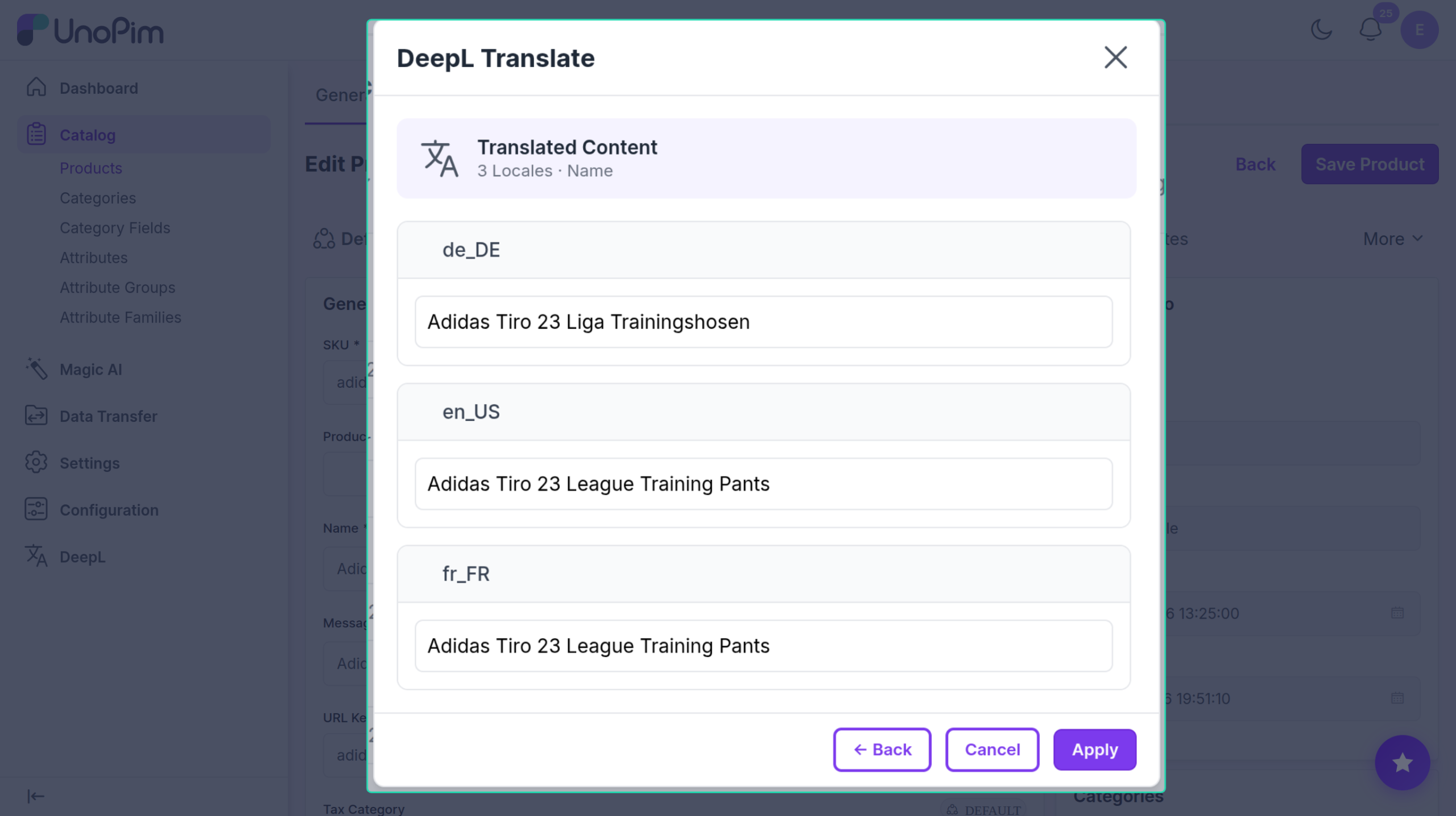
Each target language shows the translated text in a box you can edit. Tweak anything you like.
- ← Back — go back a step.
- Cancel — discard.
- Apply — save into the product.
You'll see Translation saved.
If the button isn't showing
Walk through the list — the first reason is the most common:
- Is AI Translate ticked on the field? See Mark fields.
- Is the field a Text or Textarea?
- Does your role have DeepL translate permission?
- Is at least one DeepL key turned on in Credentials?