

Translate one product
Translate many fields of one product in a single step.
Before you start. Add a DeepL key and tick AI Translate on every field you want translated (see Mark fields).
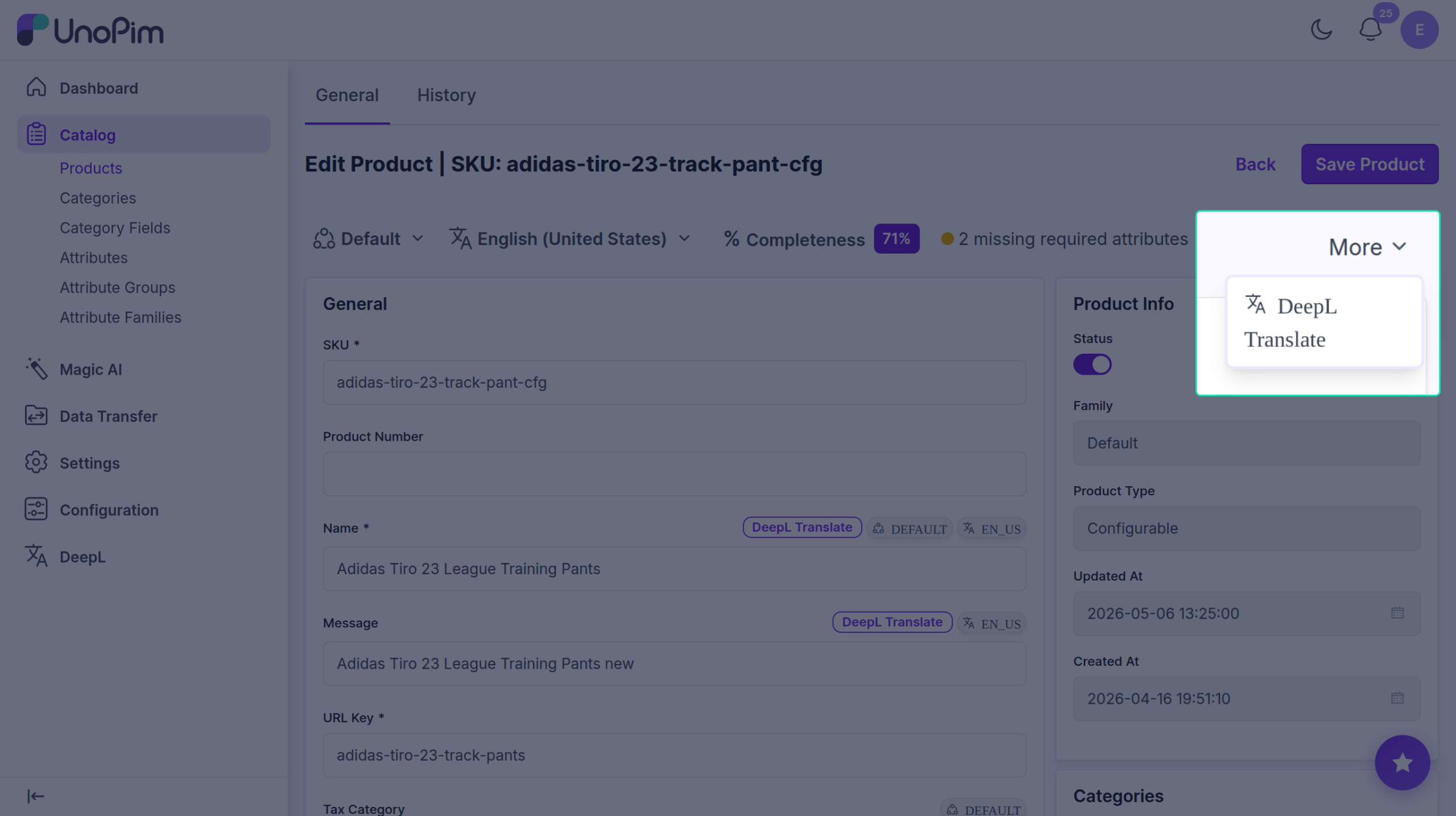
Steps
- Open the product.
- Top-right corner — click More ▾.
- Click DeepL Translate.
A wizard opens.
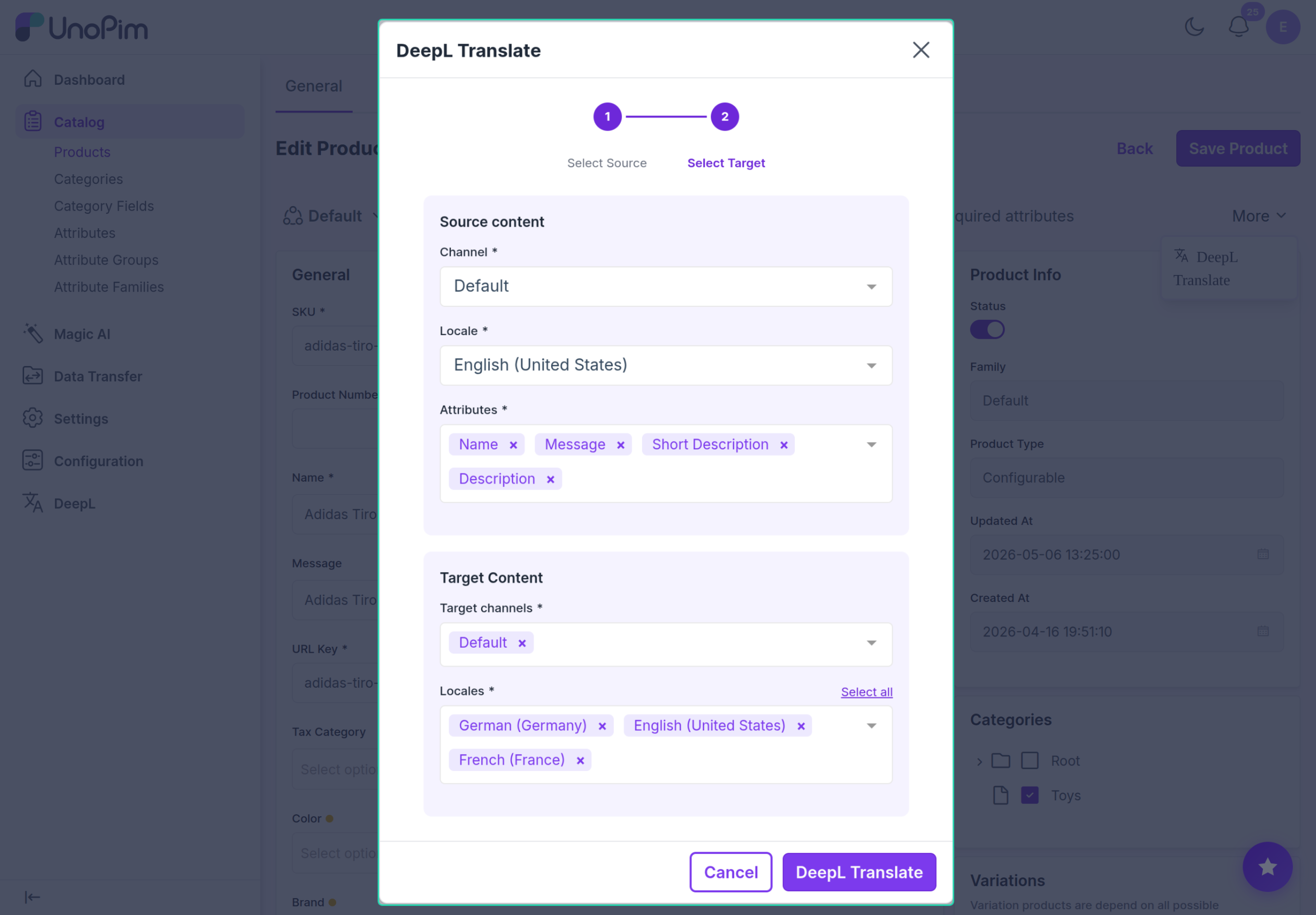
Step 1 — Source + fields
Pick:
- Source channel
- Source locale
- Attributes — every translatable field is pre-ticked. Untick anything you don't want.
Click Next →.
Step 2 — Target
Pick:
- Target channels — one or more.
- Target locales — Select all picks every available language.
Click DeepL Translate.
Step 3 — Preview & save
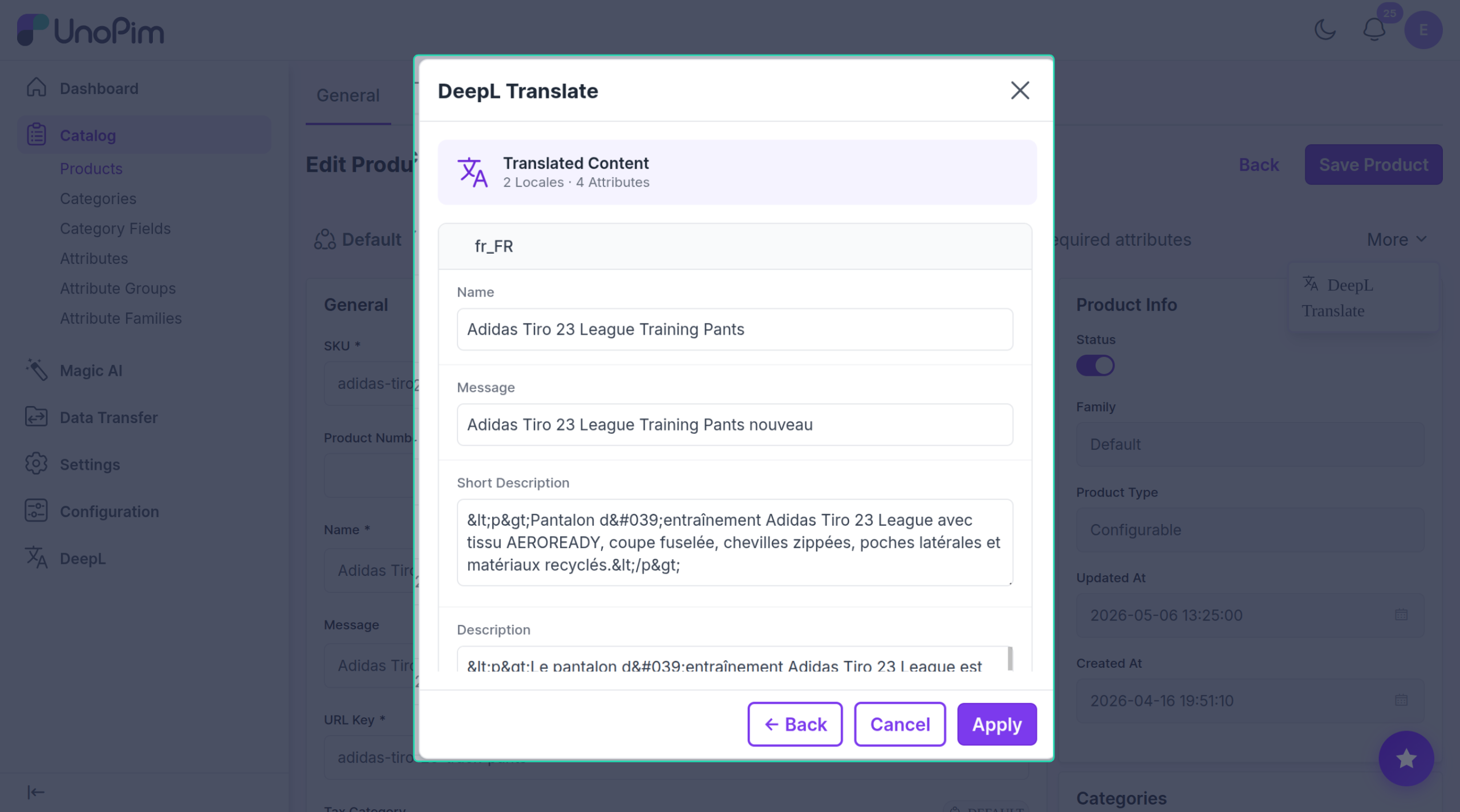
Translations are grouped by language. Each language shows every selected field in an editable box. Edit anything you like.
- ← Back
- Cancel
- Apply — saves and runs each target channel as a background job. Watch them in Watch progress.
Heads-up
If the same channel + language appears in both source and target, that pair is skipped — you never translate a language to itself.