

AWS S3 Setup in UnoPim
After installing the UnoPim AWS Integration module, users with the required permissions can manage the AWS storage settings from the admin panel.
Go to:
Left Menu → AWS S3 → Credentials
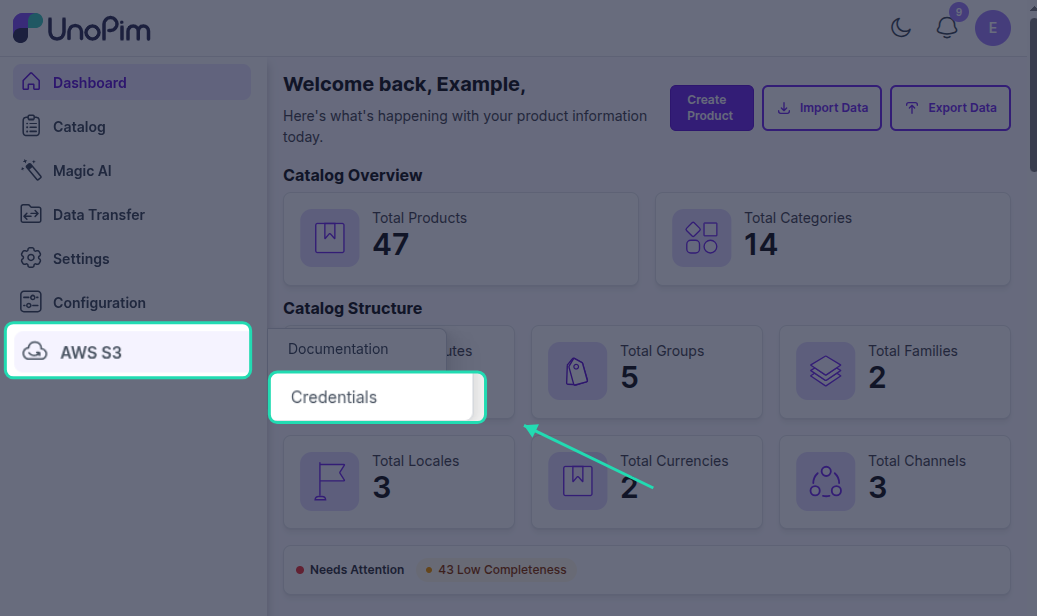
From here, you can enable the module and connect UnoPim to Amazon S3 so files are stored in your AWS bucket instead of only on the local server.
What This Configuration Does
Once the setup is saved correctly:
- UnoPim can store supported files on Amazon S3.
- Your media can be served from the configured bucket URL.
- Cached file URLs are refreshed based on the Environment Update Time value.
Fields You Need to Fill
To connect UnoPim with AWS, enter the configuration details created in your Amazon AWS account.
| Field | Description |
|---|---|
| Access Key ID | The public access key generated for your AWS IAM user. |
| Secret Key | The secret key paired with the Access Key ID. Keep this private. |
| Bucket Name | The exact name of the S3 bucket where UnoPim should store files. |
| Region | The AWS region where your bucket was created, such as us-east-1 or ap-south-1. |
| Bucket URL | The public URL or bucket endpoint used to access files stored in the bucket. |
How to Configure It
- Open the AWS S3 → Credentials section in UnoPim.
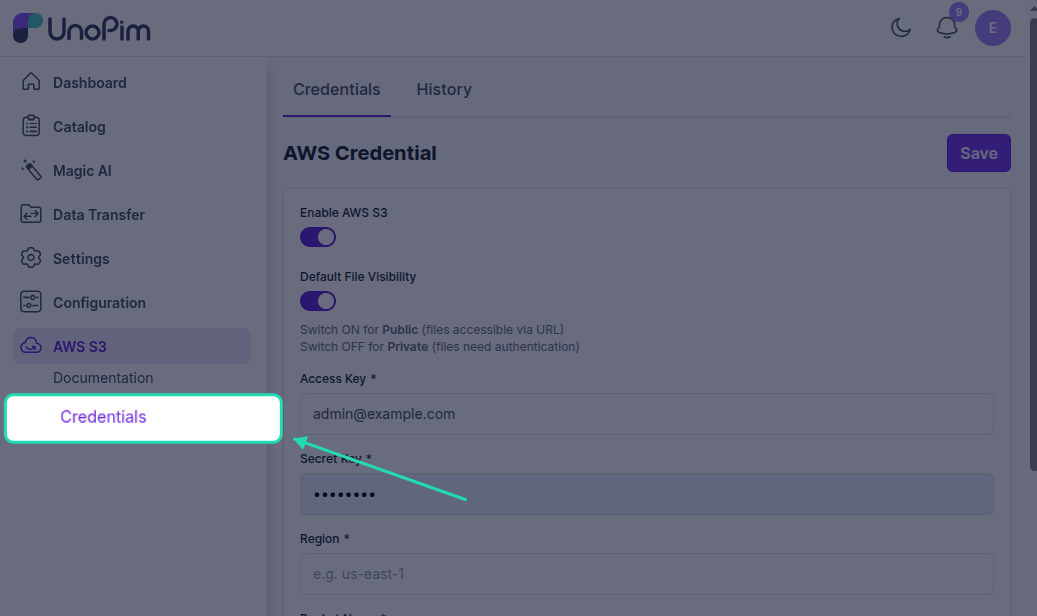
Enable the module if it is currently disabled.
Enter the Access Key ID and Secret Key from your AWS account.
Add the correct Bucket Name and Region.
Enter the Bucket URL that should be used to access uploaded files.
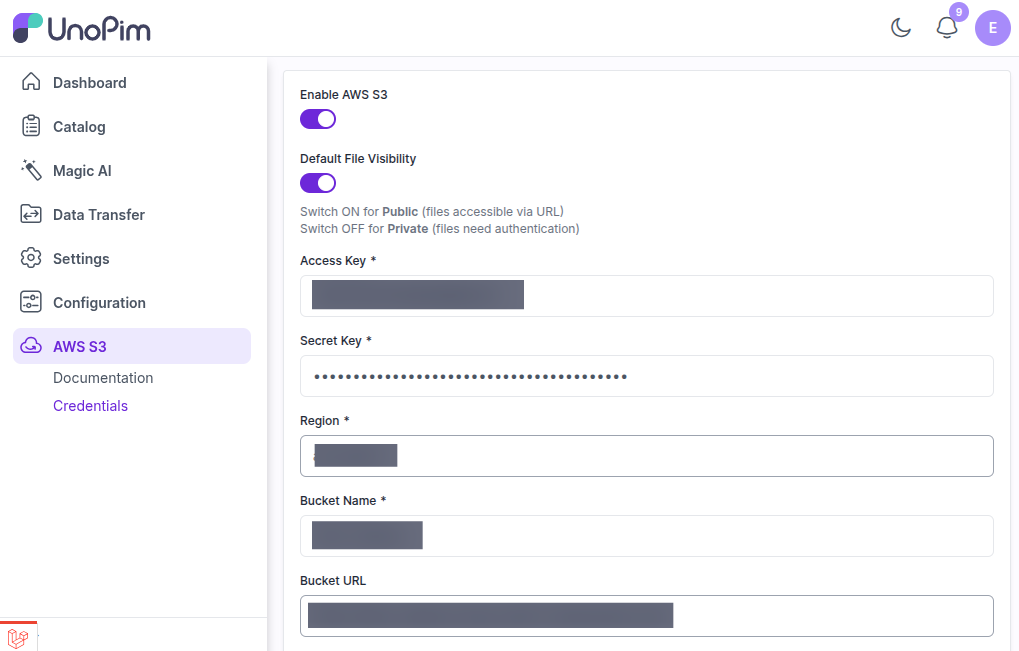
- Save the configuration.
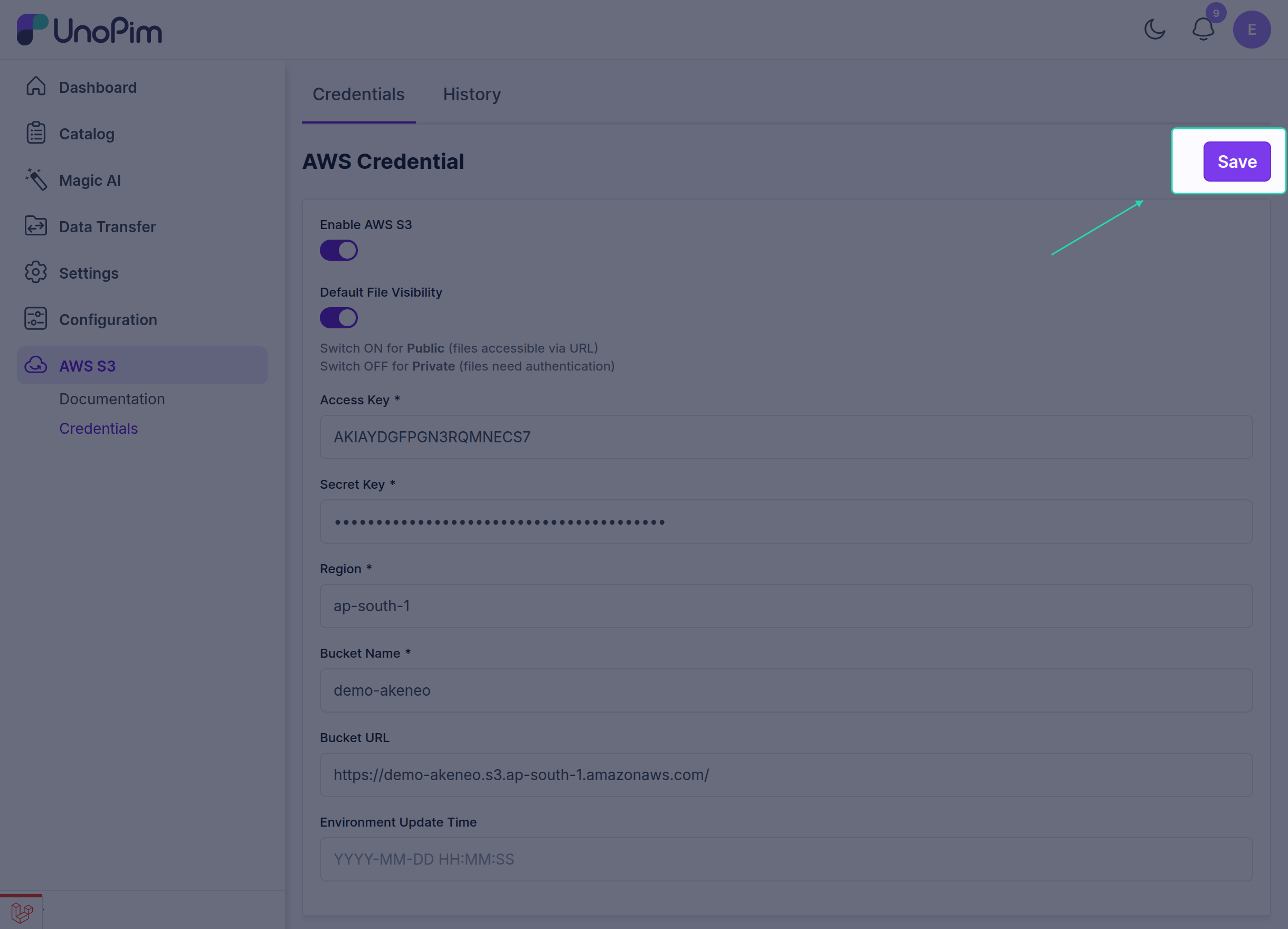
After saving, UnoPim will use these details to connect with Amazon S3 for file storage.
Understanding Environment Update Time
The Environment Update Time field controls how long image URLs stay cached in the browser before they are refreshed.
- The value is entered in seconds.
- During this time, the browser keeps using the existing cached image URL.
- A new request is made only after the configured time has passed.
If this field is left empty, UnoPim uses the default value:
86400 seconds = 24 hours
Why This Setting Matters
This setting helps:
- reduce repeated file URL requests,
- avoid unnecessary fetches from AWS,
- improve loading efficiency for frequently viewed images.
Recommended Before Saving
Before saving the configuration, make sure:
- your AWS credentials are valid,
- the S3 bucket name is correct,
- the selected region matches the bucket region,
- the bucket URL is accessible,
- the IAM user has permission to read and write files in the bucket.
If you have not prepared your AWS account yet, follow Setup Credentials in Amazon S3 first.
Once your credentials are saved, continue to Migrate Existing Files to S3 if you want to move older local media into Amazon S3.
If you also use UnoPim DAM and want to move DAM asset files from private local storage to S3, follow DAM Asset Migration to AWS S3.