

Installation
Follow the steps below to install the UnoPim AWS Integration extension. Make sure you have terminal access to your server and know which version of Laravel your UnoPim instance is running before you begin.
Step 1 - Add the Package Files
Download and unzip the extension. Inside, you'll find a folder called AWSIntegration - move it into the following directory in your UnoPim project:
packages/Webkul/AWSIntegrationStep 2 - Register the Service Provider
This step depends on which version of Laravel your project uses.
Add to bootstrap/providers.php:
use Webkul\AWSIntegration\Providers\AWSIntegrationServiceProvider;

return [
    // ...existing providers...
    AWSIntegrationServiceProvider::class,
];
NOTE
This registers the AWSIntegrationServiceProvider in the Laravel service container, allowing it to load routes, configurations, and services required by the AWS integration.
Step 3 - Update Composer Autoload
Open composer.json and add the following line under the autoload > psr-4 section:
"Webkul\\AWSIntegration\\": "packages/Webkul/AWSIntegration/src"TIP
This configures PSR-4 autoloading so PHP can automatically resolve classes under the Webkul\AWSIntegration namespace from the package directory.
Step 4 - Run the Installer
Run the following commands in order:
composer dump-autoload
php artisan aws-s3-package:install
php artisan optimize:clear| Command | Purpose |
|---|---|
composer dump-autoload | Regenerates Composer's autoloader mapping to include the newly added namespace. |
php artisan aws-s3-package:install | Installs the AWS SDK dependencies (league/flysystem-aws-s3-v3 and aws/aws-sdk-php), runs database migrations, and publishes package assets. |
php artisan optimize:clear | Clears all cached files (bootstrap, configuration, routes, and views) to load the new changes. |
NOTE
The installer automatically pulls in the required AWS libraries - you don't need to install them separately.
Step 5 - Publish Config (Only if using a custom theme)
If your UnoPim instance uses a custom published theme, run this additional command:
php artisan vendor:publish --tag=aws-s3-config --force| Command | Purpose |
|---|---|
php artisan vendor:publish --tag=aws-s3-config --force | Publishes the AWS integration config files and overwrites existing published copies for custom-theme setups. |
You can skip this step if you're using the default UnoPim theme.
Step 6 - Build Frontend Assets (Only if using a custom theme)
If you ran Step 5, you also need to build the frontend assets for the extension.
Open your project's package.json file and add the following lines inside the scripts section:
"aws:install": "cd packages/Webkul/AWSIntegration && npm install",
"aws:build": "cd packages/Webkul/AWSIntegration && npm run build"
Then run:
npm run aws:install
npm run aws:build| Command | Purpose |
|---|---|
npm run aws:install | Installs frontend dependencies for the AWS Integration package using the custom script. |
npm run aws:build | Builds the AWS Integration frontend assets for use in the admin panel. |
Verify the Installation
Once all steps are complete, log in to your UnoPim dashboard. If the extension has been installed correctly, you'll be able to access the AWS S3 configuration settings from the admin panel.
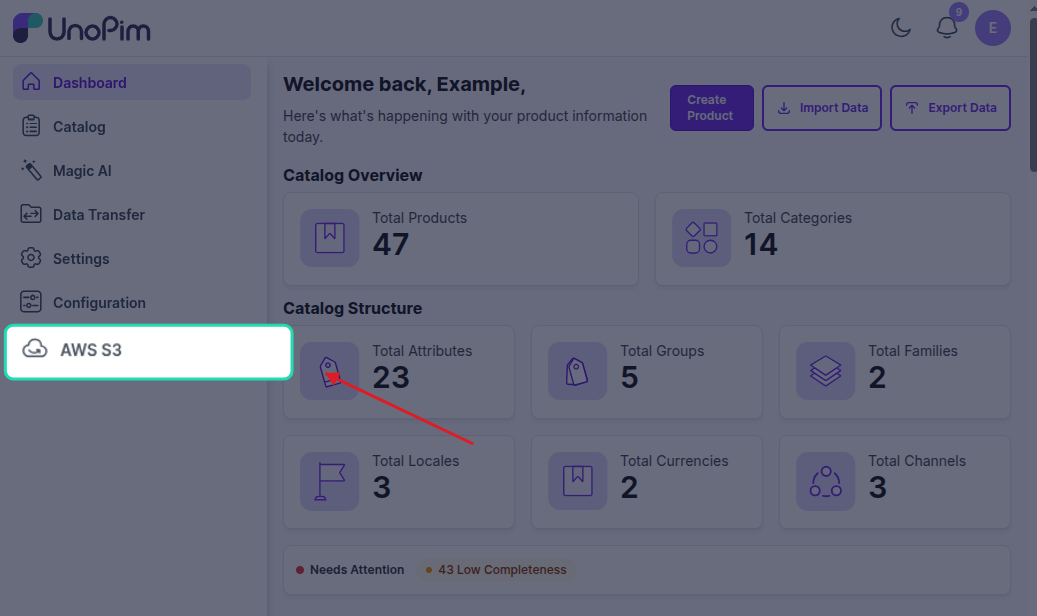
If something doesn't look right, try running php artisan optimize:clear again and refreshing the page.