

Installation
This page is for installing the extension. Once it's installed, see Add your DeepL key to start using it.
Steps
1. Drop the package in place
Place the unzipped extension at:
packages/Webkul/DeepLTranslation/2. Add it to composer.json
In your project's root composer.json:
json
"autoload": {
    "psr-4": {
        "Webkul\\DeepLTranslation\\": "packages/Webkul/DeepLTranslation/src"
    }
}
3. Register the provider
In bootstrap/providers.php:
php
Webkul\DeepLTranslation\Providers\DeepLTranslationServiceProvider::class,NOTE
This registers DeepLTranslationServiceProvider in Laravel so the extension can bootstrap its services, routes, and package configuration during application startup.
4. Install the DeepL SDK
bash
composer require deeplcom/deepl-php:^1.18| Command | Purpose |
|---|---|
composer require deeplcom/deepl-php:^1.18 | Installs the official DeepL PHP SDK dependency required by the extension. |
5. Run the install command
bash
composer dump-autoload
php artisan deepl:install| Command | Purpose |
|---|---|
composer dump-autoload | Regenerates Composer's autoloader mapping to include the newly added namespace. |
php artisan deepl:install | Runs the DeepL package installer and required setup tasks. |
6. Keep a queue worker running
bash
php artisan queue:work| Command | Purpose |
|---|---|
php artisan queue:work | Starts a queue worker to process DeepL translation jobs in the background. |
In production use Supervisor / systemd / Horizon.
7. Give your role permission
Open Settings → Roles, edit the role, and tick the DeepL permissions you want them to have:
- Manage credentials - add / edit / delete DeepL keys.
- Translate fields - use the per-field button and the product wizard.
- Bulk translate - translate many products at once.
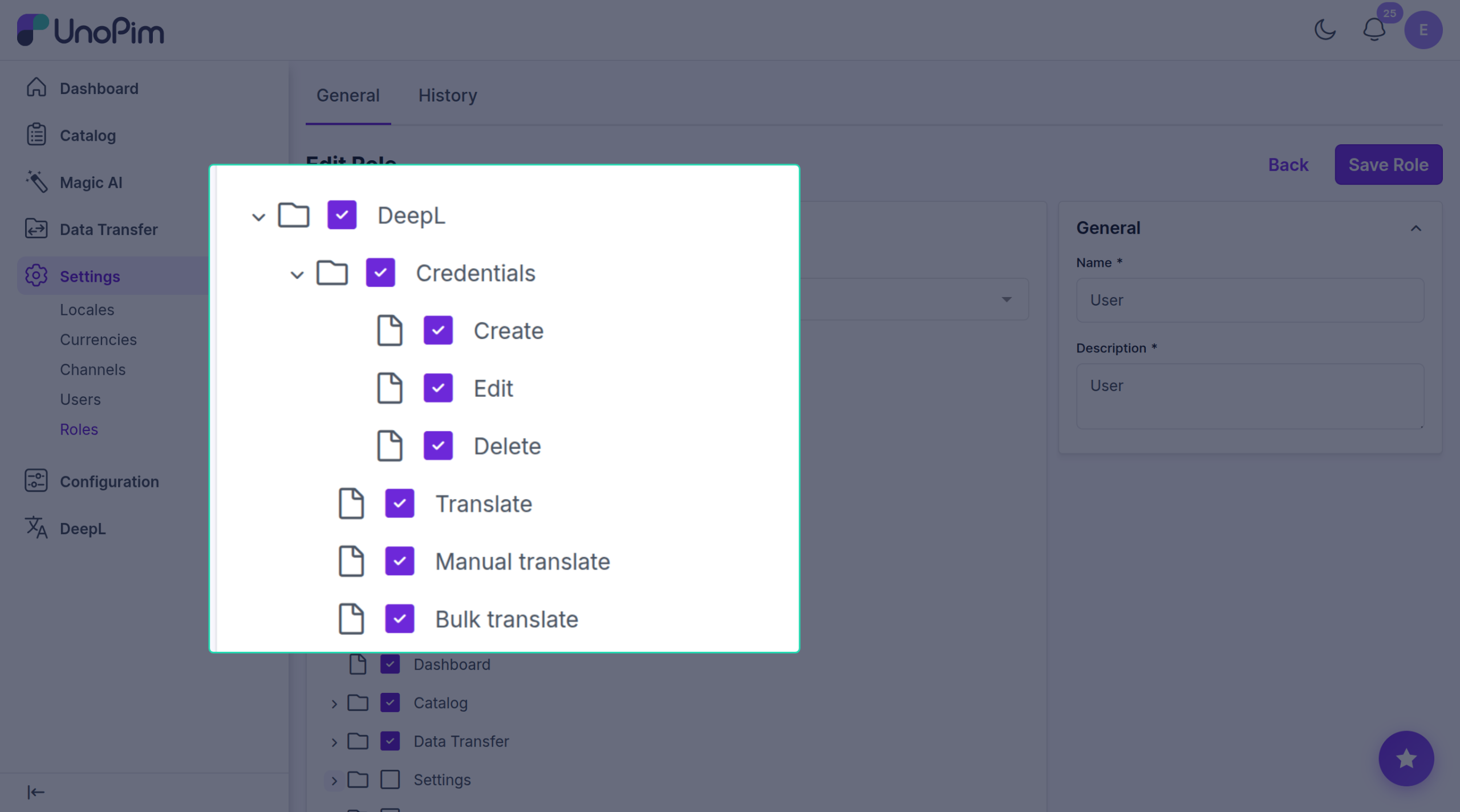
Without these the menu and buttons stay hidden.
Check it worked
- Menu shows up. Open the admin panel - a DeepL menu appears in the sidebar.
- Add a key works. Open DeepL → Credentials → Add Credential and save your key. If the key is wrong, you see a clear error.
- Per-field button shows up. Open any product. A DeepL Translate button appears next to translatable fields.
- Bulk action shows up. Open Catalog → Products, tick a row, and Bulk Translate appears in the actions menu.
If any of these don't work, see Troubleshooting.