

Configuration
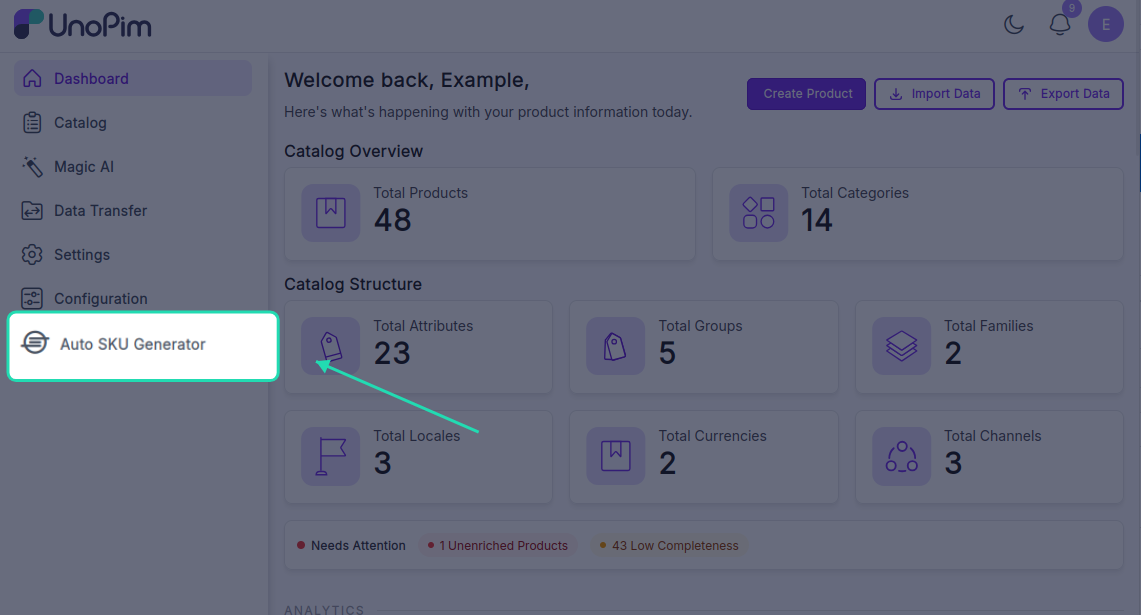
To set up your automatic SKU generation rules, navigate to Admin Panel → Auto SKU Generator in your UnoPim dashboard.
1. General Settings
These settings control the activation and restriction of the SKU generator.
- Enable Auto SKU Generation
Toggles automatic SKU generation on or off. When enabled, new products automatically receive a generated SKU. - Read-Only SKU
Locks the generated SKU field on the product creation form. Enable this to prevent users from manually modifying auto-generated SKUs. (Only works when Auto SKU Generation is ON).
2. Sequence Settings
Auto Start Sequence From
The starting number for the auto-increment sequence (e.g.,1,1001, or2026001). The system increments this number by 1 for each new product.IMPORTANT
Changing this number resets the active counter back to this starting value.
3. SKU Format Settings
Define the structure and format of your generated SKUs.
- Prefix
A fixed text added at the beginning of the SKU (e.g.,SKUorPRD). - Suffix
A fixed text added at the end of the SKU (e.g.,2026orNEW). - SKU Separator
The character separating each part of the SKU. Options include:- Hyphen (
-) →SKU-Red-M-1001 - Underscore (
_) →SKU_Red_M_1001
- Hyphen (
4. Auto Generator Options
Auto Generator Options
Select product attributes (e.g., Color, Size, or Brand) to include in the SKU structure.- How it works: Values of these attributes are automatically extracted and placed into the SKU.
- Example: With a prefix of
PRD, attributesColor(Red) andSize(M), and sequence101, the resulting SKU is:PRD-Red-M-101
NOTE
Only attributes of type select or multiselect that have values assigned to the product are included in the SKU.