

Auto SKU Generator - Usage Guide
Overview
The Auto SKU Generator automatically generates unique SKUs for your products based on your configured format rules. This guide covers three primary usage scenarios.
1. Simple Products
Simple products are standalone items without variants (e.g., a book, individual t-shirt, or single-color item).
How Auto-Generation Works for Simple Products
When you create a simple product with an empty SKU field, the extension generates a SKU using your configured pattern:
[Prefix] + [Attribute Values] + [Sequence Number] + [Suffix]Example:
- Prefix:
APPAREL - Attribute: Color = Red, Size = M
- Sequence: 1001
- Generated SKU:
APPAREL-Red-M-1001
Steps to Create a Simple Product
- Navigate to Catalog → Products
- Click Create Product and select Simple Product
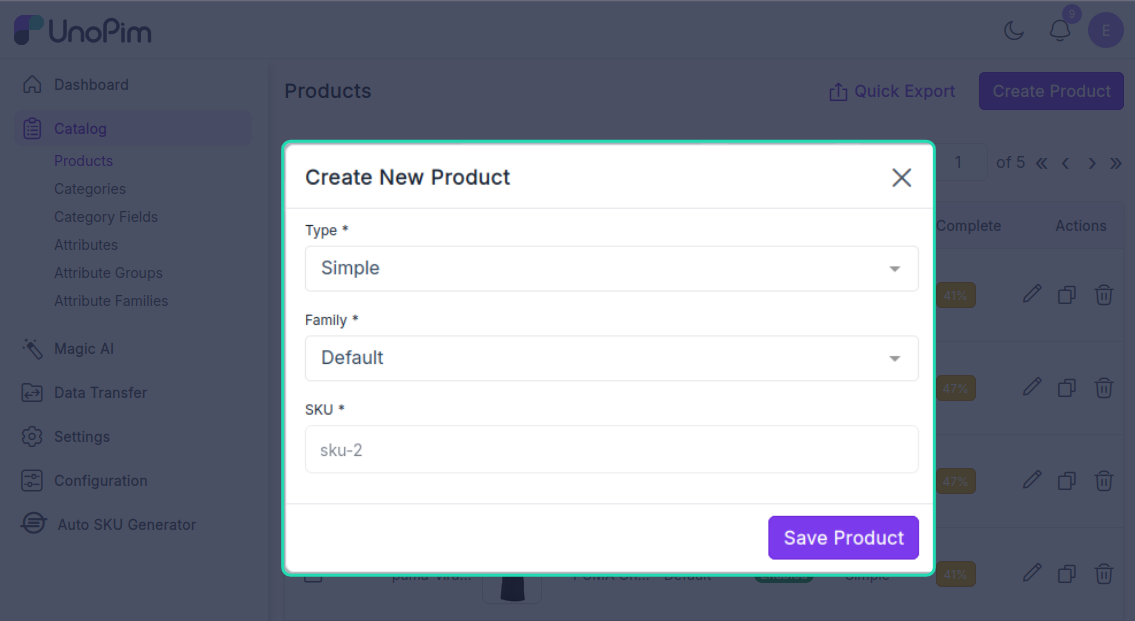
- Fill in product details (type and family)
- Leave the SKU field empty or blank
- The SKU is automatically generated and displayed in real-time as you complete the form
- Click Save Product
Result: Your product is saved with the auto-generated SKU. The next simple product created will receive the next sequential number (e.g., sku-3).
2. Configurable Products
Configurable products are items available in multiple variations (e.g., a t-shirt in different colors and sizes). Each variant automatically receives its own unique SKU.
How Auto-Generation Works for Variants
When you add a variant to a configurable product with an empty SKU field, the extension generates a unique SKU for that variant:
[Prefix] + [Color] + [Size] + [Sequence Number] + [Suffix]Example with Multiple Variants:
- Variant 1 (Red, Small):
TSH-Red-Small-2000 - Variant 2 (Red, Medium):
TSH-Red-Medium-2001 - Variant 3 (Blue, Small):
TSH-Blue-Small-2002
Each variant gets its own unique sequence number, ensuring no duplicate SKUs.
Steps to Add Variants
- Create a Configurable Product and fill in base details
- Navigate to the Variants section
- Click Add Variant
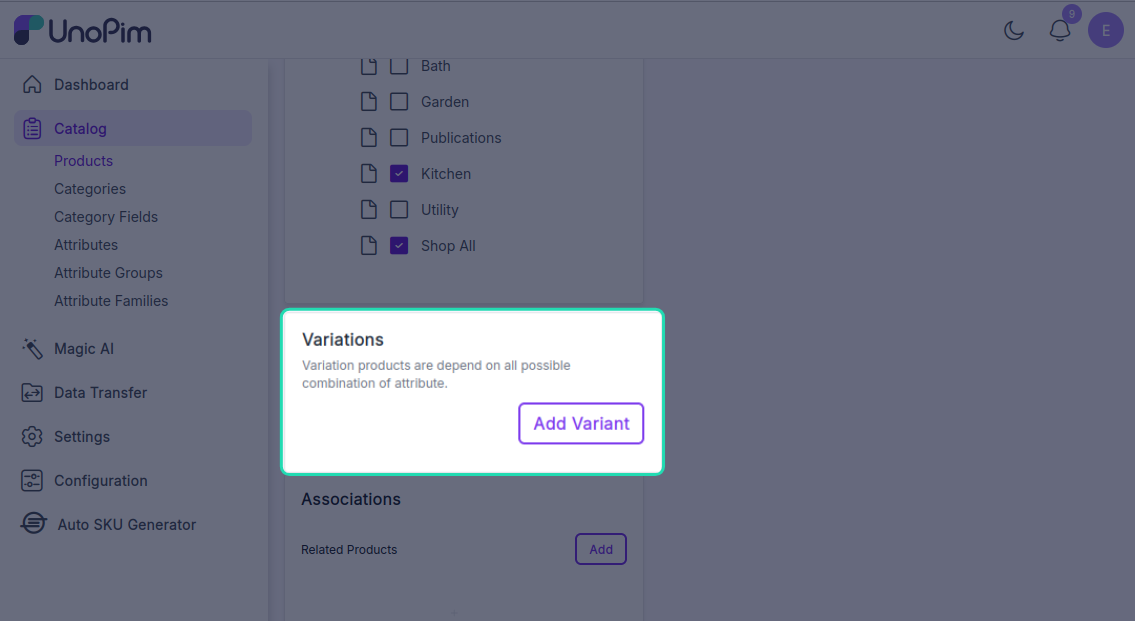
- Select attribute values for the variant (e.g., Color: Red, Size: Medium)
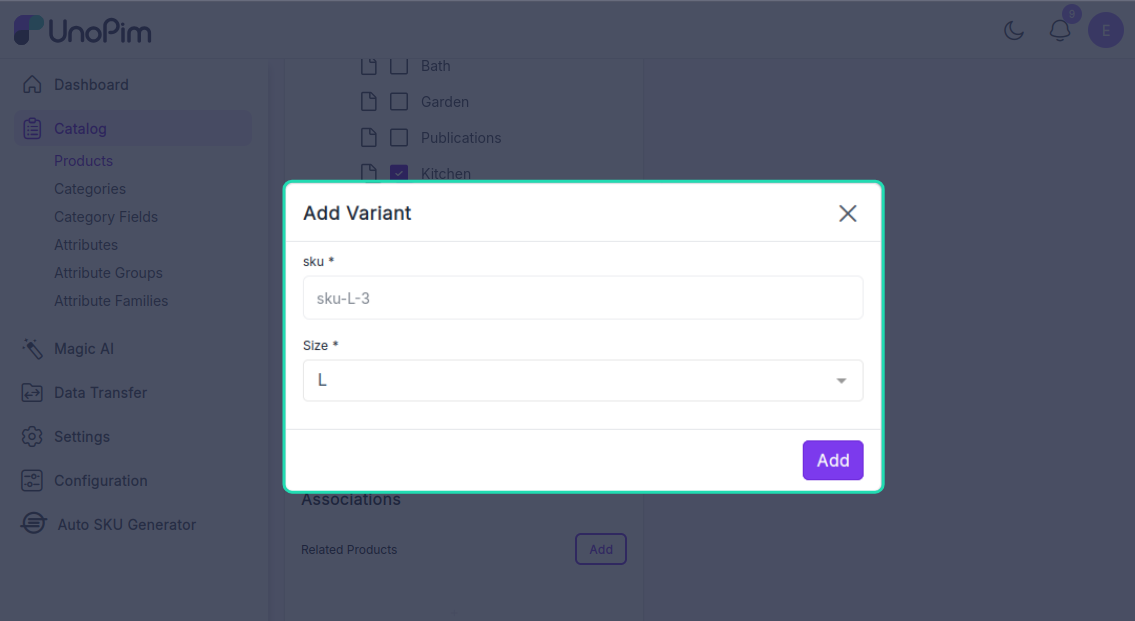
- Leave the SKU field empty for auto-generation
- The variant SKU is automatically generated based on the selected attributes
- Repeat to add additional variants
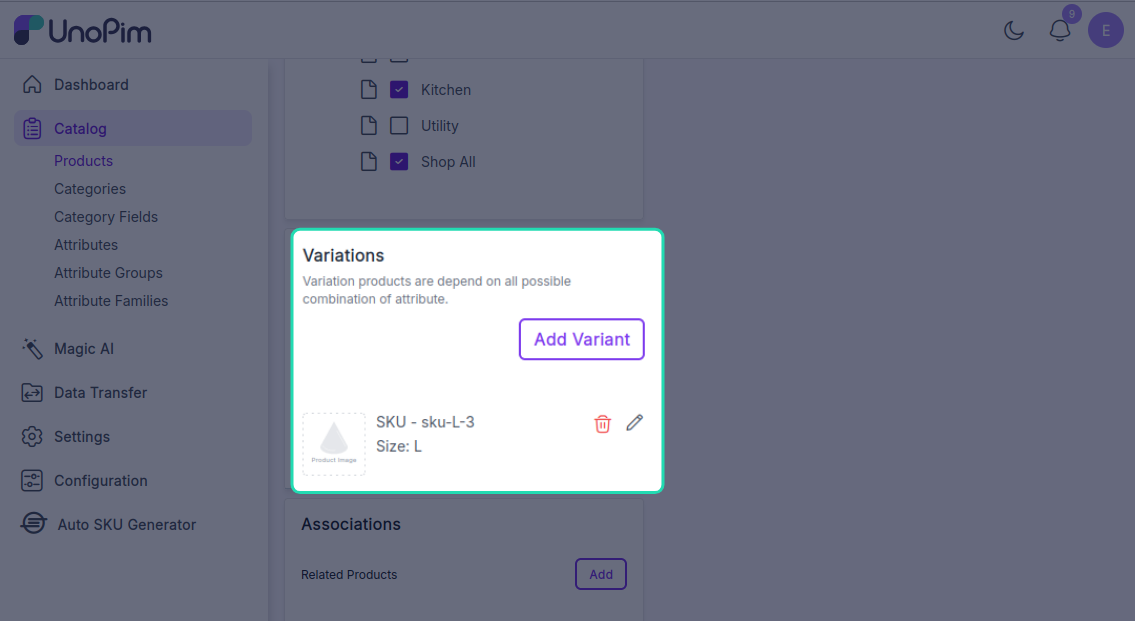
- Click Save to save all variants
Result: Each variant is saved with its own unique auto-generated SKU.
Manual SKU Entry (Optional)
If you need a custom SKU for a specific variant:
- In the variant form, enter a custom SKU instead of leaving it blank
- The auto-generator will skip this variant
- Other variants continue to receive auto-generated SKUs normally
3. Product Imports
When importing products from external sources or bulk operations, SKU handling follows specific rules. There are three distinct import scenarios, each with different requirements and outcomes.
Scenario A: Import Without SKU (Recommended)
This is the recommended approach when you want the Auto SKU Generator to automatically create SKUs for imported products.
When to Use: You have product data without SKU values, or you want auto-generated SKUs for consistency.
Step 1: Prepare Your Import File
- Navigate to Data Transfer → Import
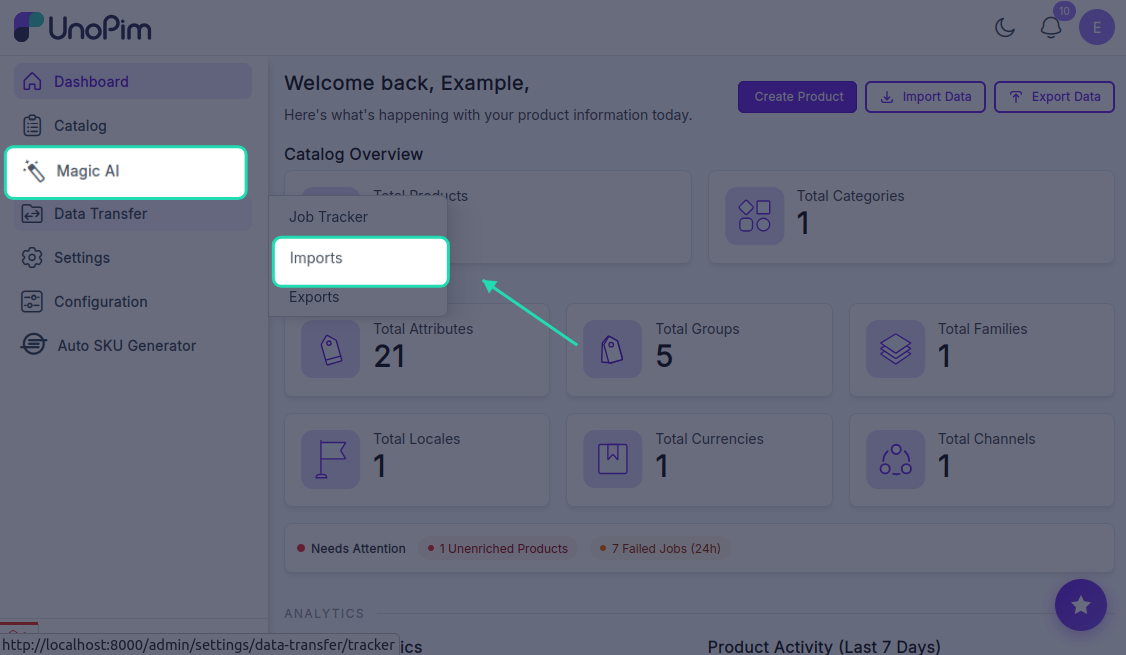
- Click on Create Import
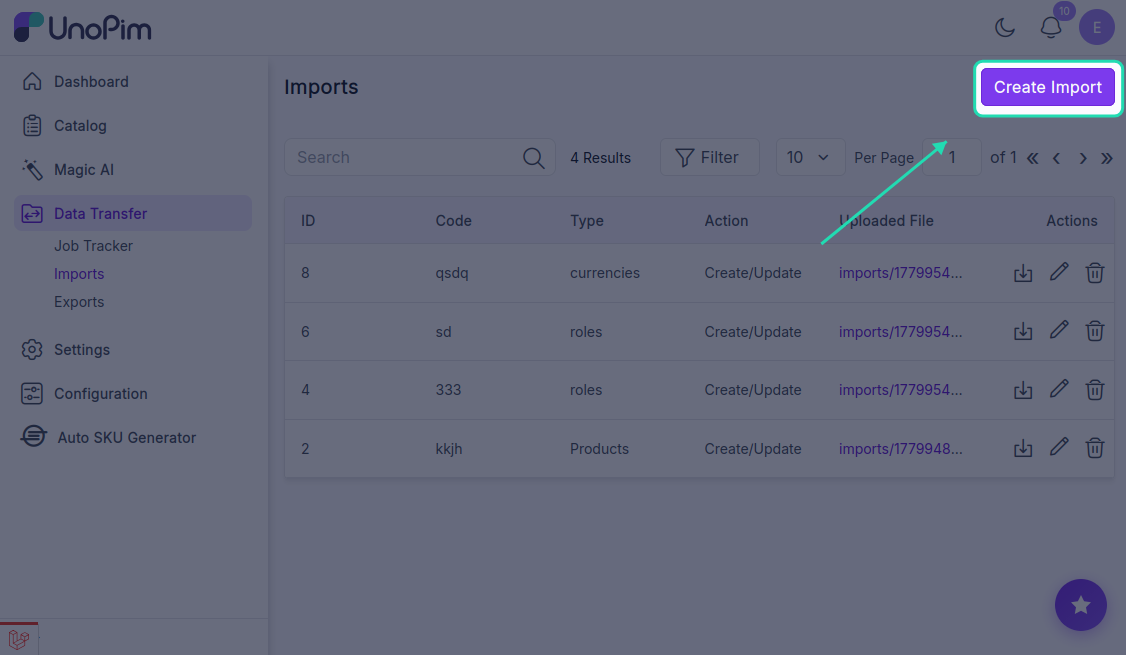
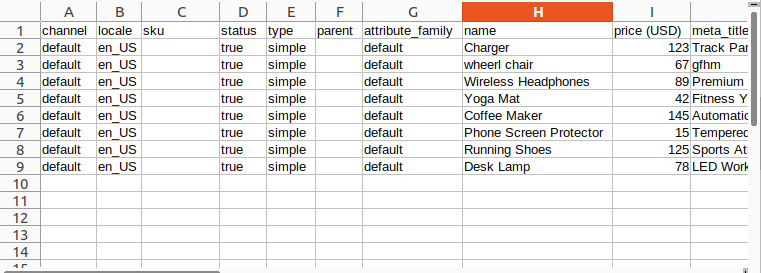
- Create a CSV or Excel file with the following:
- Required columns: Product Name, Description, Price
- SKU column: Leave empty.
Example File Structure:
Step 2: Upload Your File
- Click Choose File and select your prepared file
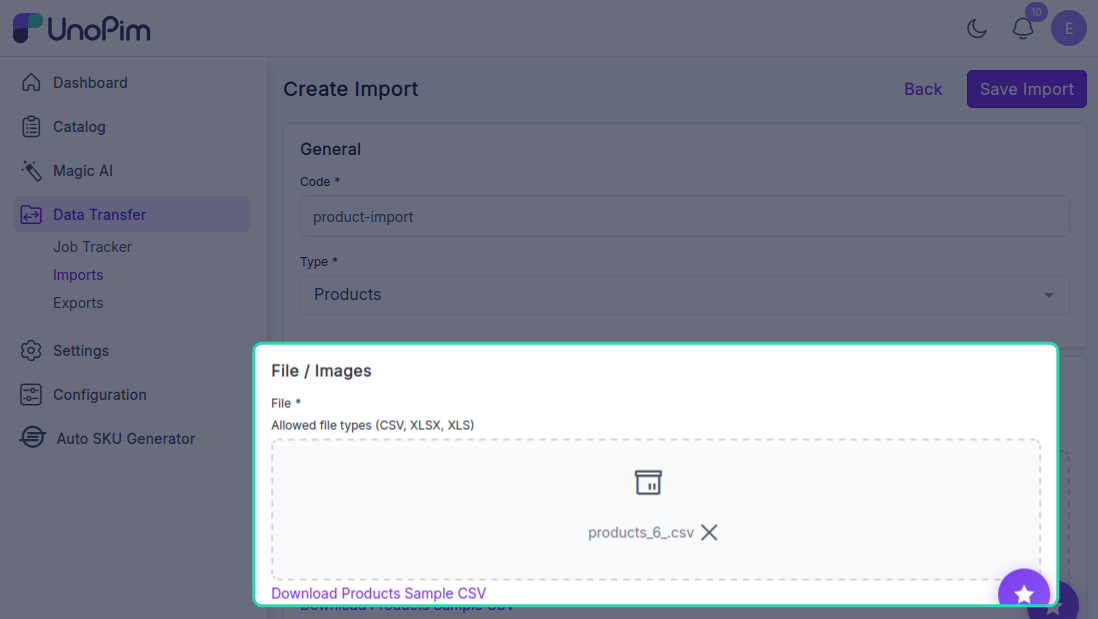
- After uploading, click on Save Import to proceed to the next step
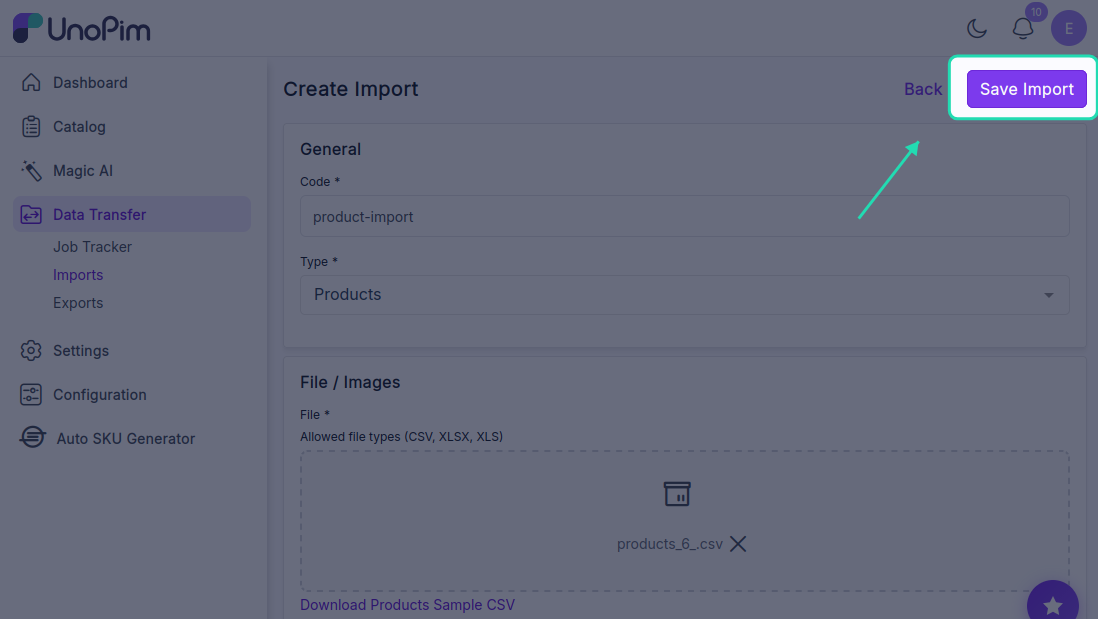
Step 4: Start the Import
- Click Import Now to begin the import process
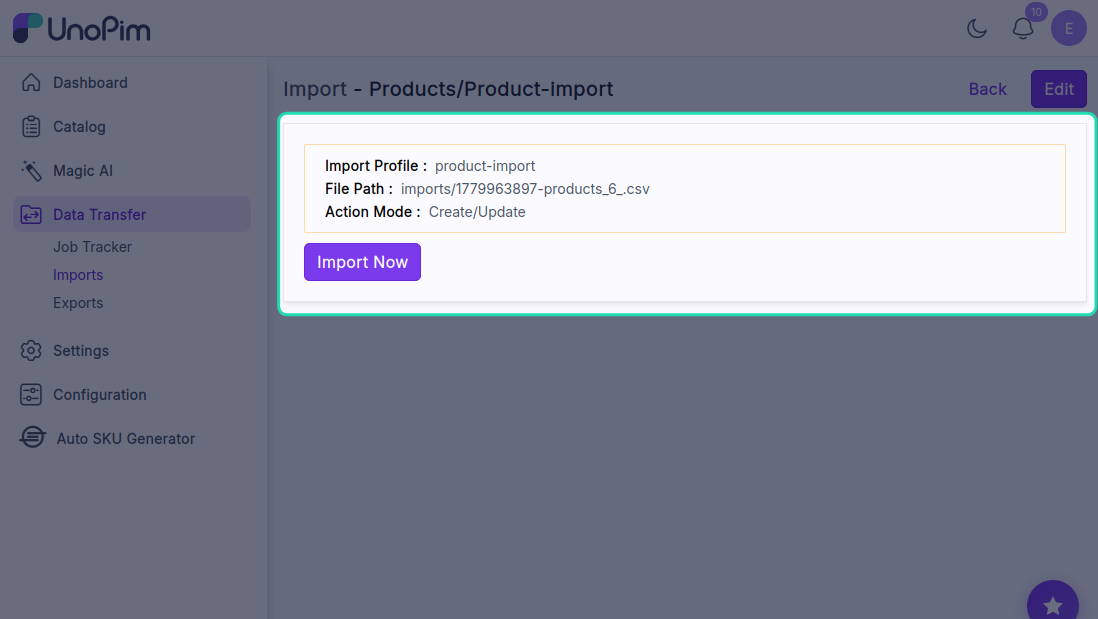
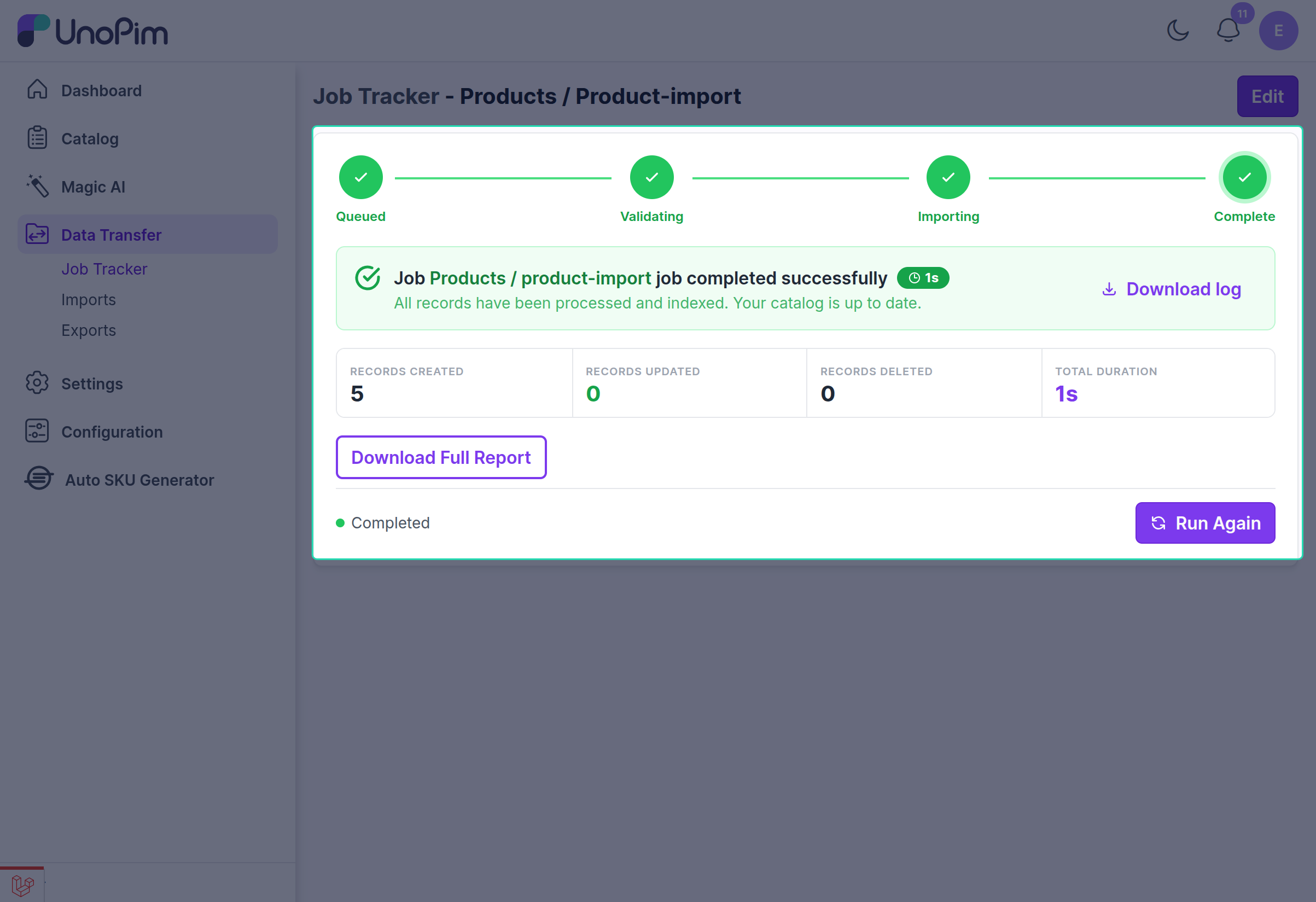
Step 5: Verify Results
- Navigate to Catalog → Products
- Locate your newly imported products
- Confirm each product has an auto-generated SKU
What Happens:
- All products are imported successfully
- Each product receives a unique auto-generated SKU
- SKU sequence counter increments for each product
- No products are skipped
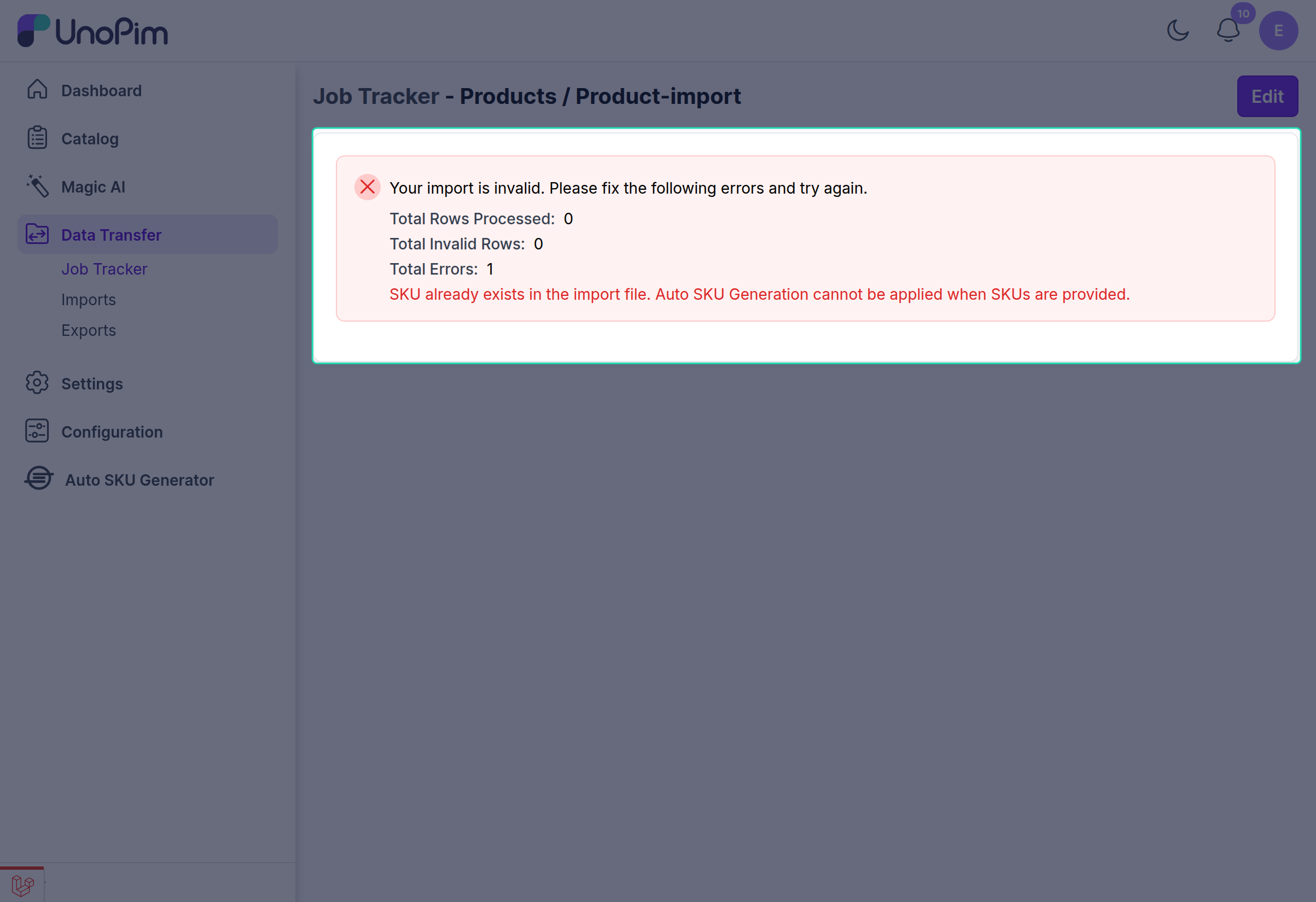
Scenario B: Import With SKU (Not Supported Directly)
When your import file contains pre-defined SKU values, the standard import process does not import those products.
Example:
Workaround: Remove SKUs and Re-Import
If you need to import products that have existing SKU data:
Step 1: Modify Your Import File
- Open your import file in a spreadsheet application
- Locate the SKU column
- Delete the entire data in the SKU column or clear all values in it
- Save the modified file
Before:
Product Name | SKU    | Price | Color
Red Shirt    | RS-001 | 29.99 | Red
Blue Shirt   | BS-001 | 29.99 | Blue
After:
Product Name |SKU| Price | Color
Red Shirt    |   |29.99 | Red
Blue Shirt   |   |29.99 | Blue
Example:
Summary Table
| Scenario | SKU Field Status | Auto-Generation | Result |
|---|---|---|---|
| Create Simple Product | Empty | Yes | SKU auto-generated |
| Create Simple Product | Filled | No | Custom SKU preserved |
| Add Configurable Variant | Empty | Yes | Variant SKU auto-generated |
| Import Without SKU | Empty | Yes | Product imported with auto-generated SKU |
| Import With SKU | Filled | No | Product not imported |