

Exporting Data
The UnoPim Bagisto Connector provides comprehensive export functionality, allowing users to seamlessly export mapped data from UnoPim to their Bagisto store through dedicated export jobs.
Available Export Types
The connector supports the following export job types:
- Bagisto Product Export - Export products with advanced filtering options
- Bagisto Attribute Export - Export attribute configurations
- Bagisto Attribute Family Export - Export attribute family structures
- Bagisto Category Export - Export category hierarchies and meta information
Setting Up Export Jobs
To configure an export job:
- Navigate to Data Transfer > Exports
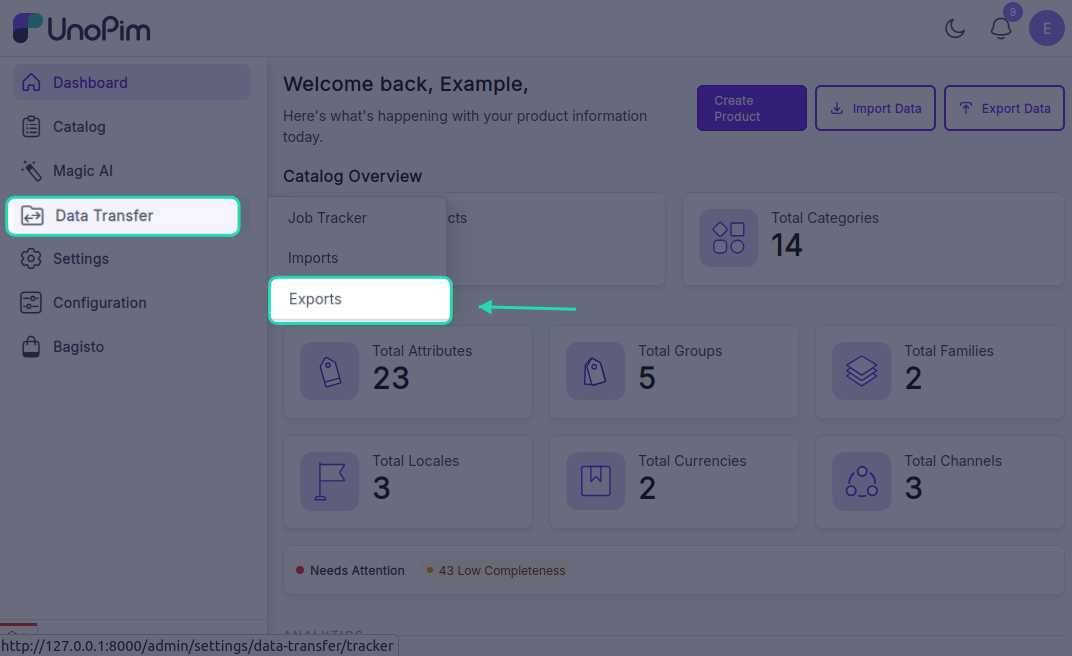
- Click on the Create Export button
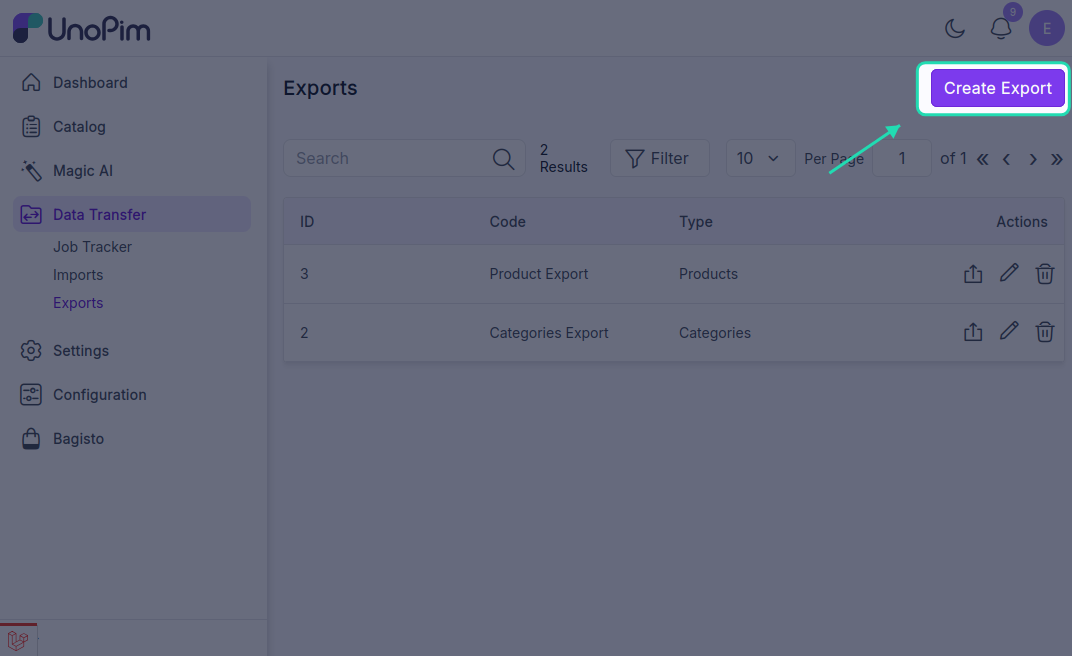
- You'll be redirected to the export job creation page
Export Job Configuration
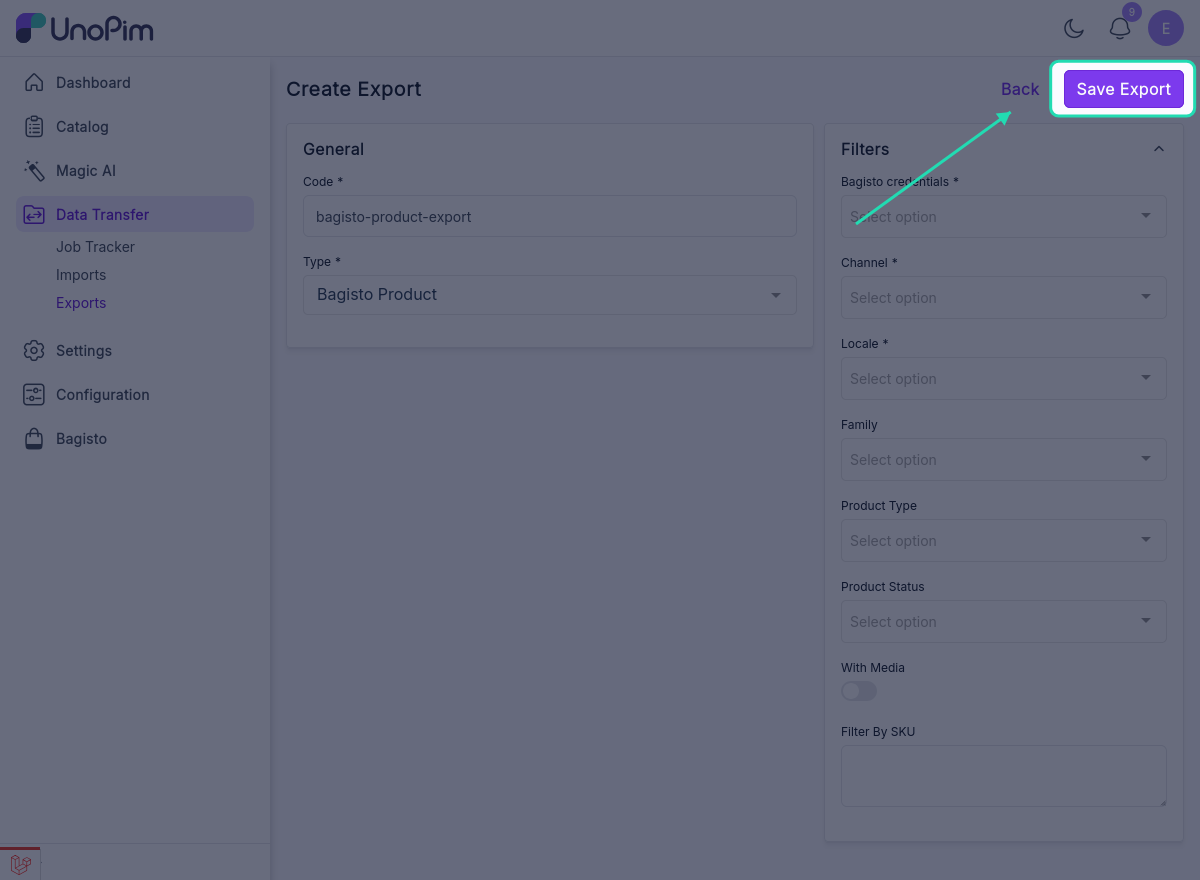
Basic Information
- Export Job Code - Enter a unique identifier for your export job
- Type of Export Job - Select the export type from the dropdown menu
Bagisto Product Export
The Bagisto Product export allows you to export products from UnoPim to your Bagisto store with advanced filtering options.
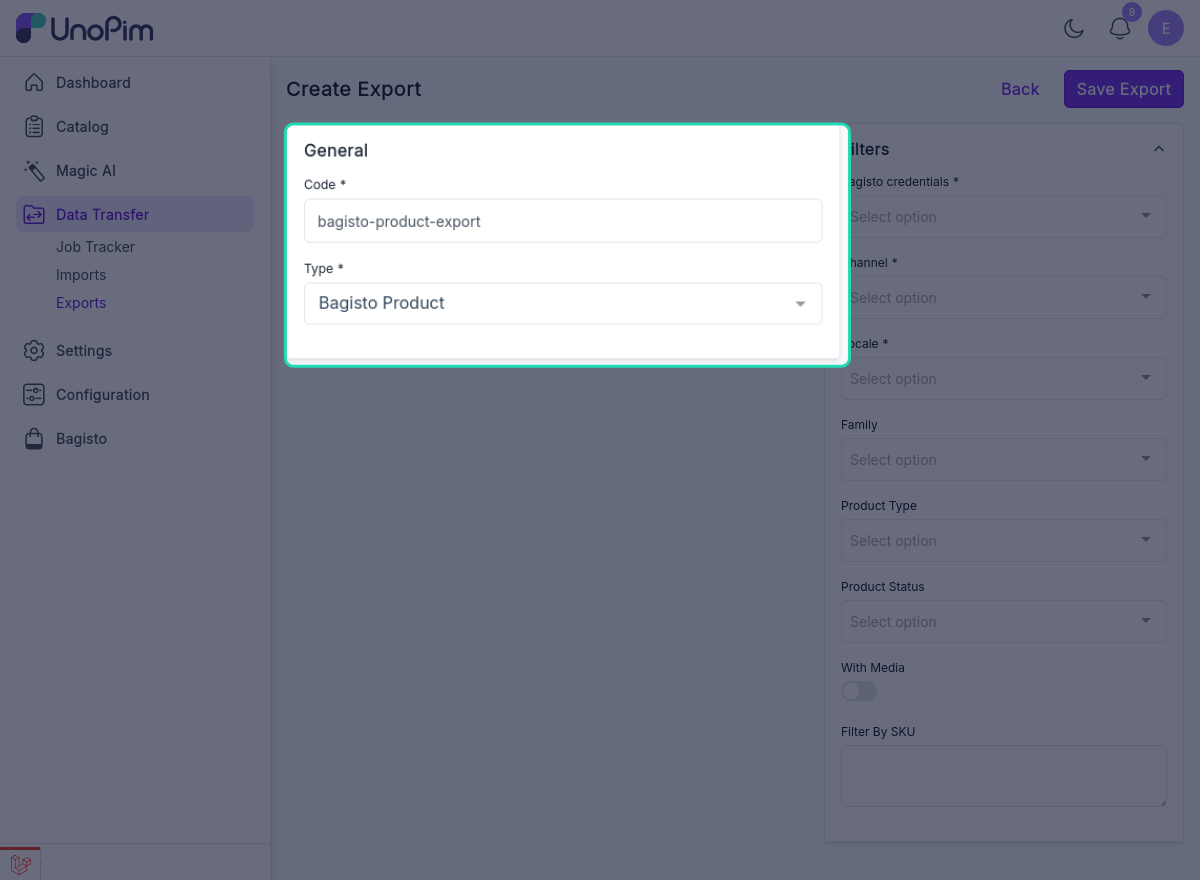
Available Filters
Configure the following filters to customize your product export:
- Bagisto Credentials - Select the Bagisto store credential to export to
- Select Mapping Template - Choose the mapping template for attribute mapping
- Channel - Select the required sales channel
- Locale - Choose the necessary locale/language
- Family - Select the product family or leave blank for all families
- Product Type - Specify the type of products to export
- Product Status - Filter by product status (active, inactive, draft, etc.)
- With Media - Enable or disable media export (images, attachments, etc.)
- Filter by SKU - Search and filter products by specific SKU(s)
- Start Page - Specify the starting page number for pagination
- End Page - Specify the ending page number for pagination
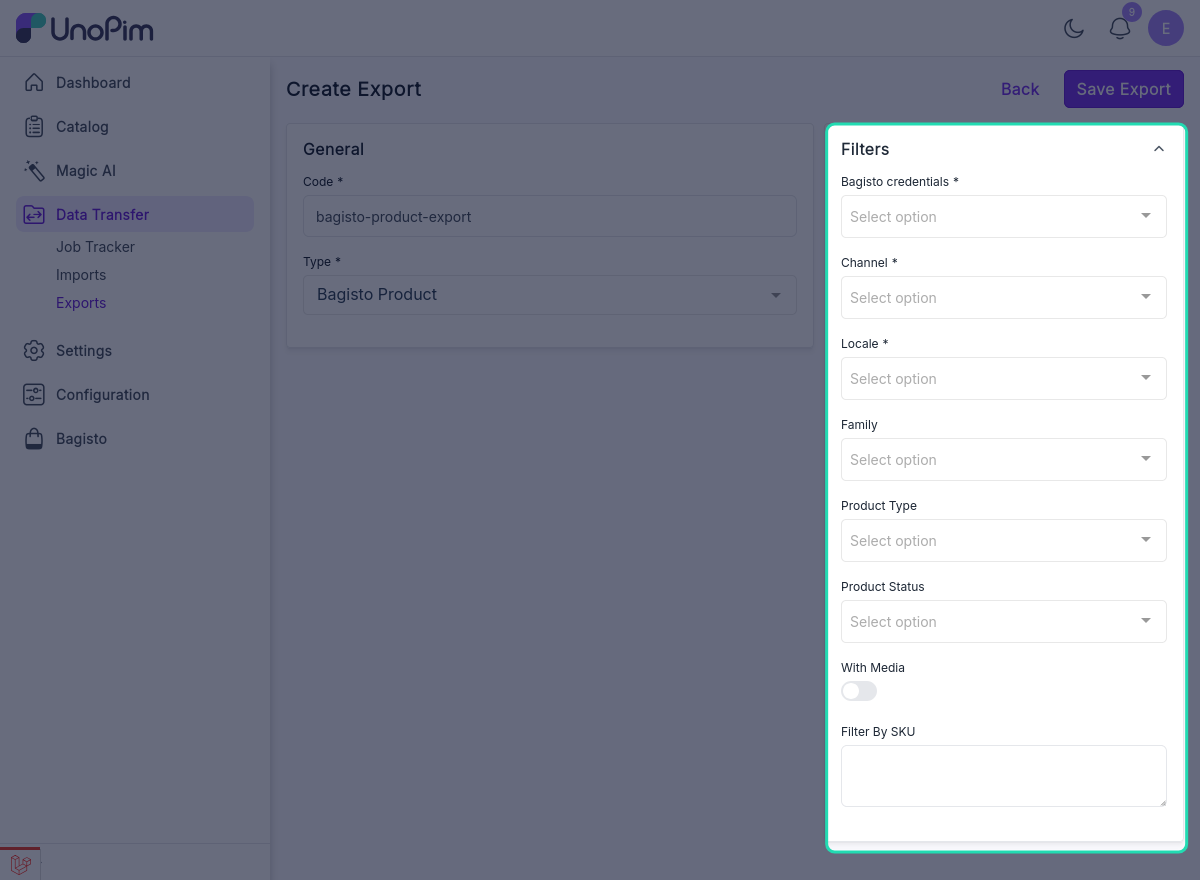
Saving and Running the Export Job
- Click the Save Export button to save the export job configuration
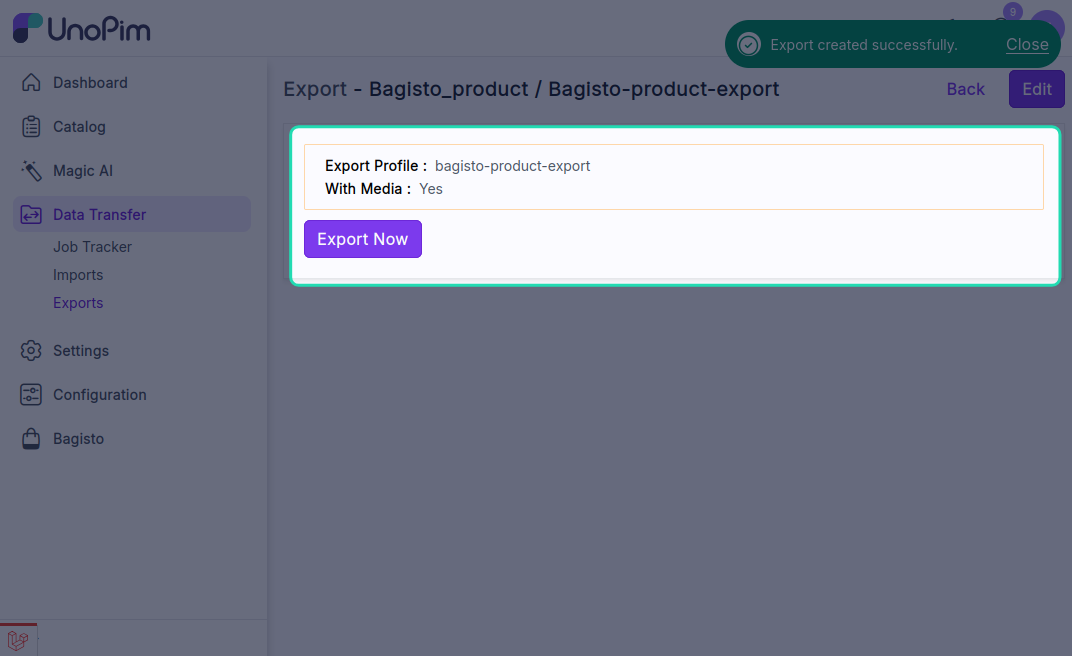
- Run the export job by clicking the Run button
- Monitor the export progress in the Job Tracker
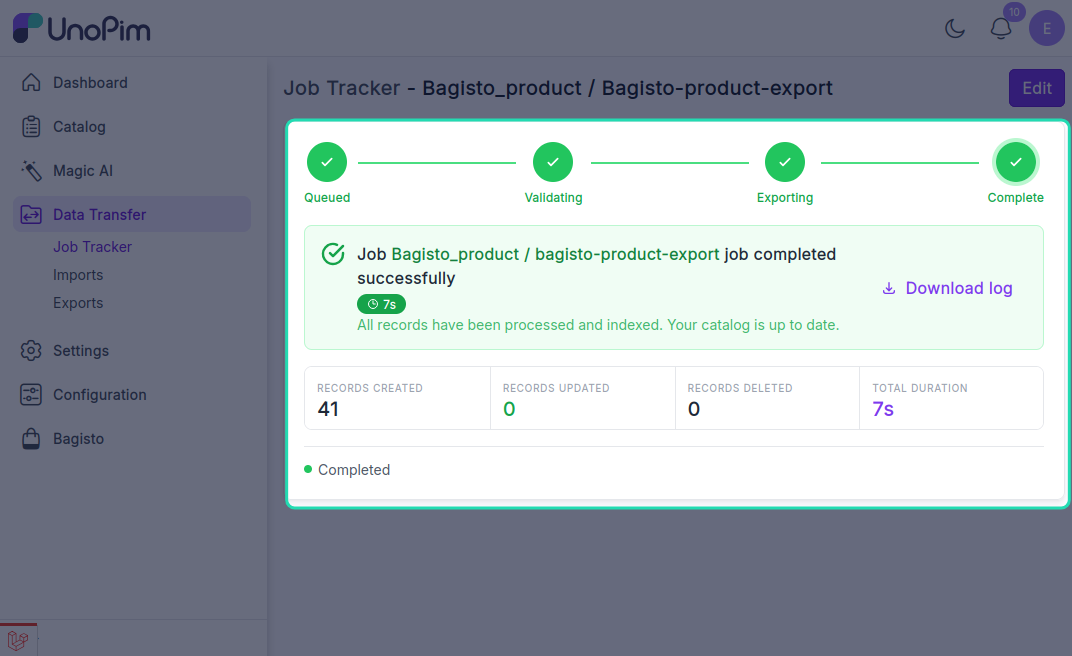
The Job Tracker provides real-time visibility into the export process, including progress percentage, status updates, and any errors encountered during execution.