

Execution History
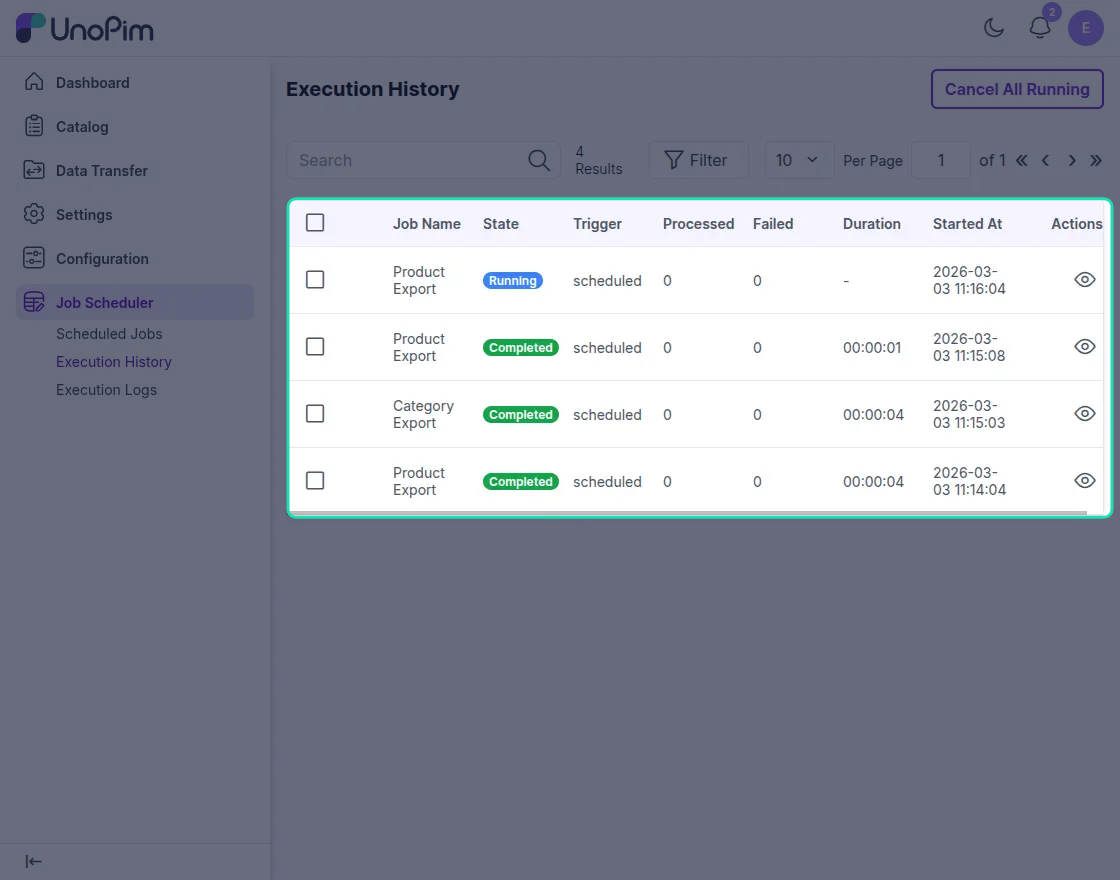
The Execution History section shows all scheduled jobs that have run in the system. It helps administrators track job activity, review execution results, and quickly identify failed or long-running jobs.
Open Job Scheduler from the UnoPim sidebar and click Execution History to view the list of executed jobs.
What You Can See in Execution History
Each row in the grid represents one job execution. The following details are available:
| Column | Description |
|---|---|
| Job Name | Displays the name of the scheduled job, such as Product Export or Category Export. |
| State | Shows the current job status, such as Running, Completed, or Failed. |
| Trigger | Indicates how the job was started, such as a scheduled run. |
| Processed | Shows how many records were processed during the execution. |
| Failed | Shows how many records failed during processing. |
| Duration | Displays how long the job took to complete. |
| Started At | Shows the date and time when the job started. |
View Job Execution Details
To inspect a specific job run:
- Go to Job Scheduler > Execution History.
- Find the job execution you want to review.
- Click the View icon under the Actions column.
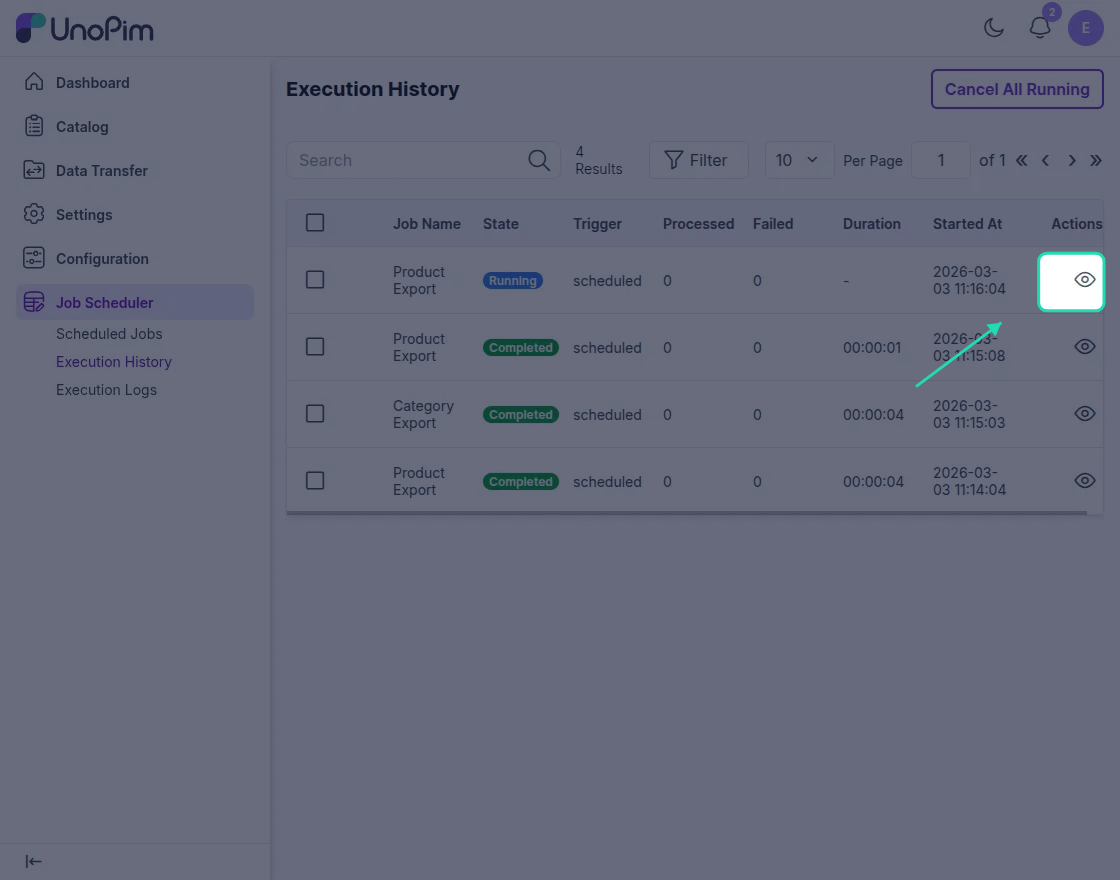
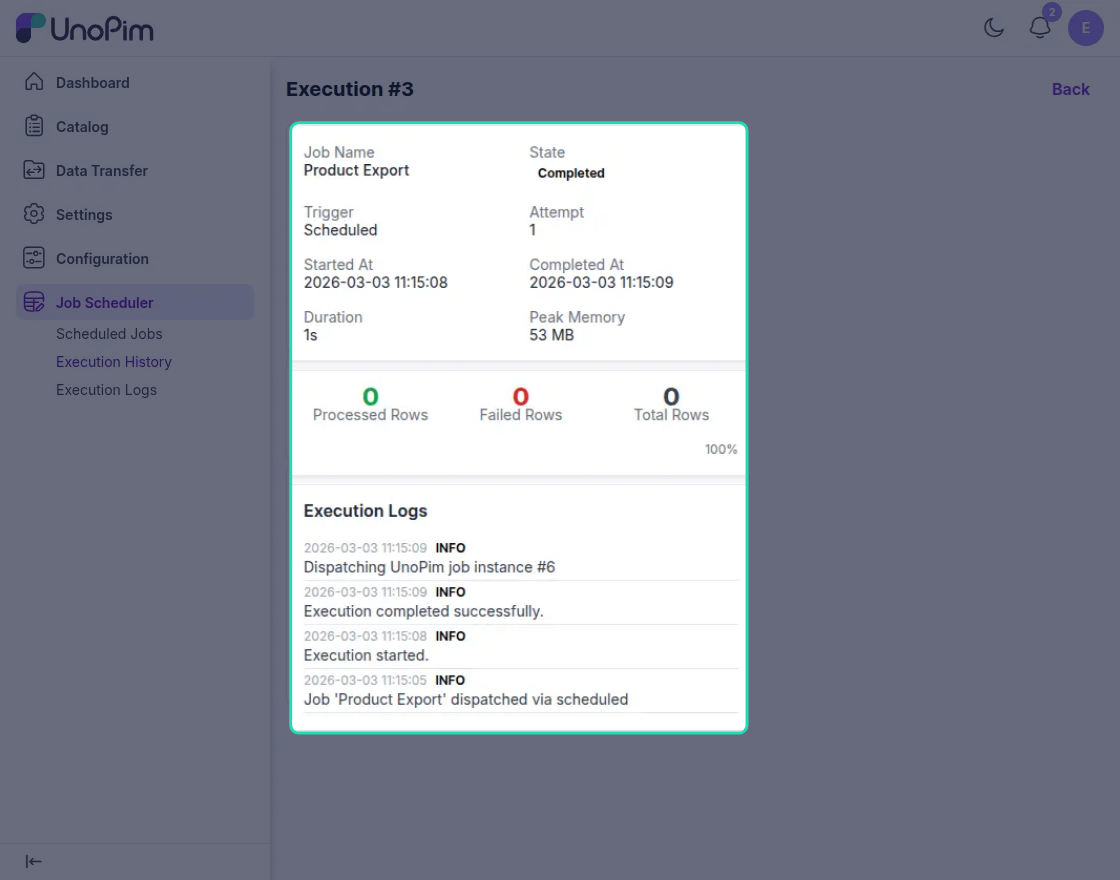
This opens the Job Execution History Details page, where you can review more information about that particular execution.
Cancel Running Jobs
If one or more jobs are still in progress, you can stop them directly from the execution details page.
- Open the required job execution from Execution History.
- Click Cancel All Running.
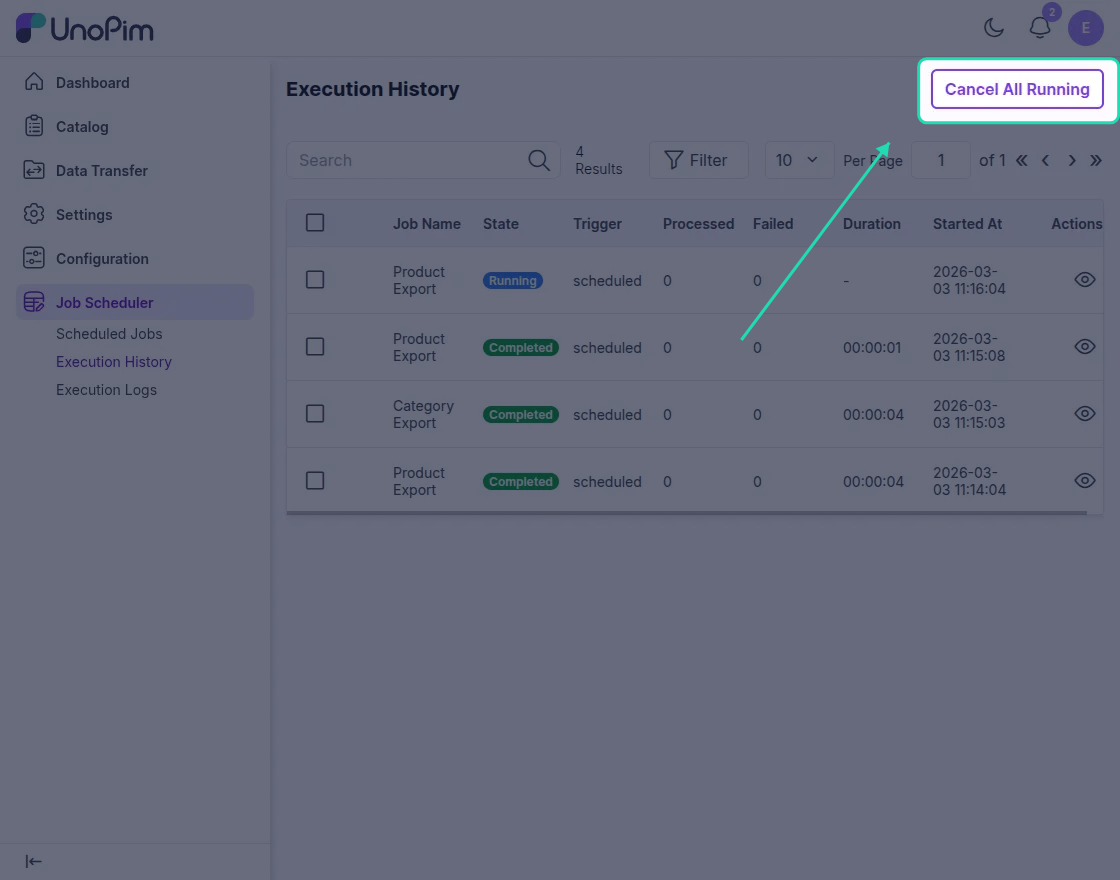
Use this action when a job is stuck, taking too long, or needs to be stopped before completion.
Note: Only jobs that are currently in the Running state can be cancelled.