

Generating WooCommerce API Credentials
Before connecting WooCommerce to UnoPim, you need to generate an API key from your WooCommerce store. This key allows UnoPim to securely communicate with WooCommerce on your behalf.
The whole process takes just a couple of minutes. Follow the steps below.
Step 1 Open WooCommerce Settings
Log in to your WordPress admin panel and go to WooCommerce → Settings.
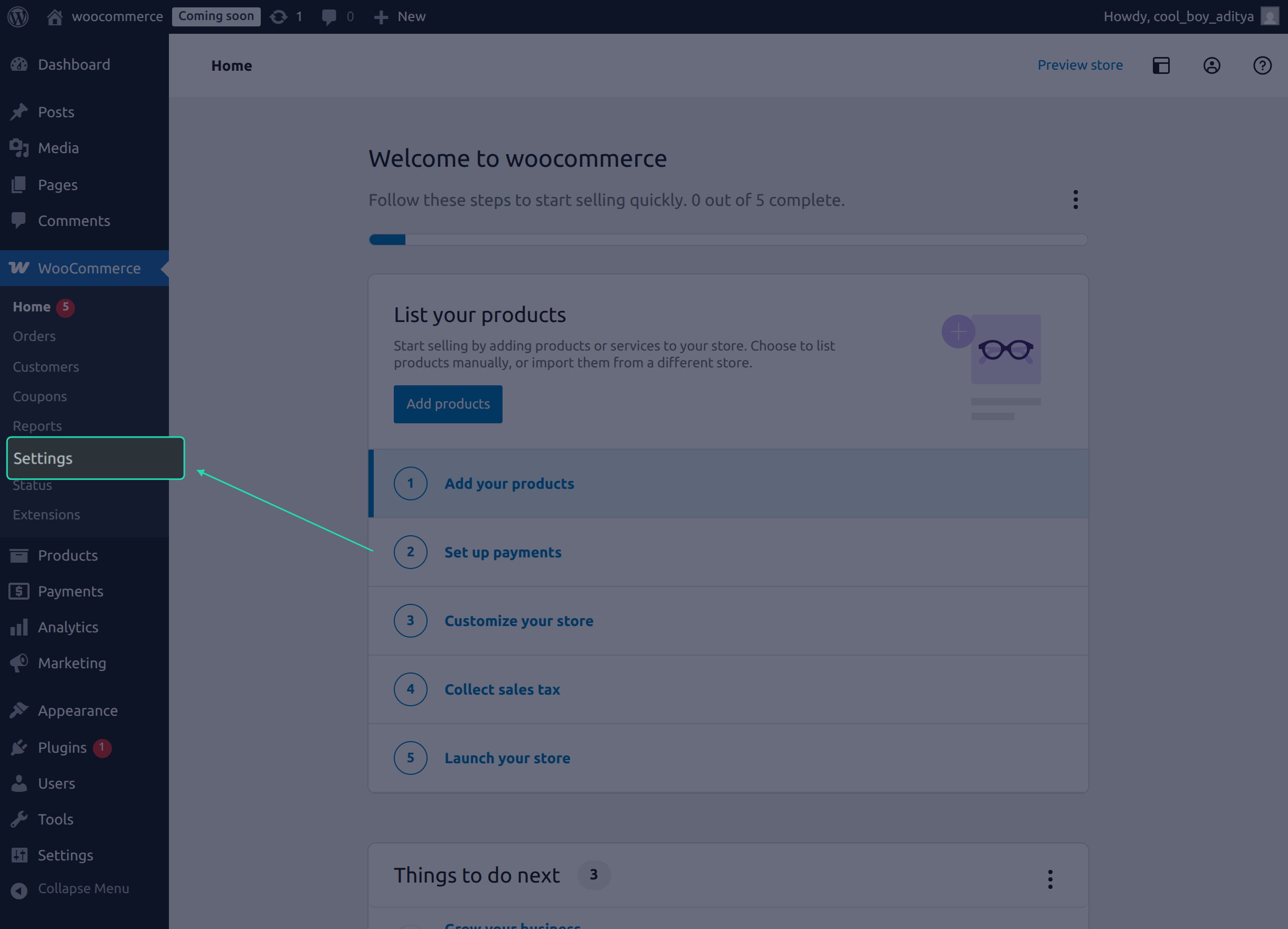
Step 2 Go to the REST API Section
From the Settings page, click the Advanced tab in the top navigation bar. Then click on REST API from the sub-menu.
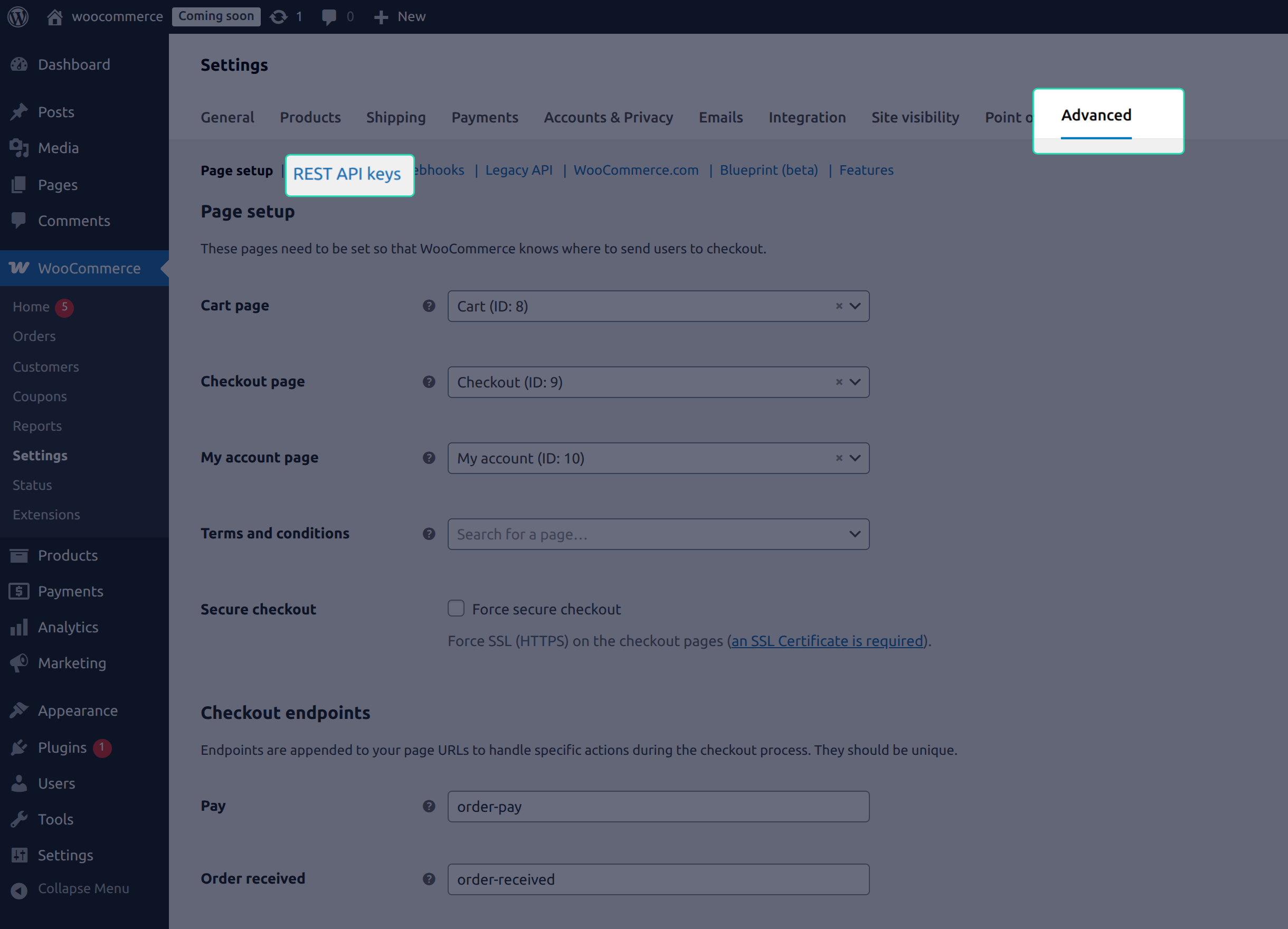
This page lists all existing API keys for your store. You'll create a new one here.
Step 3 Add a New Key
Click the Add Key / Create API Key button.
Fill in the following details on the form that appears:
| Field | What to enter |
|---|---|
| Description | A label to identify this key e.g., UnoPim Integration |
| User | Select the WordPress user this key belongs to Admin is selected by default |
| Permissions | Select Read/Write |
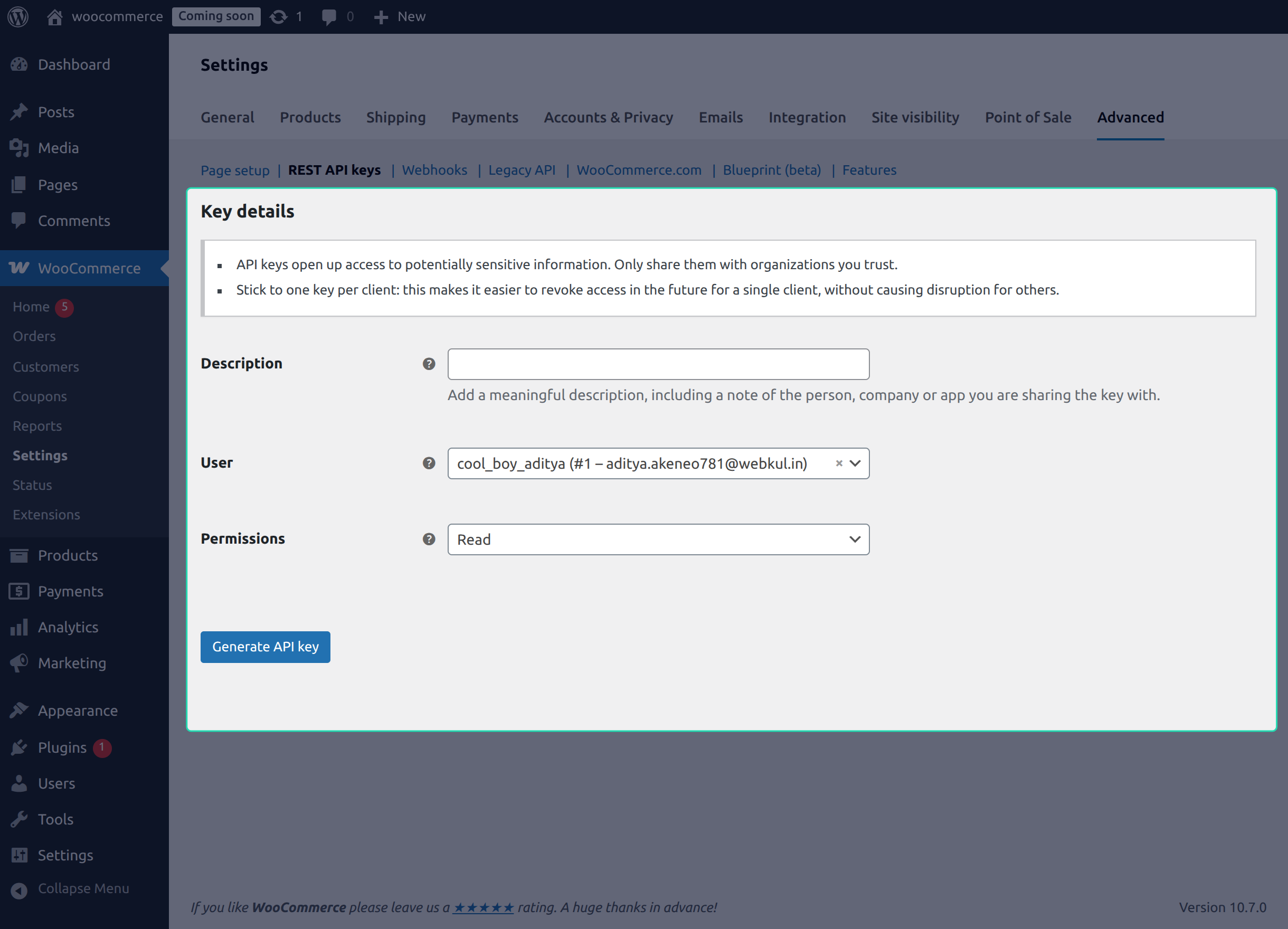
Important: UnoPim requires Read/Write permission to export and import data between the two platforms. Selecting Read Only will cause exports to fail.
Step 4 Generate the API Key
Once all fields are filled in, click Generate API Key.
WooCommerce will generate and display three items:
| Item | What it's used for |
|---|---|
| Consumer Key | Used to authenticate UnoPim with your WooCommerce store |
| Consumer Secret | Used alongside the Consumer Key for secure authentication |
| Barcode | A visual reference for the key not used in UnoPim |
Important: This is the only time WooCommerce will display the Consumer Secret in full. Copy both the Consumer Key and Consumer Secret immediately and store them somewhere safe. If you lose the secret, you'll need to delete this key and generate a new one.
What You Now Have
You'll need the following two values to set up credentials in UnoPim:
- Consumer Key
- Consumer Secret