

Setup Credentials in UnoPim
Once the UnoPim WooCommerce Connector is installed, it becomes available in the left-side menu of the UnoPim admin panel.
From there, go to WooCommerce > Credentials > Create to add a new WooCommerce account and connect it with UnoPim.
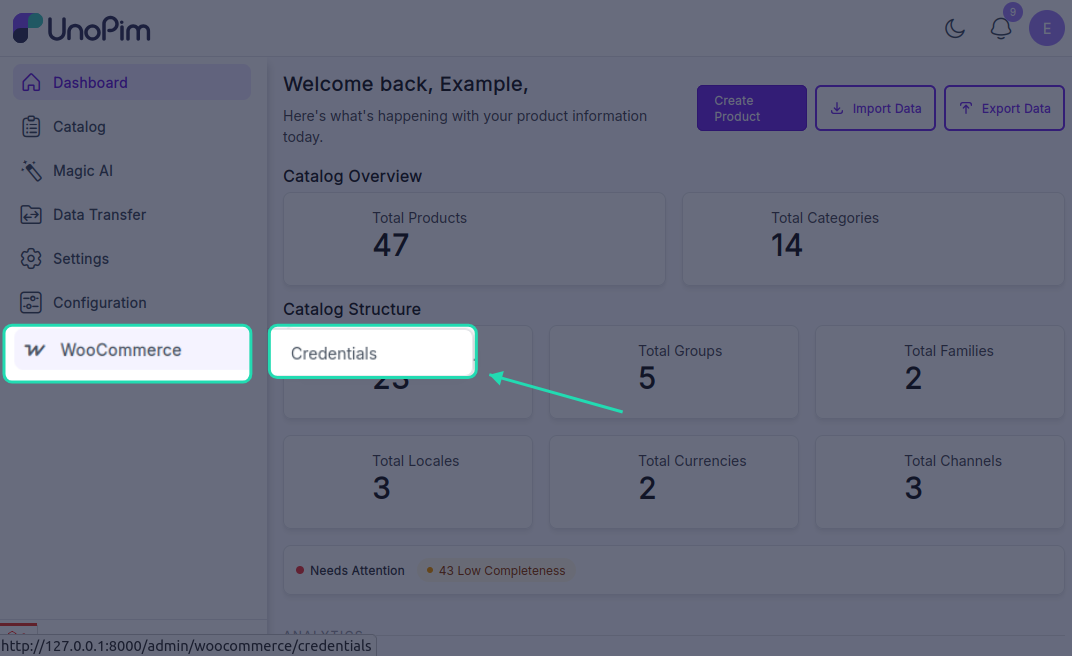
This credential setup allows UnoPim to communicate securely with your WooCommerce store for product, category, attribute, and variation synchronization.
Create a New Credential
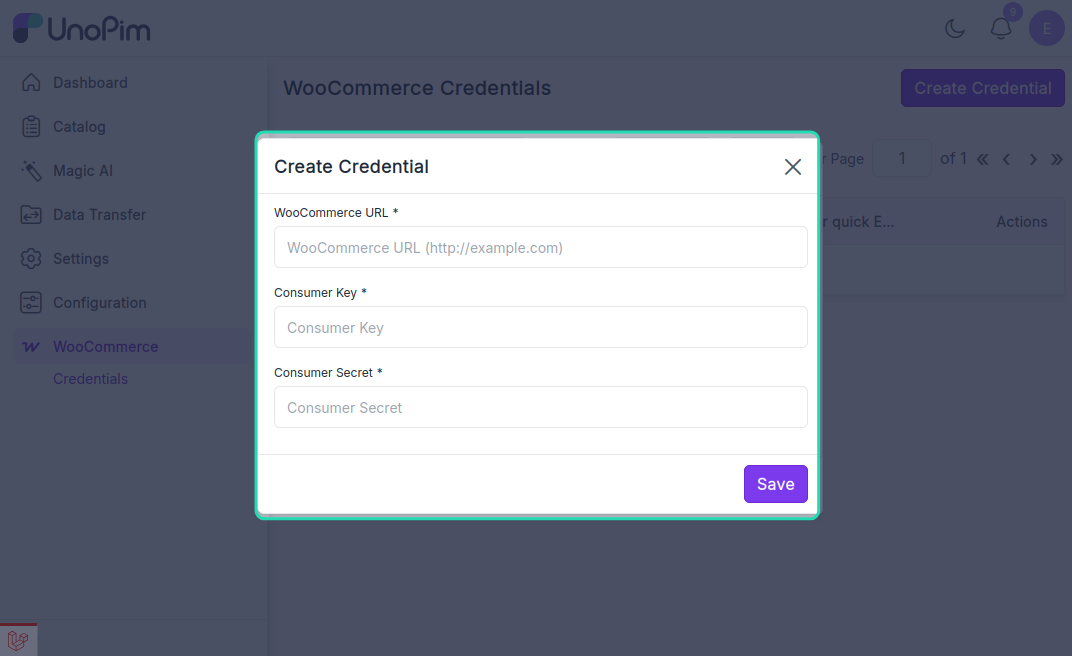
While creating a new credential, the admin needs to enter the following details:
General Details
- WooCommerce URL: Enter the full URL of your WooCommerce store.
- Consumer Key: Enter the Consumer Key generated from WooCommerce.
- Consumer Secret: Enter the Consumer Secret generated from WooCommerce.
Settings
The connector also provides the following configuration options:
- Is Active: This option is enabled by default when a new credential is created. You can enable or disable the credential at any time by toggling this option.
- Default for Quick Export: Enable this option if you want to use the credential for WooCommerce quick export jobs.
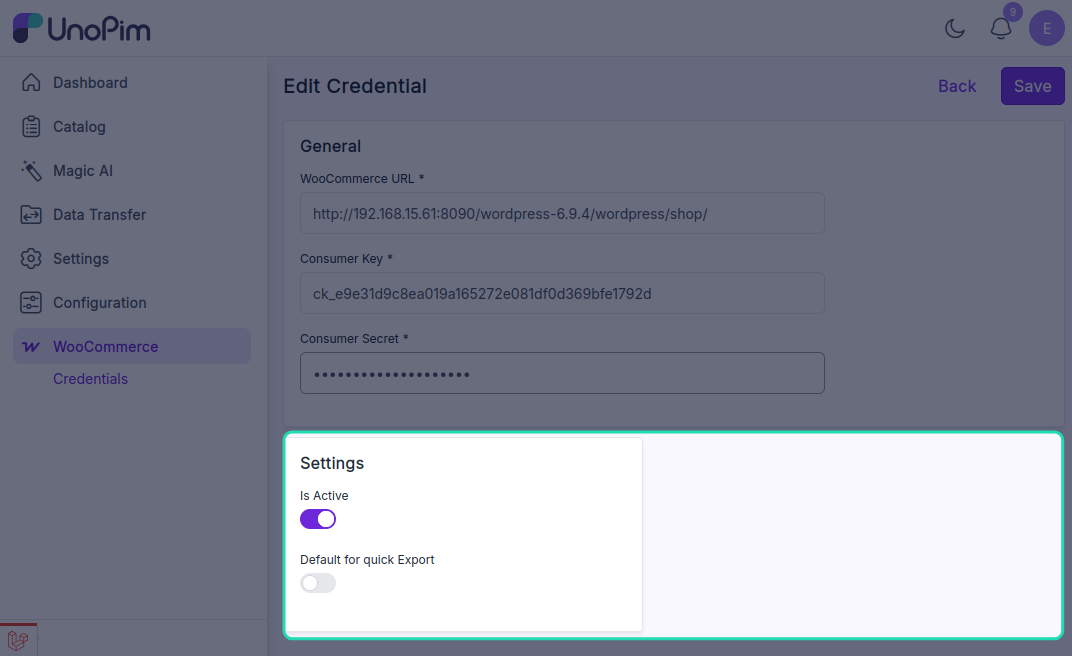
Note: Only one credential can be set as the default for quick export at a time.
Navigation Flow
Follow this path in the UnoPim admin panel:
WooCommerce > Credentials > Create