

Directory Permissions
Standard UnoPim permissions decide what a role can do in DAM — upload, delete, share. Directory permissions decide where they can do it.
This lets you give the Marketing team full run of Root / Marketing while keeping them out of Root / Legal entirely, without creating a second DAM.
Where to Set Them
Directory permissions live on the role, not on the user.
Go to Settings → Roles and create or edit a role.
Set the role's Permission Type to Custom.
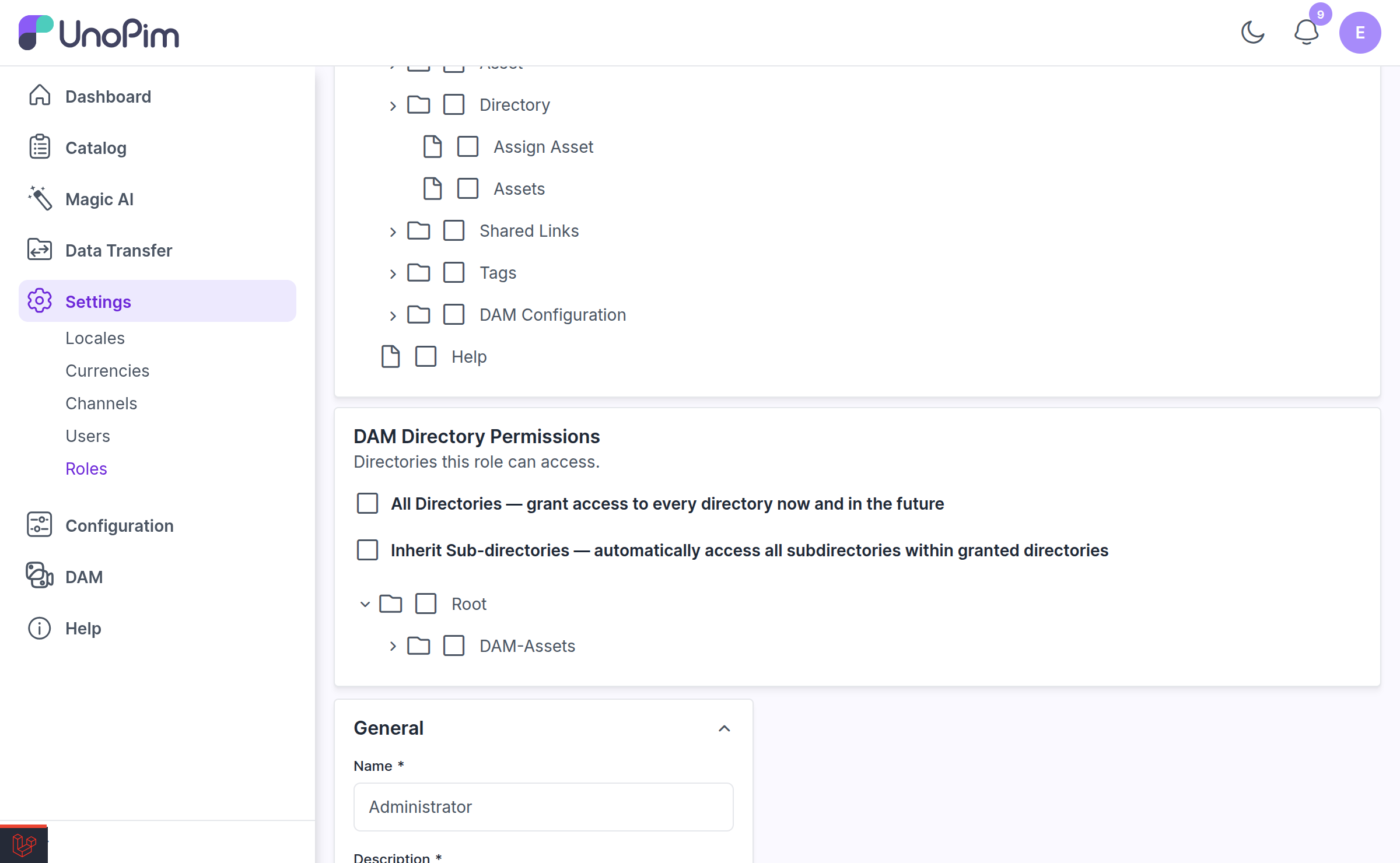
Scroll past the Access Control card. A DAM Directory Permissions panel appears below it.
IMPORTANT
The panel only appears for roles whose permission type is Custom. A role set to All has unrestricted access and bypasses directory permissions entirely — it can see and act on every directory. If a role must be scoped to certain folders, it cannot be an "All" role.
The Options
The panel — subtitled "Directories this role can access" — offers two checkboxes and a directory tree.
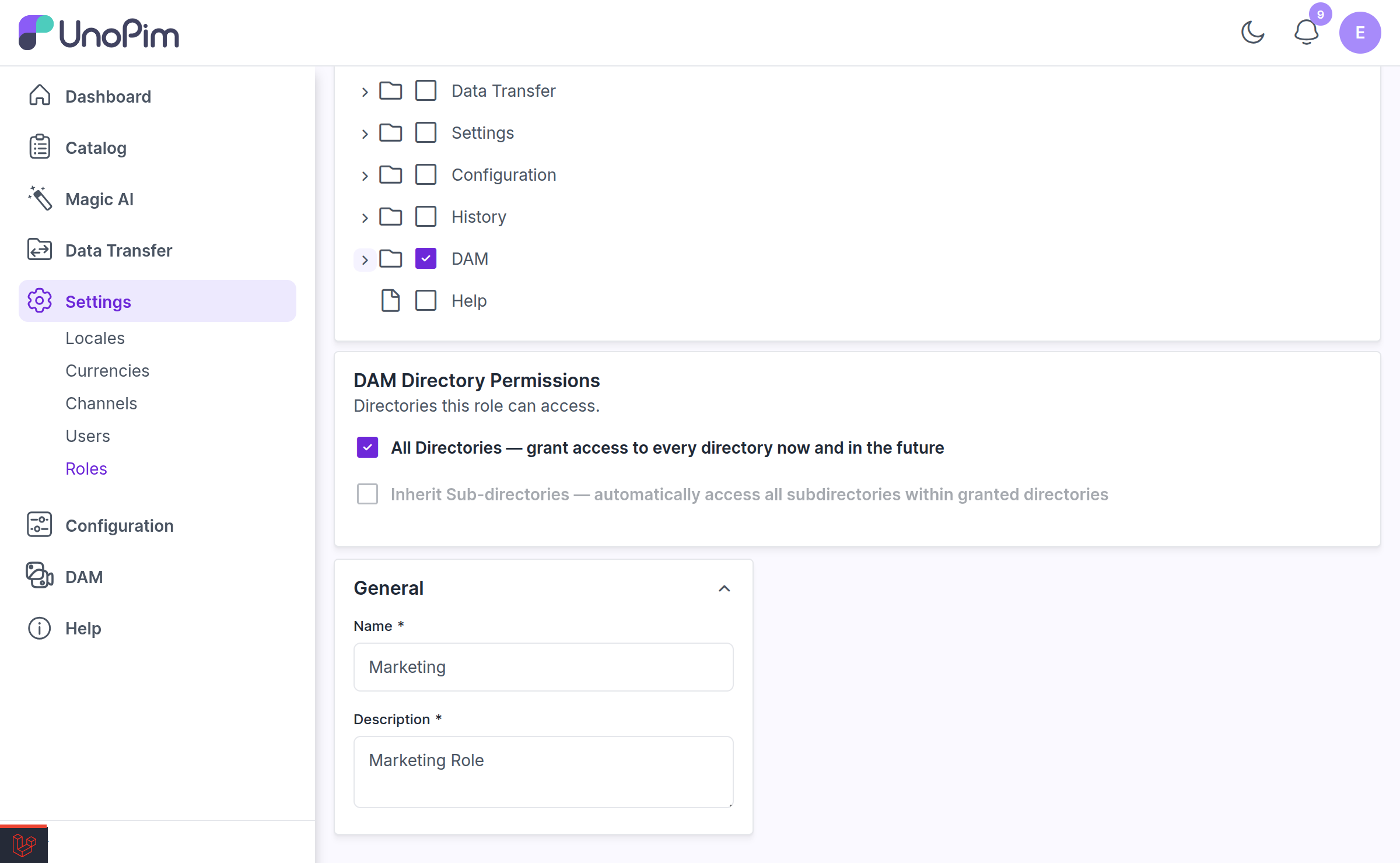
All Directories
All Directories — grant access to every directory now and in the future
Ticking this grants the role every directory, including any created later. The directory tree is hidden while it is on, because there is nothing left to choose.
Use it for roles like a DAM administrator who should never be blocked by a folder boundary.
Inherit Sub-directories
Inherit Sub-directories — automatically access all subdirectories within granted directories
With this on, granting a directory automatically grants everything beneath it. Grant Root / Marketing and the role also gets Marketing / Campaigns, Marketing / Campaigns / Summer, and so on — including subfolders created in the future.
While it is enabled, the panel notes: "Sub-directories will be included automatically on save."
With it off, each directory must be granted explicitly. Granting Marketing alone gives access to that folder only, not its children.
NOTE
Turning inherit-children off again does not wipe grants you made explicitly. Child directories you had ticked individually are preserved.
The directory tree
Tick the individual directories this role should reach. The tree loads its children lazily as you expand nodes, so it stays fast even on very large libraries.
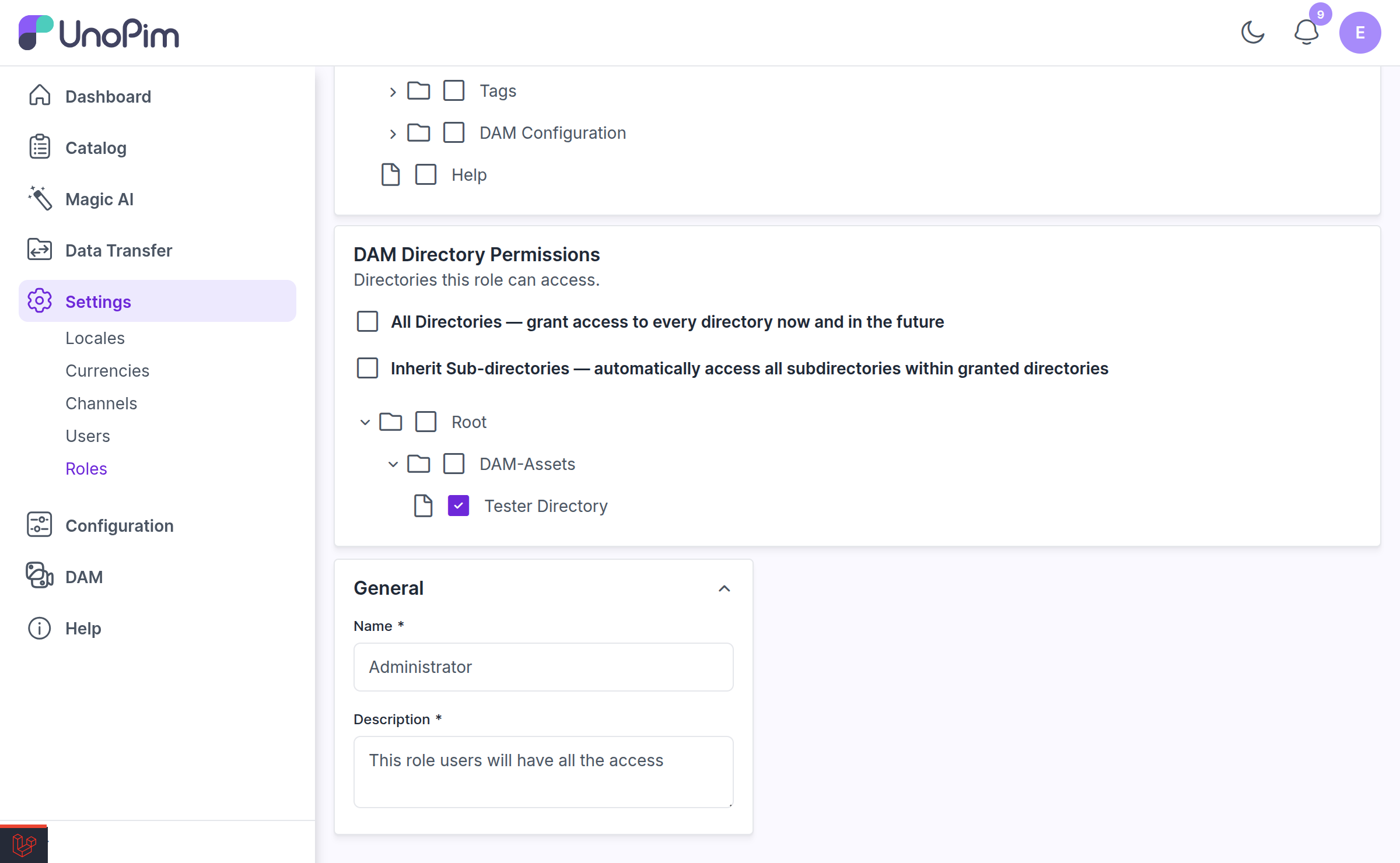
If nothing loads you will see "Loading directories…", "No directories found.", or "Failed to load directories. Please try again." with a Retry button.
NOTE
If you save without selecting any directory, DAM grants the Root directory as a fallback, so the role is never left with an unusable, empty DAM.
Automatic Grants for New Folders
There is a trap this feature avoids: an editor creates a folder, and then cannot use it, because no one has granted it to their role yet.
DAM handles this automatically. When an admin on a Custom role (without All Directories) creates a directory, that directory is granted to their role immediately. This applies to all three ways of creating folders:
- New Folder from the right-click menu
- Upload Folder — every subfolder in the uploaded tree
- Bulk folder-structure creation
The new folders are usable straight away, with no page reload and no admin intervention.
How Permissions Are Enforced
Directory permissions are not just a UI filter. They are enforced everywhere:
| Surface | Behaviour |
|---|---|
| Directory tree | Only accessible directories are listed. |
| Asset datagrid | Only assets inside accessible directories are returned. |
| Asset picker | Product and category asset fields only offer assets the role can reach. |
| All web endpoints | Upload, move, delete, rename, share, and download all re-check directory access server-side. |
| REST API | Asset and directory endpoints are scoped to the caller's grants. A role with no grants gets an empty result set, not an error. |
| Shares | You cannot create a share for a directory you cannot access. |
Ancestor directories that a role can see but not act on are shown in the tree as view-only placeholders, so the folder path still makes sense without granting rights the role should not have.
If someone without permission tries to manage the panel itself, they get:
You are not allowed to manage DAM directory permissions.
A Worked Example
Say you want the Marketing team to own their own folder and nothing else:
- Settings → Roles → Create Role, name it
Marketing. - Set Permission Type to Custom.
- Under Access Control, enable the DAM permissions they need — View, Upload, Edit, Update, Download, Share.
- In DAM Directory Permissions, leave All Directories off.
- Turn Inherit Sub-directories on.
- Tick Root / Marketing only.
- Save.
The result: the Marketing role sees Marketing and everything inside it, can upload and share within it, has any new subfolder they create granted automatically — and cannot see Legal, Finance, or anything else in the library.
Related
- Setup — the DAM permission list and how to enable it on a role
- Shared Links — sharing outside the permission system
- Uploading Assets — upload permission on a directory