

Importing Products and Categories with Assets
Just as you can export products and categories with their assets, you can import a CSV that assigns assets to products and categories in bulk. This is how you move a catalogue between environments, or set media on thousands of products without touching each one.
How Asset Columns Work
An asset attribute column in your CSV holds the asset's storage path, not its ID and not its file name.
sku,type,family,name,product_image
TSHIRT-001,simple,default,Classic Tee,assets/product-photography/apparel/tshirt-front.jpg
TSHIRT-002,simple,default,Striped Tee,assets/product-photography/apparel/striped-front.jpg
During import, UnoPim looks up each path in the DAM library and links the matching asset to the product.
To assign several assets to one product, separate the paths with commas:
sku,type,family,name,product_image
TSHIRT-001,simple,default,Classic Tee,"assets/apparel/tshirt-front.jpg,assets/apparel/tshirt-back.jpg"
The same applies to category imports and their asset fields.
IMPORTANT
Importing does not upload anything. It only links assets that are already in the DAM library. Upload your files first — see Uploading Assets — then run the import to attach them.
The Export → Import Round Trip
This is the reliable way to get the paths right: export first, then edit that file.
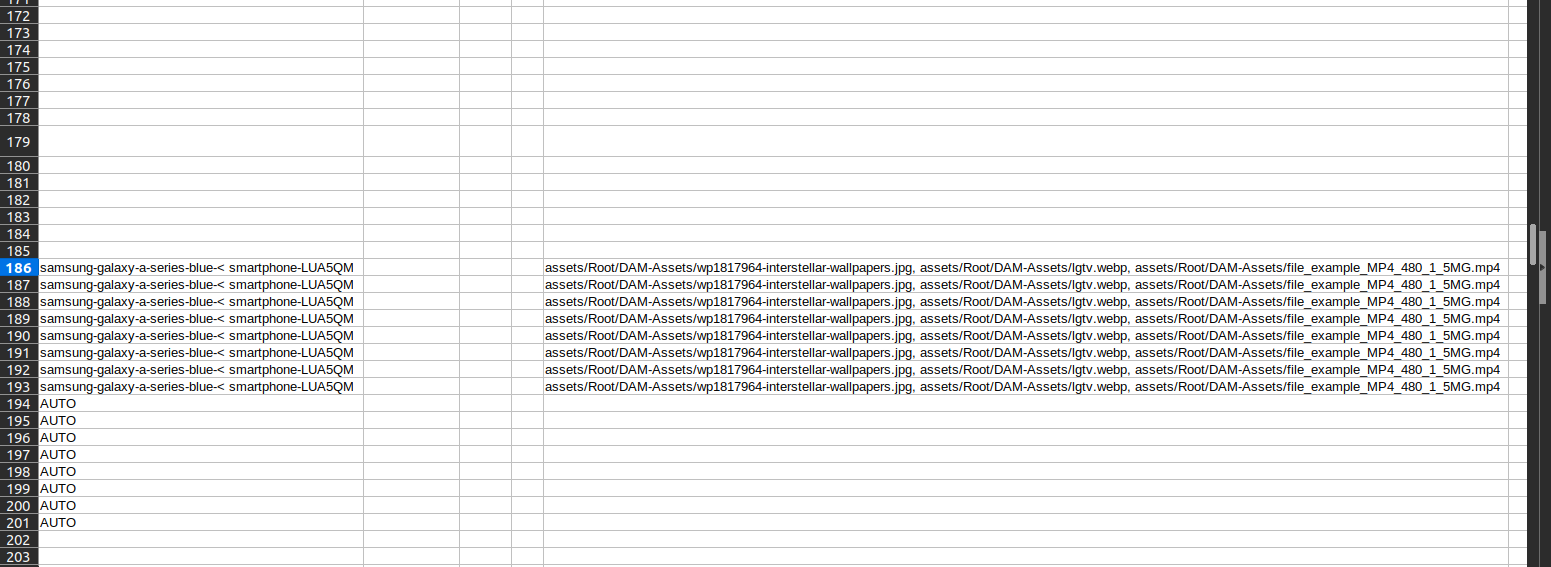
An export writes each asset column as the exact comma-separated paths that an import expects, so a file exported from one UnoPim instance can be imported into another without reformatting.
Check the comma separated assets file path after export.
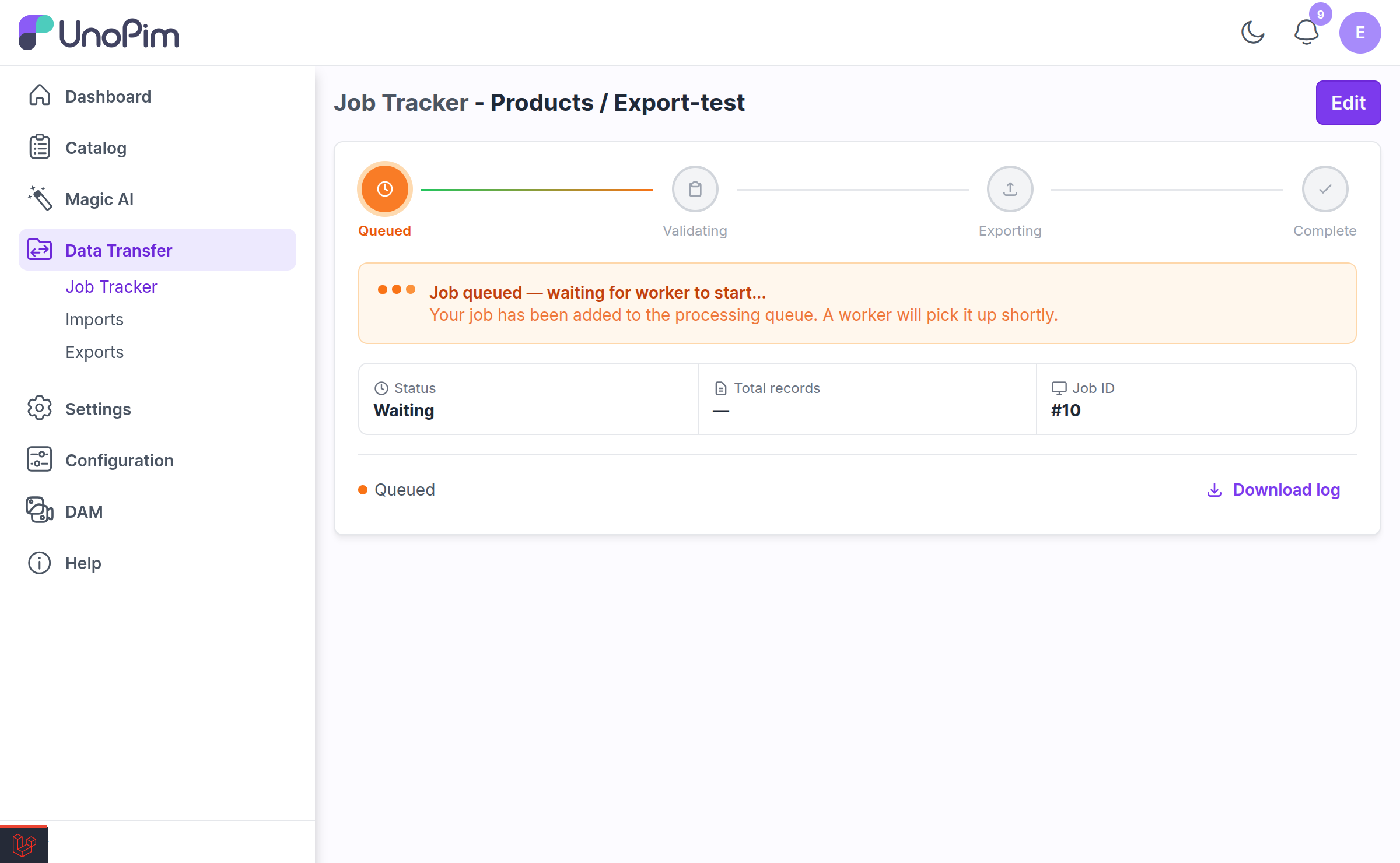
- Run an export of the products or categories you want to change — see Exporting Assets
- Open the exported CSV and edit the asset columns
- Import the edited file
Step 1 — Go to Imports
From the left sidebar, navigate to Data Transfer → Imports. This page lists your existing import profiles.
Click Create Import to make a new one.
Step 2 — Fill in the Import Profile
| Field | What to enter |
|---|---|
| Code | A unique identifier, e.g. dam-product-import |
| Type | Products or Categories, matching your file |
| File | The CSV or XLSX to import |
| Channel / Locale / Currency | The scope the values apply to |
Click Save to create the profile.
Step 3 — Validate and Run
Run Validate first. UnoPim checks the file structure and reports errors before anything is written.
Once validation passes, click Import Now. Progress is shown live, and the status changes to Completed when the job finishes.
Step 4 — Verify the Links
Open one of the imported products and check the Media attribute group. The assets should be attached and previewable.
You can also confirm from the other direction: open the asset in DAM and check its Linked Resources tab — the product or category you just imported should be listed there.
When a Path Does Not Match
This is the behaviour that catches people out:
WARNING
An asset path that matches nothing in the library is skipped silently. The row still imports, the product is still created or updated — the asset simply is not attached, and the import does not report it as an error.
If every path in the column fails to match, the asset attribute is left untouched rather than being cleared.
So if products import "successfully" but come out with no media, check the paths first. The usual causes are:
| Cause | Fix |
|---|---|
| The file was never uploaded to DAM | Upload it, then re-run the import |
The path has a typo, or a leading / | Match the path exactly as the export writes it |
| The file was uploaded to a different folder | Compare against a fresh export of a known-good product |
| The file name was auto-renamed on upload to avoid a clash | Check the real name in DAM — a duplicate upload becomes file(1).jpg |
TIP
Test on a two-row CSV before importing thousands. Check that one product comes out with its media attached, then scale up.
Related
- Exporting Assets with Products & Categories — the other half of the round trip
- Uploading Assets — getting files into the library first
- Asset Products — assigning assets by hand
- Linked Resources — verifying what an asset is attached to