

Managing Tags
Tags are free-form labels you attach to assets — summer-campaign, approved, hero-image — so you can find and group them regardless of which folder they live in.
DAM gives tags a dedicated management page at DAM → Tags, and three ways to attach them to assets.
The Tags Page
Go to DAM → Tags to see every tag in the system.
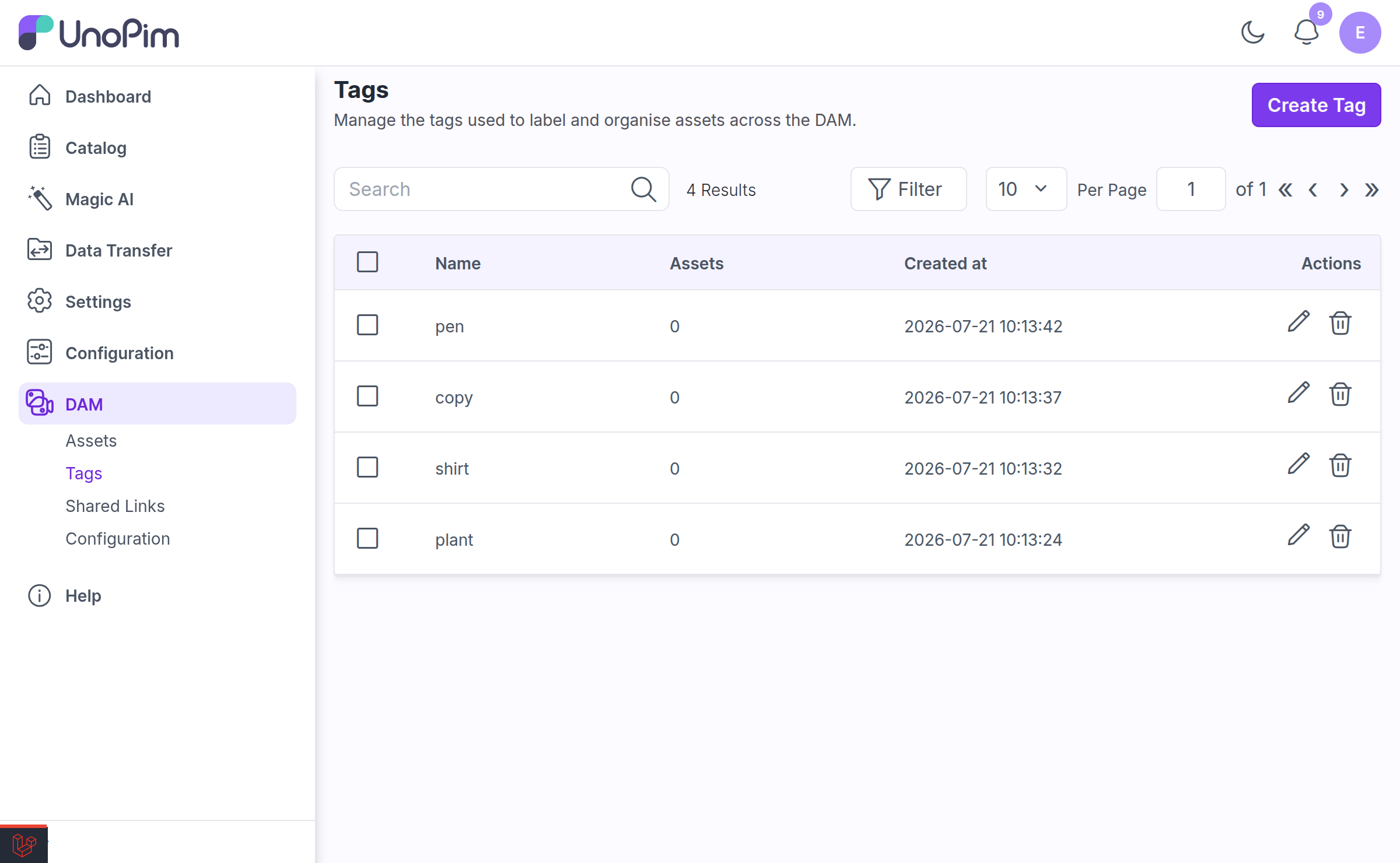
| Column | Notes |
|---|---|
| Name | The tag itself. Searchable, filterable, and sortable. |
| Assets | How many assets currently carry this tag. Useful for spotting typo-tags with a count of 1. |
| Created at | Filterable and sortable. |
The grid is sorted newest-first, 25 rows per page.
Actions
| Action | What it does | Permission |
|---|---|---|
| Create Tag | Opens the Create Tag modal. | dam.tags.create |
| Edit | Rename a tag. The change applies everywhere it is used. | dam.tags.update |
| Delete | Remove the tag and detach it from every asset. | dam.tags.delete |
| Mass delete | Select several tags and delete them in one go. | dam.tags.delete |
Tagging Assets
From the asset edit page
Open an asset and use the Tags field — "Choose or Create a Tag". Pick an existing tag, or type a new name and it will be created and attached in one step.
Attaching a tag the asset already has returns "Tag already exists" — nothing is duplicated.
Mass-assigning from the gallery
To tag many assets at once:
Select the assets in the gallery (you can select folders too — see below).
Open the mass-action menu and choose Assign Tags.
In the Assign Tags modal, search for tags or type a new name and press enter to add it.
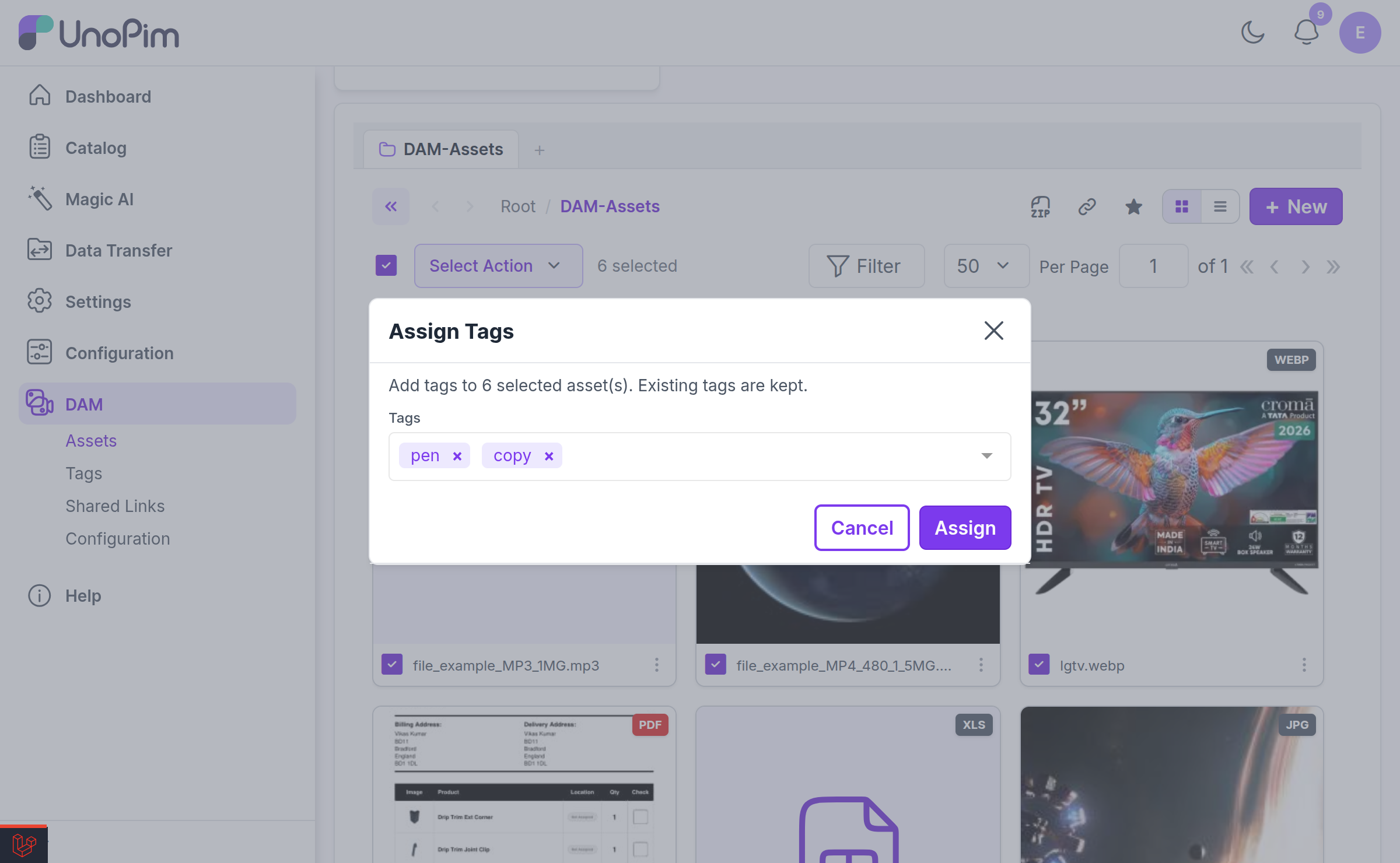
- Apply.
When folders are part of the selection, the modal tells you the tagging will run recursively:
Two things worth knowing:
- Existing tags are kept. Mass-assign only adds tags. It never strips the tags an asset already has.
- Folders are tagged recursively. If you include folders in the selection, every asset inside them — at any depth — receives the tags. The modal tells you so: "Add tags to the selected assets and every asset inside the selected folders, recursively."
Tags that do not exist yet are created automatically as part of the mass-assign.
Mass-assigning from the Explorer
The same Assign Tags action is available in the Explorer. Select any mix of folders and files, open Select Action, and choose Assign Tags.
It opens the identical modal and behaves identically — additive, recursive through folders, and creating any tags that do not yet exist. Use whichever view you are already working in.
NOTE
Tagging assets — from either surface — requires the Update permission (dam.asset.update).
Tags and History
Tag changes are recorded in the asset's History tab, so you can see who added or removed a tag and when.
Finding Assets by Tag
Tags are searchable and filterable from the asset gallery's filter panel, so tag = approved gives you every approved asset across every folder in the library.
Related
- Tag API — managing tags programmatically
- Directory & Asset Management — the asset gallery and its filters