

Explorer View
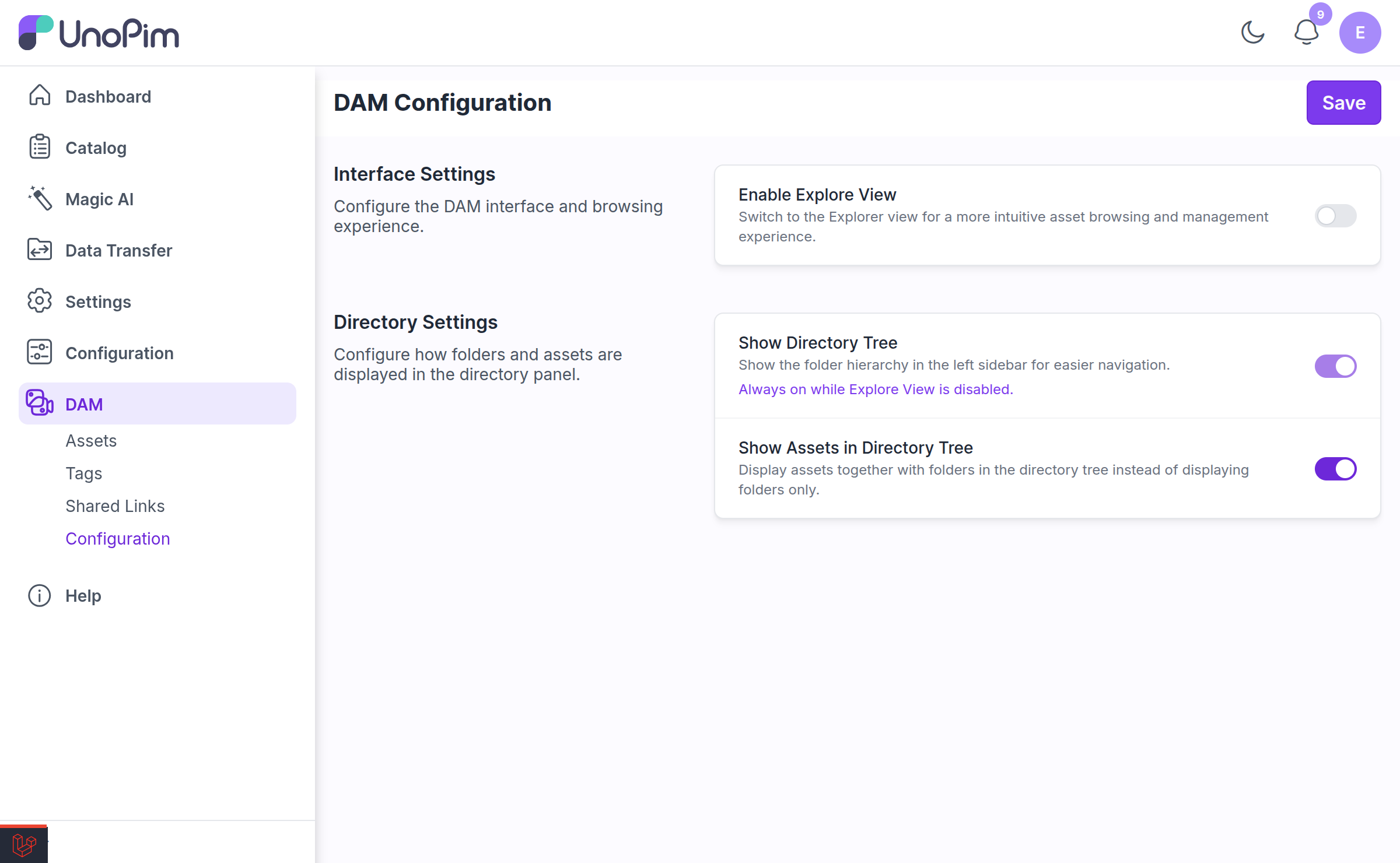
Explorer is an alternative to the default asset grid — a file-manager style view for people who work in DAM all day and want to move things between folders quickly.
It is off by default. Turn it on at DAM → Configuration → Enable Explore View. See Configuration.
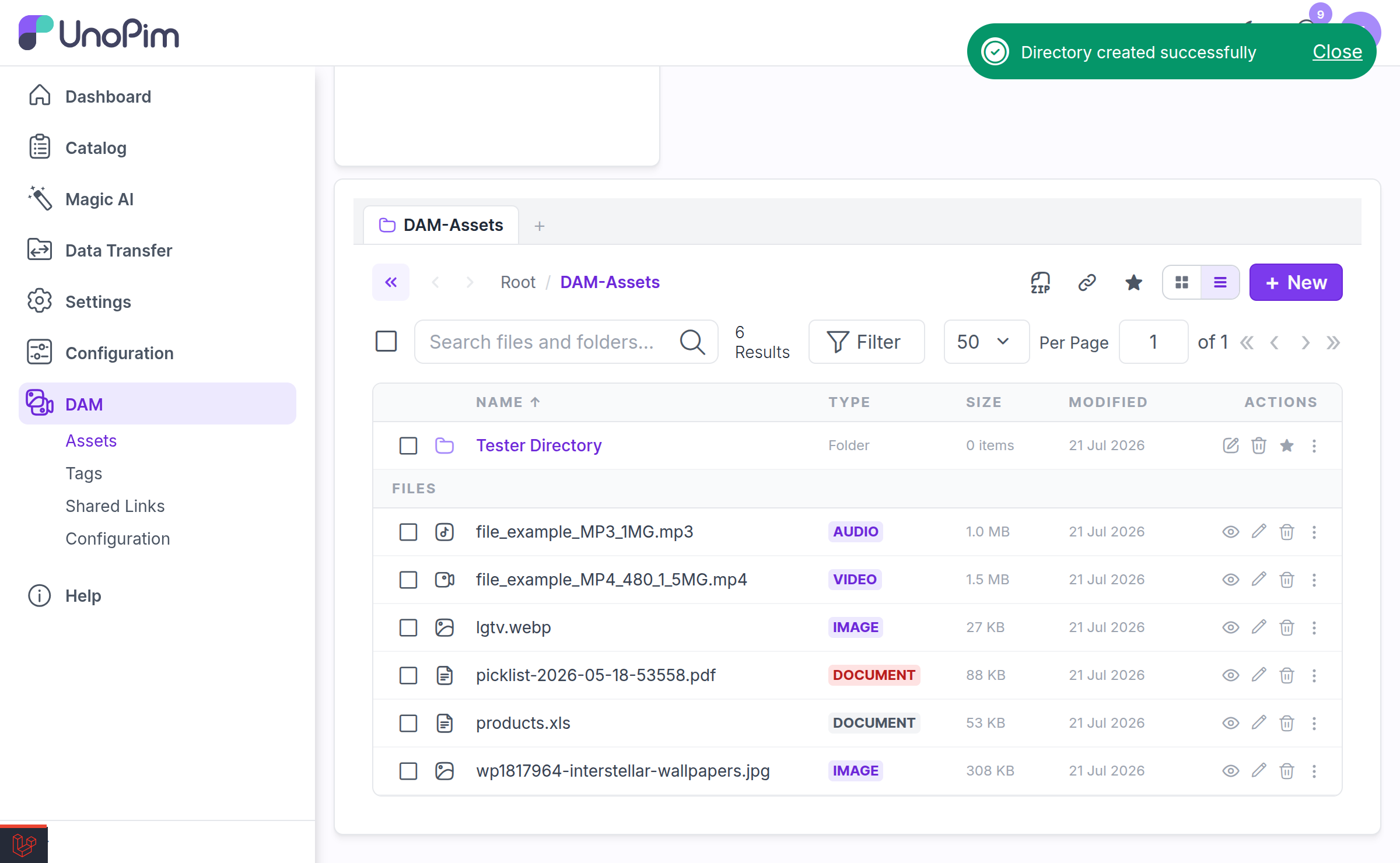
The Explorer Layout
| Area | What it does |
|---|---|
| Tab bar | One or more open folders, each with its own history and selection |
| Directory tree | The folder hierarchy. Collapsible to reclaim width. |
| Bookmarks panel | Folders you have pinned. Enable with Show Bookmark Panel. |
| Toolbar | Search, filters, view toggle, per-page, ZIP download, share, bookmark star |
| Content pane | Folders first, then files — as a grid or a list |
Tabs
Explorer lets you keep several folders open at once, like browser tabs. Open a second tab when you are moving files between two distant folders and do not want to keep walking the tree.
| Action | How |
|---|---|
| New Tab | Click + on the tab bar |
| Open in new tab | Right-click a folder → Open in new tab |
| Close Tab | Click × on the tab |
Each tab keeps its own selection. If you select items in one tab and switch to another, Explorer tells you rather than losing the selection:
"3 item(s) selected in another tab." — with a Select them here too action.
Navigation history
Each tab has back and forward arrows, exactly like a browser. They walk the folders you visited in that tab, not the folder hierarchy.
If a folder you are sitting in gets deleted by someone else, the tab recovers rather than erroring — you are returned to Root with the notice "This folder was deleted — returned to Root."
Grid and List Views
Toggle between Grid View and List View with the view switch in the toolbar.
Grid shows thumbnail cards — best for images, where you recognise the file by looking at it.
List shows a dense table — best for documents and for scanning file sizes or dates. Its columns are:
| Column | Notes |
|---|---|
| Name | Folder or file name |
| Type | File type or Folder |
| Size | File size |
| Modified | Last updated |
| Actions | Per-row action menu |
Sorting and paging
Sort by Name, Size, or Modified, ascending or descending. Page size runs from 50 to 250 items.
Your selection survives a page change, so you can select across pages and then act on the lot.
Search
The Explorer search box is not limited to the folder you are standing in — it searches the entire library, and it matches on both file name and tag.
That means searching winter finds files literally named winter-* and files tagged winter, wherever they live. Clear the search to drop back to plain folder browsing.
NOTE
Search results are still bound by your directory permissions — you never see a match from a folder your role cannot reach.
Filters
Open Filter in the toolbar to narrow the view.
| Filter | Values |
|---|---|
| File name | Free text |
| Extension | e.g. pdf, png |
| File type | image, video, audio, document, spreadsheet, csv |
| Tag | Tag name |
| Created | From / to dates |
| Updated | From / to dates |
| Properties | Any property marked Add to Filter |
Like search, filters apply across the whole library, not just the current folder.
Custom property filters appear automatically — mark a property Add to Filter on an asset and its name becomes a filter here. See Directory & Asset Management.
The Context Menu
Right-click any folder or file for its actions.
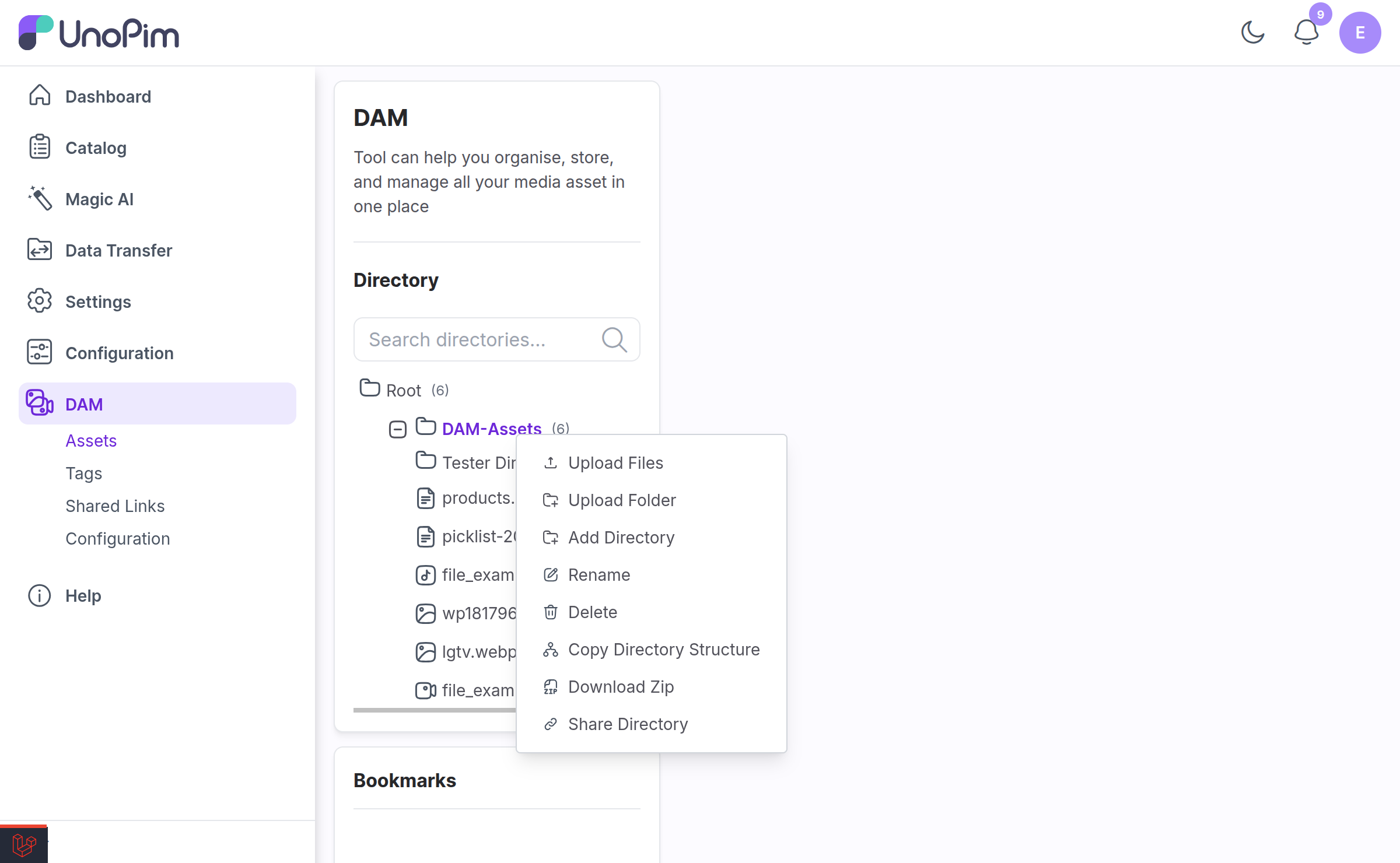
On a folder:
| Action | What it does |
|---|---|
| Open | Navigate into it |
| Open in new tab | Open it in a second tab |
| Bookmark Directory | Pin it to the bookmarks panel |
| Upload Files | Upload into this folder |
| Upload Folder | Upload a whole folder tree into it |
| Add Directory | Create a subfolder |
| Rename | Rename it |
| Copy Directory Structure | Recreate its folder skeleton elsewhere, without files |
| Download Zip | Download the folder as a ZIP |
| Share Directory | Create a shared link |
| Copy / Paste | Clipboard copy — see below |
| Delete | Delete recursively |
On a file:
| Action | What it does |
|---|---|
| Preview | Open the preview modal |
| Edit | Open the asset edit page |
| Rename | Rename the file |
| Copy | Put it on the clipboard |
| Download | Download the original |
| Delete | Delete it |
NOTE
The menu is permission-aware. Actions your role cannot perform are not shown, and if none are available you get "No actions available."
Copy and Paste
Explorer has a real clipboard. Copy a file or a folder, navigate anywhere, then Paste.
While something is on the clipboard, a Ready to paste banner stays visible with a Clear action to abandon it.
Pasting a folder copies its entire contents. Large pastes are queued and run in the background — see Background Operations.
Bookmarks
With Show Bookmark Panel enabled, a bookmarks list sits below the directory tree. Pin the folders you return to daily and reach them in one click.
There are three ways to add one:
- Drag a folder onto the panel — it shows "Drag a folder here to bookmark it" when empty
- Right-click a folder → Bookmark Directory
- Click the star in the toolbar while inside the folder
Remove one with the × on the bookmark row.
IMPORTANT
You can keep a maximum of 20 bookmarks. Beyond that, adding another is refused with "Maximum 20 bookmarks reached." Remove one you no longer use first.
Bookmarks are per user — yours are not visible to your colleagues.
Bulk Operations
This is Explorer's main advantage over the standard grid. Select any mix of folders and files, then act on the whole selection.
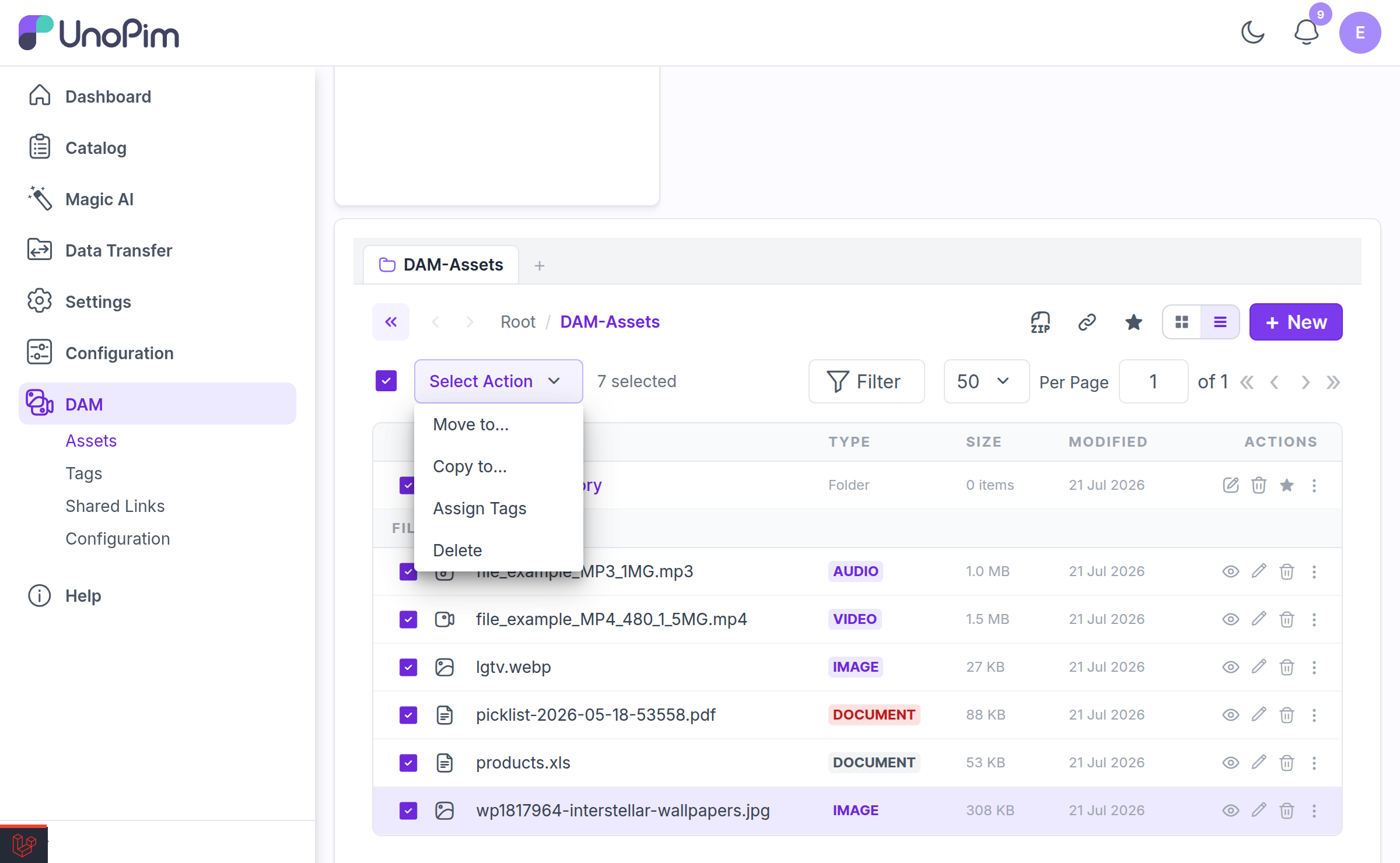
Selecting shows ":count selected" and a Select Action menu:
| Action | What it does |
|---|---|
| Move to… | Move the selection into another folder |
| Copy to… | Copy the selection into another folder |
| Assign Tags | Tag everything selected — see Managing Tags |
| Delete | Delete the selection |
Use select all and clear selection to manage large batches.
Choosing a destination
Move to… and Copy to… open a Select Destination picker. It has its own search and grid/list toggle, so finding the target folder is not a chore.
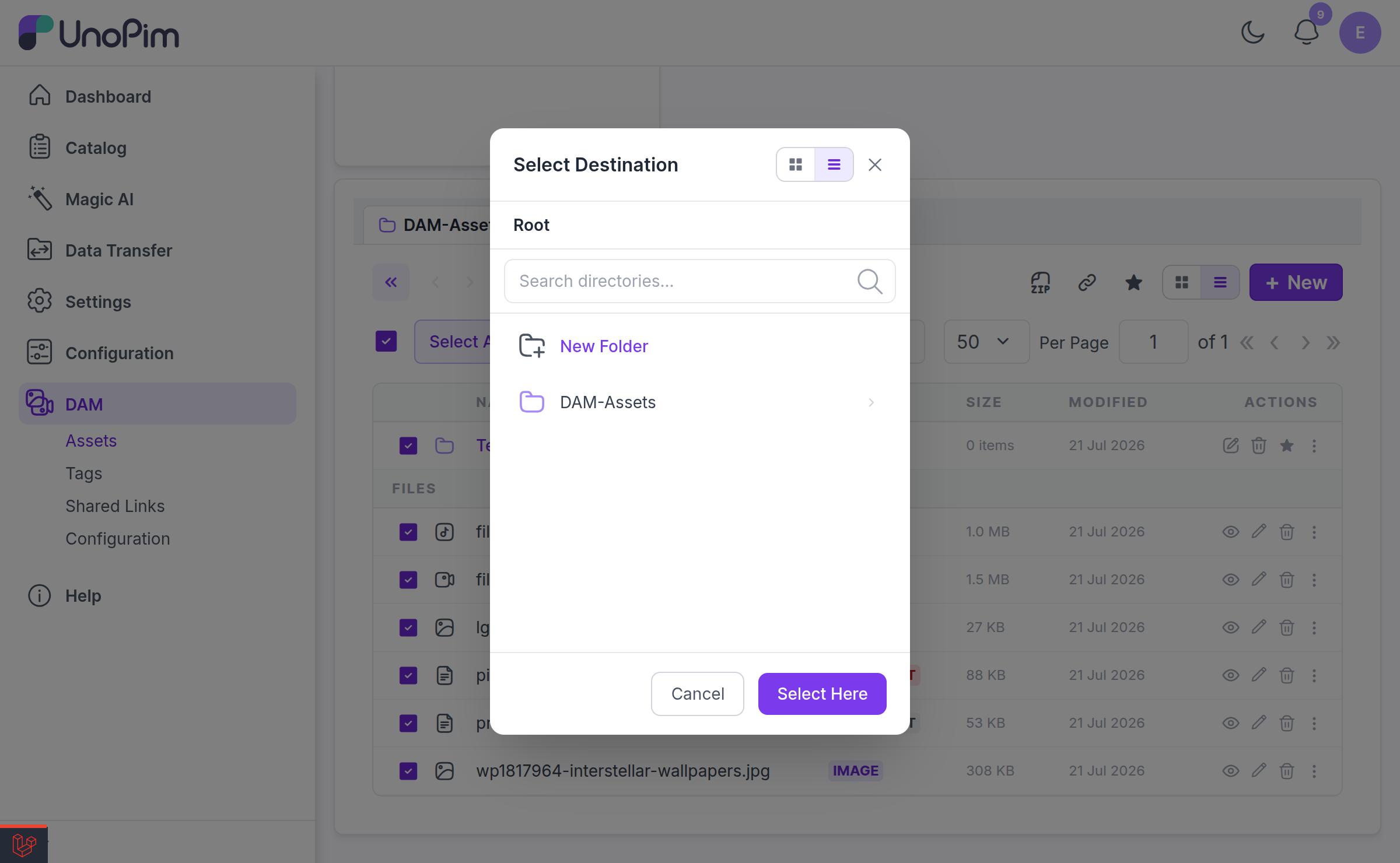
If the folder you want does not exist yet, click New Folder, name it, and it is created and selected in one step — no need to cancel out, create the folder, and start over.
Confirm with Select Here.
Deleting in bulk
Deleting asks for confirmation first, and it tells you exactly what is about to happen:
"Delete 12 item(s)? Folders will be deleted recursively and cannot be undone."
Afterwards you get a per-type result — "8 asset(s) deleted from 'Campaigns'." and "4 folder(s) deleted from 'Campaigns'." — so a partial failure is never silent.
WARNING
Recursive folder deletion cannot be undone. Everything inside the folder goes with it.
Progress on long operations
Mass move, mass copy and recursive delete are queued jobs. Explorer polls their progress and shows a bar plus "Operation is still running in the background" for anything slow.
You can navigate away — the job keeps running. See Background Operations for the full picture, and note that a queue worker must be running or these operations never finish.
Drag and Drop
Folder and file cards are draggable. Drag items onto a folder to move them into it, or onto the bookmarks panel to pin them.
Before a large drag completes, Explorer counts what you are about to move — folders are counted recursively — so the confirmation reflects the real number of files, not the number of icons you dragged.
Collapsing the Sidebar
The directory tree and the whole left sidebar can each be collapsed with the toolbar toggles (Toggle directory tree, Toggle sidebar), giving the content pane the full window width. Useful on a laptop.
Permissions
Every Explorer action re-checks your directory permissions server-side. You cannot move, copy, or paste into a folder your role has no access to, regardless of what the UI let you drag.
Related
- Configuration — enabling Explorer and its panels
- Directory & Asset Management — the default (non-Explorer) view
- Background Operations — what happens after you start a bulk job
- Managing Tags — the Assign Tags mass action