

Map attributes
CS-Cart products have a fixed set of system fields (product_code, product, price, amount, full_description, etc.) plus your store's features. The Attribute Mapping tab tells the connector which UnoPim attribute fills each CS-Cart field.
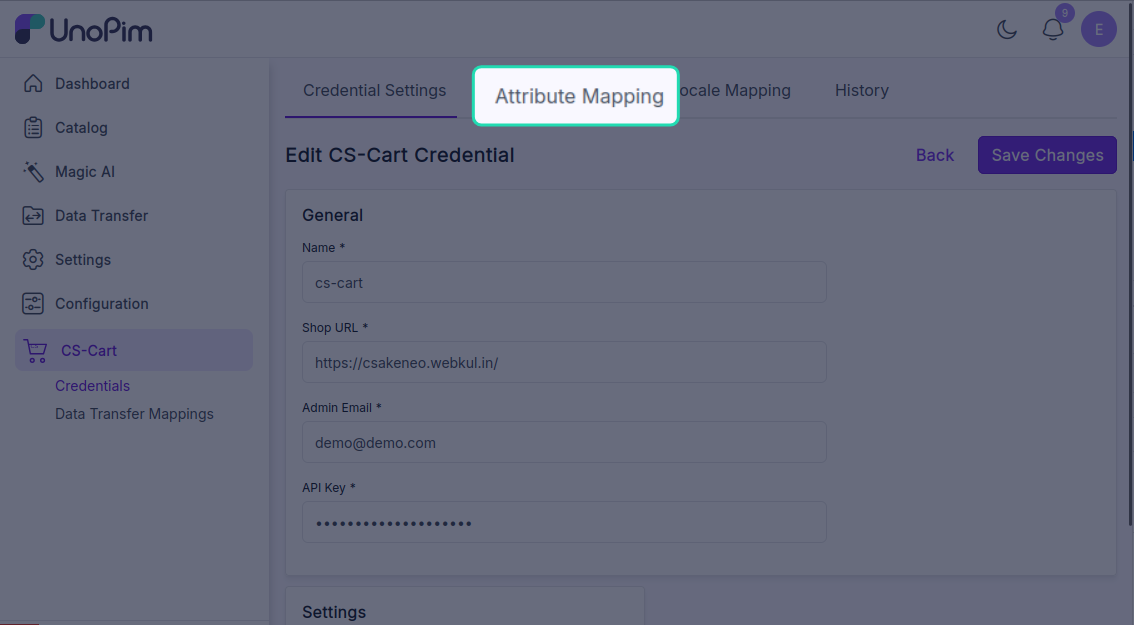
Open it from: CS-Cart → Credentials → (edit a credential) → Attribute Mapping
What you'll see
The page lists every CS-Cart product field with three columns:
| Column | What it means |
|---|---|
| CS-Cart Field | The CS-Cart field you're mapping into. Hover the info icon for what the field does. |
| UnoPim Attribute | The UnoPim attribute that will supply the value. |
| Fixed Value (some fields) | Hard-code a value here instead of picking an attribute - e.g. set status to A for all exported products. |
A red Required badge marks the fields you must map for the export to succeed (e.g. Product Code (SKU), Product Name, Price).
Required mappings
At minimum, map these to run a product export:
| CS-Cart Field | Typical UnoPim attribute |
|---|---|
| Product Code (SKU) | sku |
| Product Name | name |
| Price | price |
| Quantity Amount | quantity (or fixed value 0) |
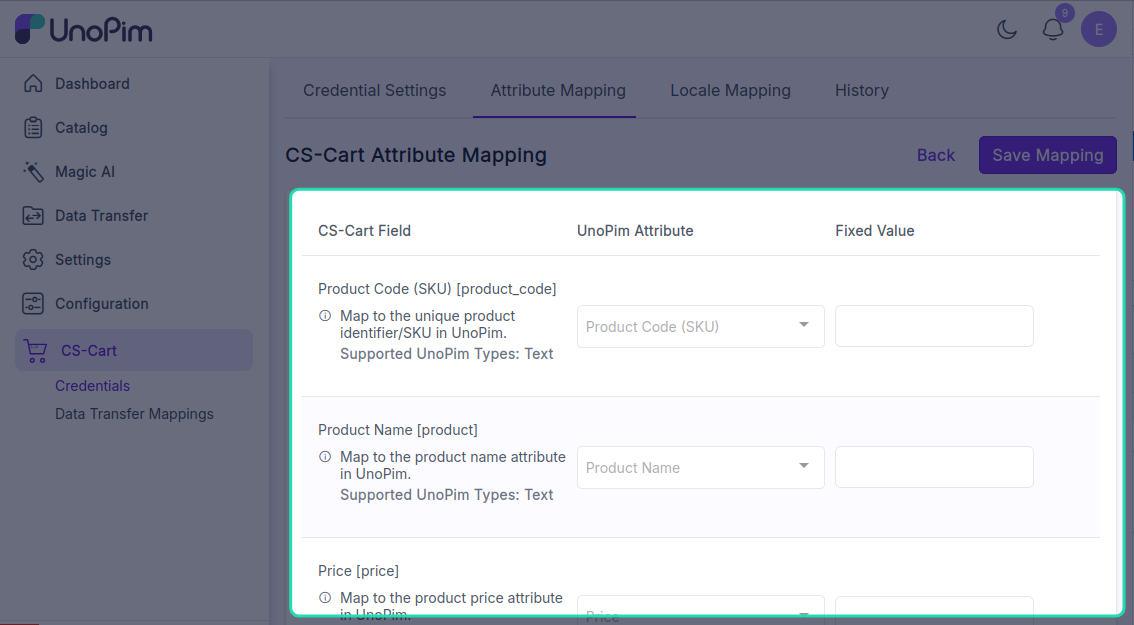
The rest are optional. The connector skips any CS-Cart field that has neither an attribute nor a fixed value.
Picking an attribute
The dropdown only shows UnoPim attributes whose type matches the CS-Cart field. For example, Price only lets you pick numeric / price attributes; Full Description only lets you pick text / textarea attributes.
You'll see the supported types listed on the row - e.g. Supported UnoPim Types: text, textarea.
TIP
If the attribute you want isn't in the list, check its type in Catalog → Attributes - it probably doesn't match the CS-Cart field's expected data type.
Add an extra attribute
Need to send a custom attribute that isn't a built-in CS-Cart field? Use + Add Additional Attribute at the bottom of the page. You can:
- Pick any UnoPim attribute.
- Map it to a CS-Cart feature or custom field by ID.
Click the trash icon next to an extra row to remove it.
Save the mapping
Click Save Mapping at the bottom. You'll see Attribute mapping updated successfully.
Mapping changes are picked up by the next export run - exports already in the queue keep the mapping that was in place when they were queued.
How it's used
- Product Export reads each UnoPim product, transforms it through this mapping, and sends the result to CS-Cart.
- Product Import does the reverse - reads CS-Cart products and writes them back into the mapped UnoPim attributes.
- A missing required mapping makes the job validator block the run before it starts. You'll see Required attribute mapping is missing.