

Map locales
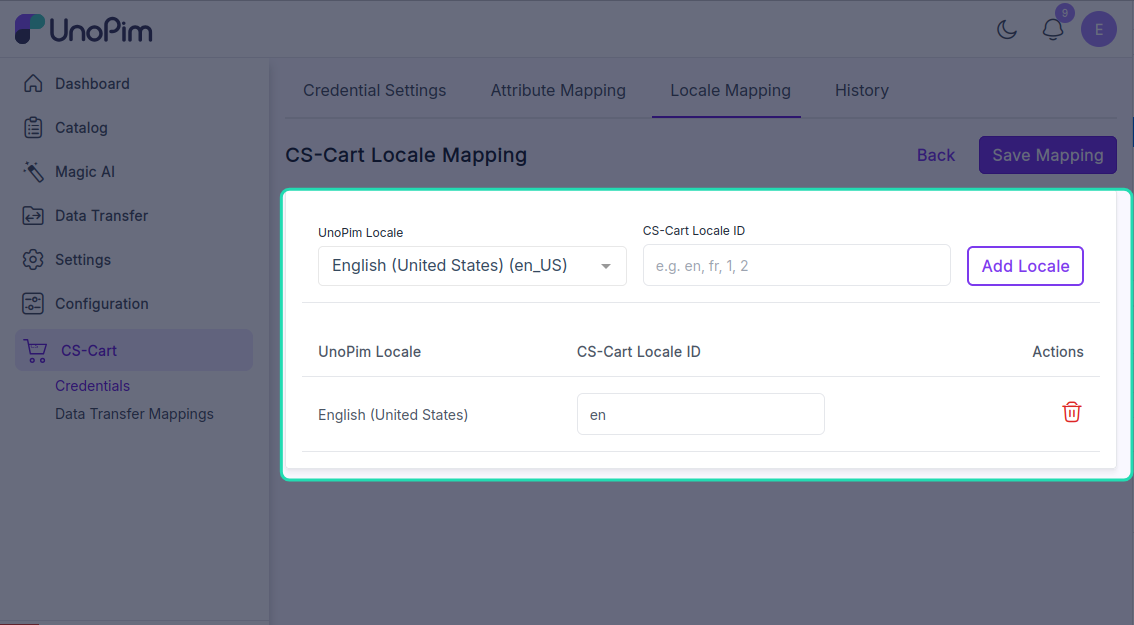
CS-Cart uses two-letter language codes (e.g. en, fr, de) while UnoPim uses full locale codes (e.g. en_US, fr_FR, de_DE). The Locale Mapping tab tells the connector which CS-Cart language each UnoPim locale should write to and read from.
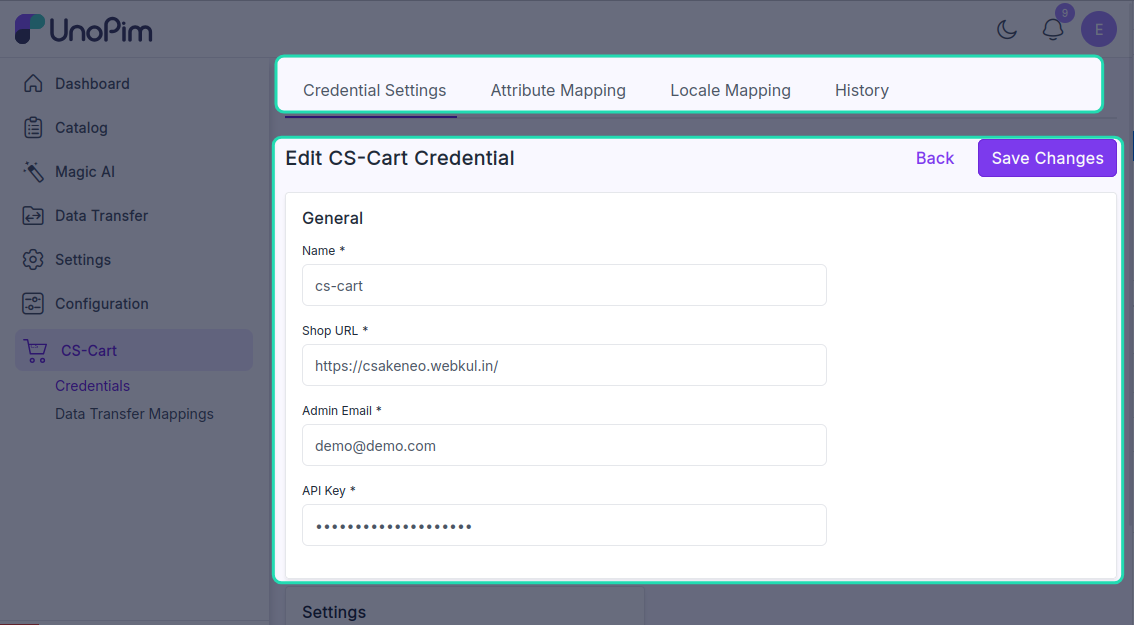
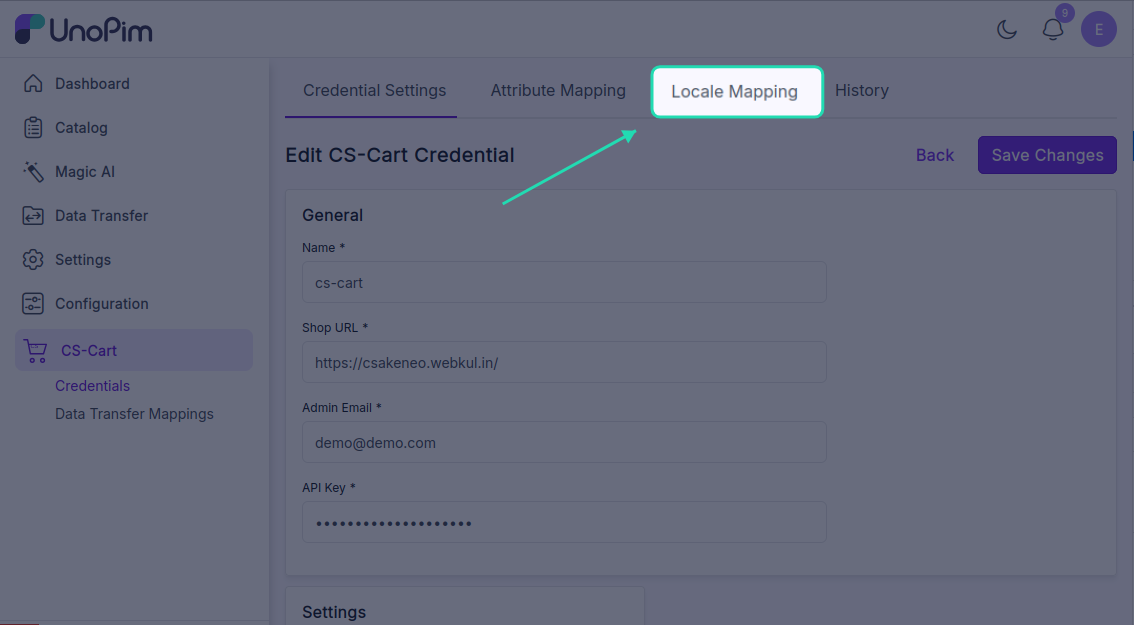
Open it from: CS-Cart → Credentials → (edit a credential) → Locale Mapping
Steps
- Open the credential edit page.
- Click the Locale Mapping tab.
- For each UnoPim locale on the left, pick the matching CS-Cart
lang_codeon the right.
- Click Save Mapping.
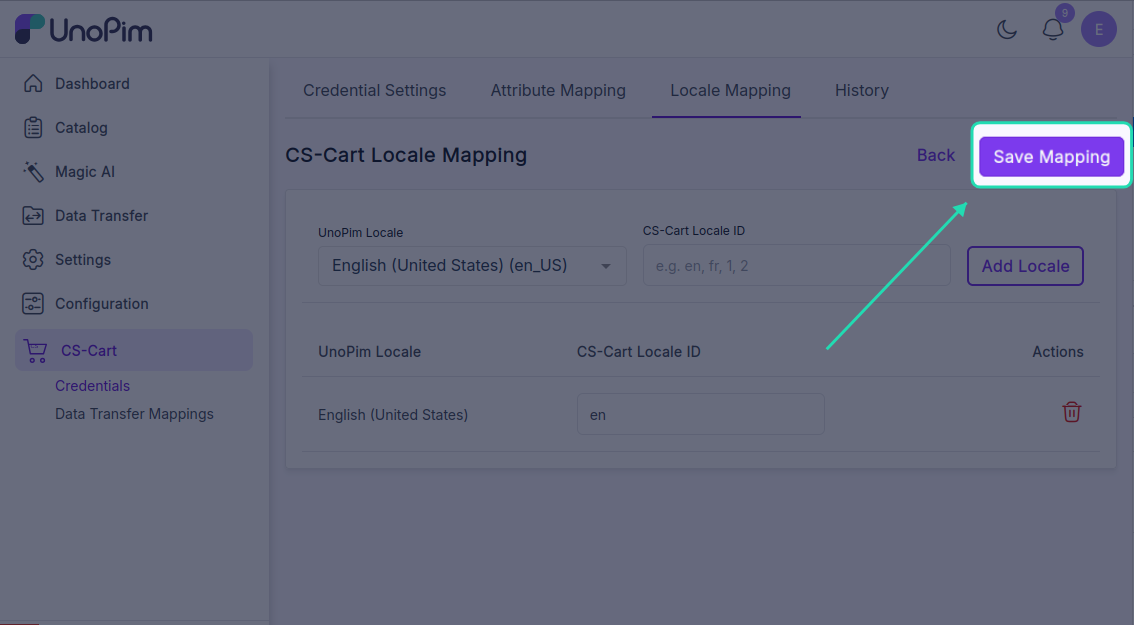
You'll see Locale mapping updated successfully.
What gets mapped
The CS-Cart lang_code dropdown is fetched live from your CS-Cart store, so it only shows languages that are actually installed on that store.
For example:
| UnoPim locale | CS-Cart lang_code |
|---|---|
en_US | en |
fr_FR | fr |
de_DE | de |
es_ES | es |
Notes
- Every UnoPim locale you intend to export or import must be mapped. Unmapped locales are skipped silently - the export still runs, but those translations never reach CS-Cart.
- Export and import job validators will refuse to start if a required locale isn't mapped. You'll see Locale mapping is missing for the selected locale.
- If a CS-Cart language is missing from the dropdown, install it in CS-Cart first (Administration → Languages), then reopen the mapping tab - the new language appears.