

Quick export
Push a few selected products to CS-Cart straight from the product list - no need to create an export profile.
Before you start. Add a CS-Cart credential and tick Default for quick Export on it in Credential Settings. The connector uses the default credential for every quick export. Map locales and Map attributes on that credential too.
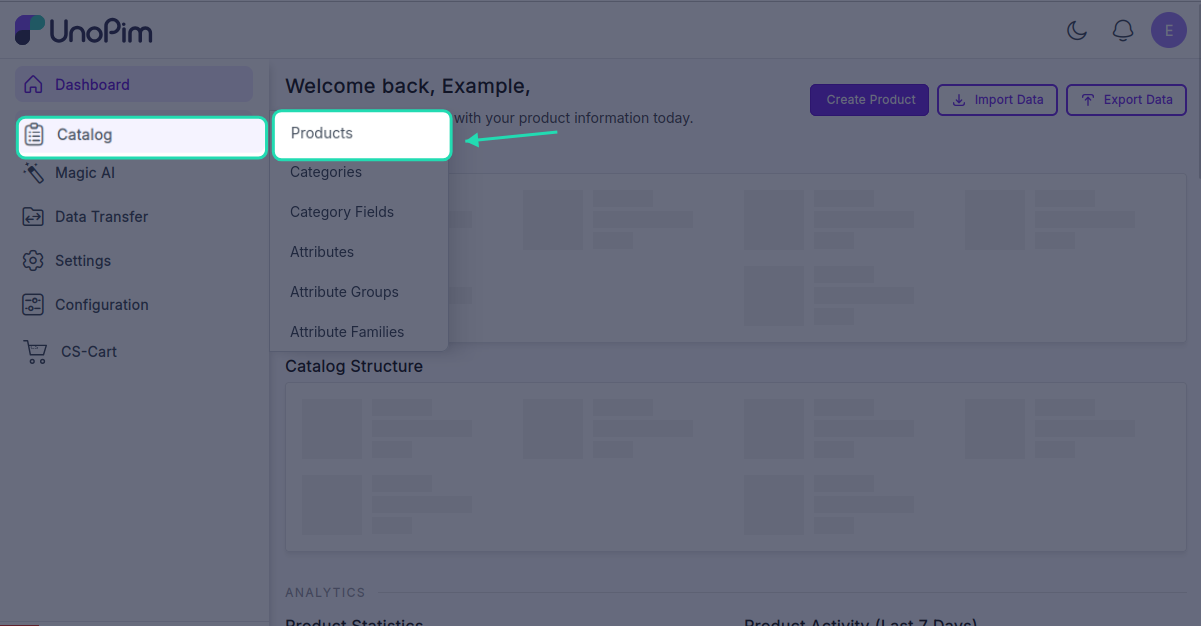
Open it from: Catalog → Products
Steps
- Open Catalog → Products.
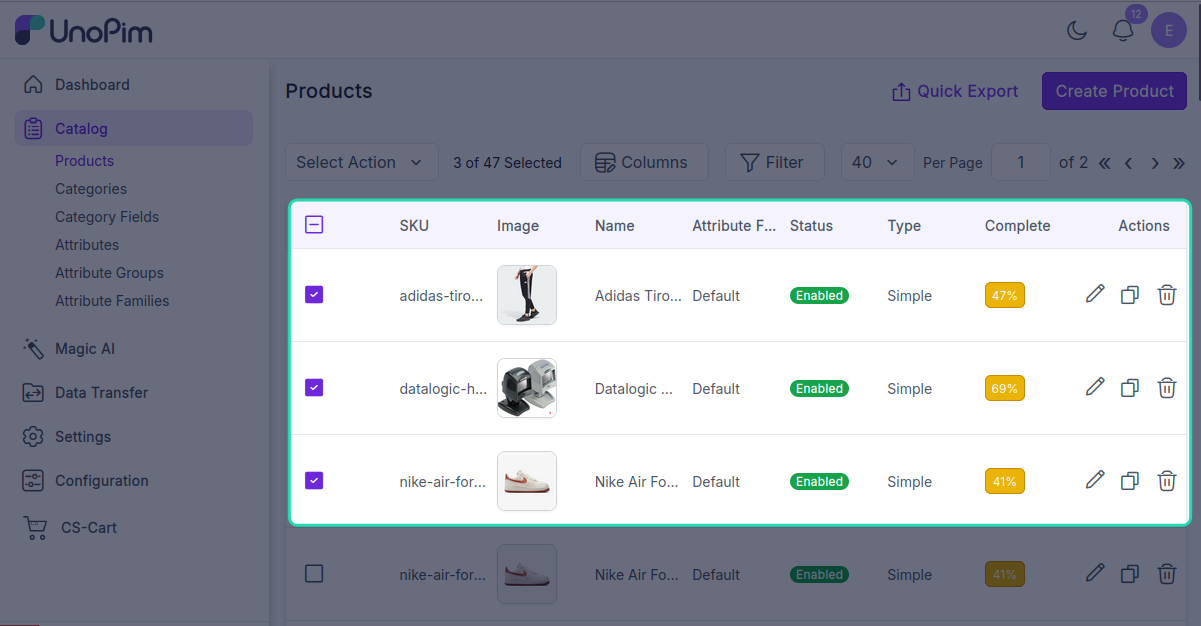
 2. Tick one or more rows.
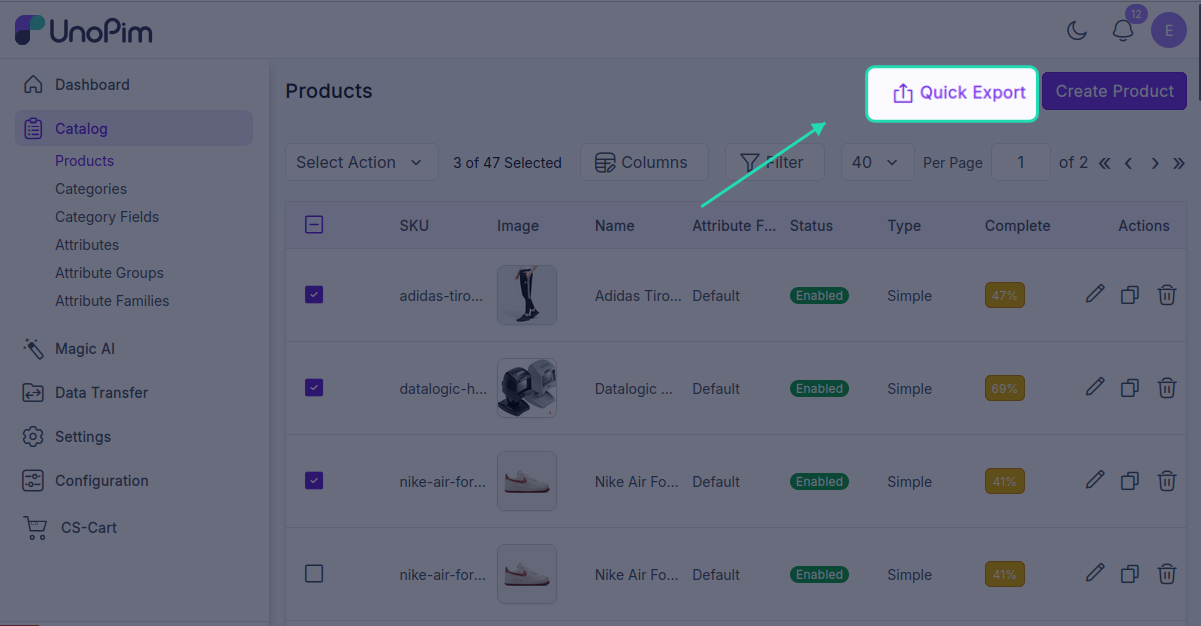
- Click Quick Export → CS-Cart Quick Export.
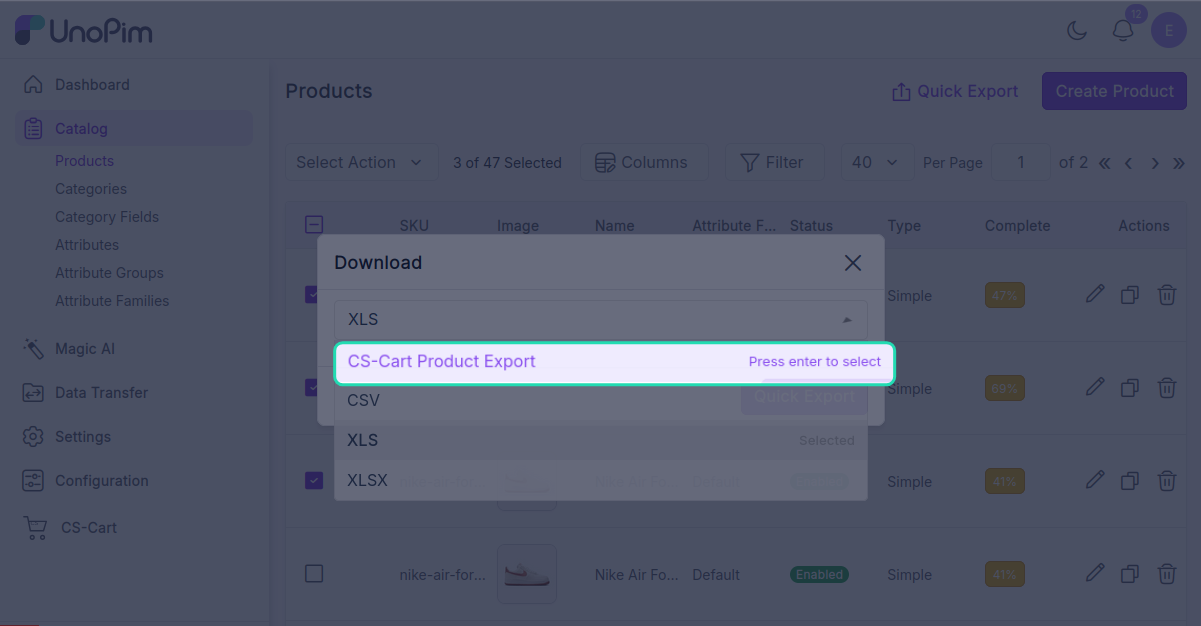
The selected products are queued straight to CS-Cart. You'll see Products queued for CS-Cart export.
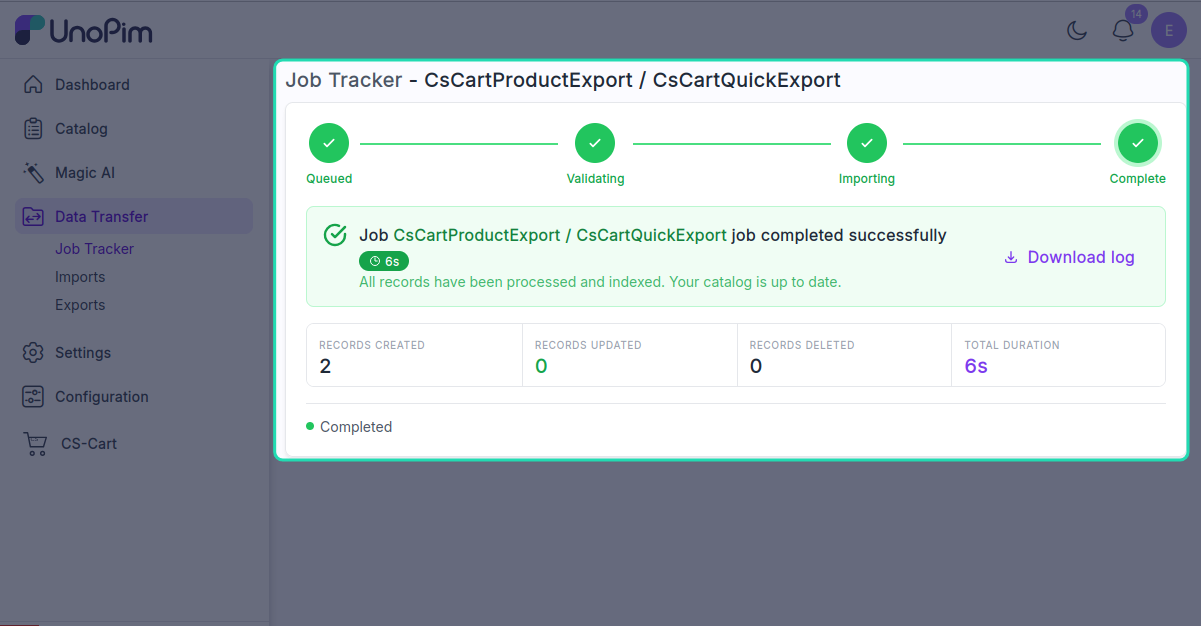
Watch the job in the Data Transfer Tracker.
What it uses
| Setting | Where it comes from |
|---|---|
| CS-Cart credential | The one marked Default for quick Export. |
| Store | The default store on that credential. |
| Channel / Locale / Currency | The active channel / locale / currency in your admin session. |
| Attribute mapping | The default credential's Attribute Mapping. |
| With media | On by default. |
If you need finer control (specific locales, a non-default credential, a different channel), use a full export profile instead.
If the action doesn't appear
- No credential is marked Default for quick Export - open CS-Cart → Credentials → edit → Credential Settings and turn it on.
- Your role doesn't have Export to CS-Cart permission. See Installation → Give your role permission.
- Refresh the page - the action list is loaded once when the page opens.