

Add BigCommerce credentials
This is where you store the API connection for your BigCommerce store. Add at least one credential before you can import or export anything.
Open it from: BigCommerce → Credentials
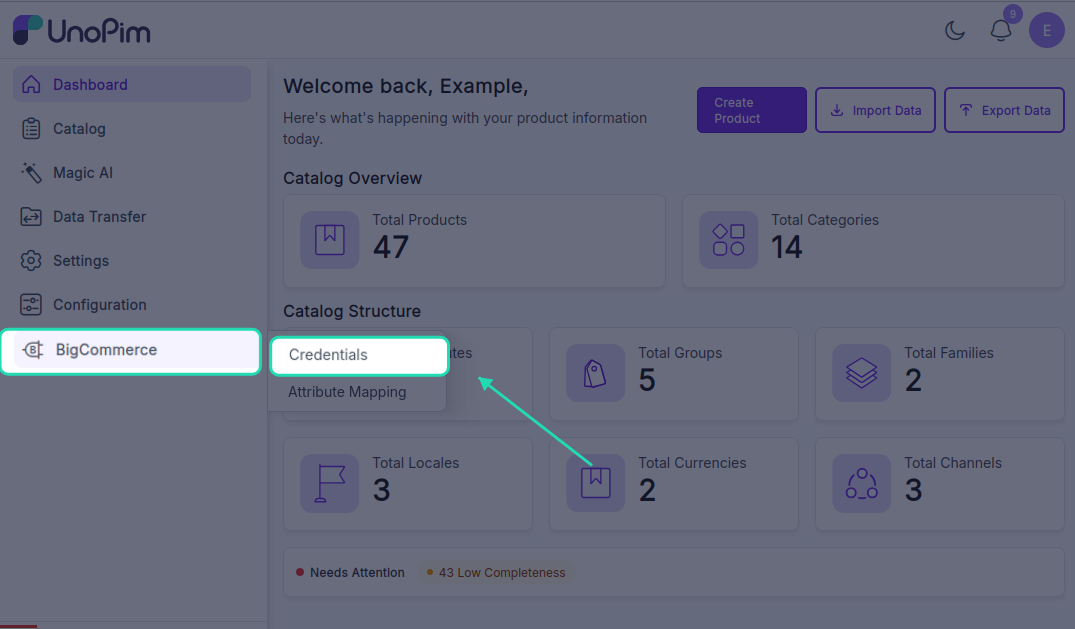
The credentials page
Each row in the list shows one credential:
- Label - the name you gave it.
- API URL - the BigCommerce API endpoint.
- Status - whether the credential is active.
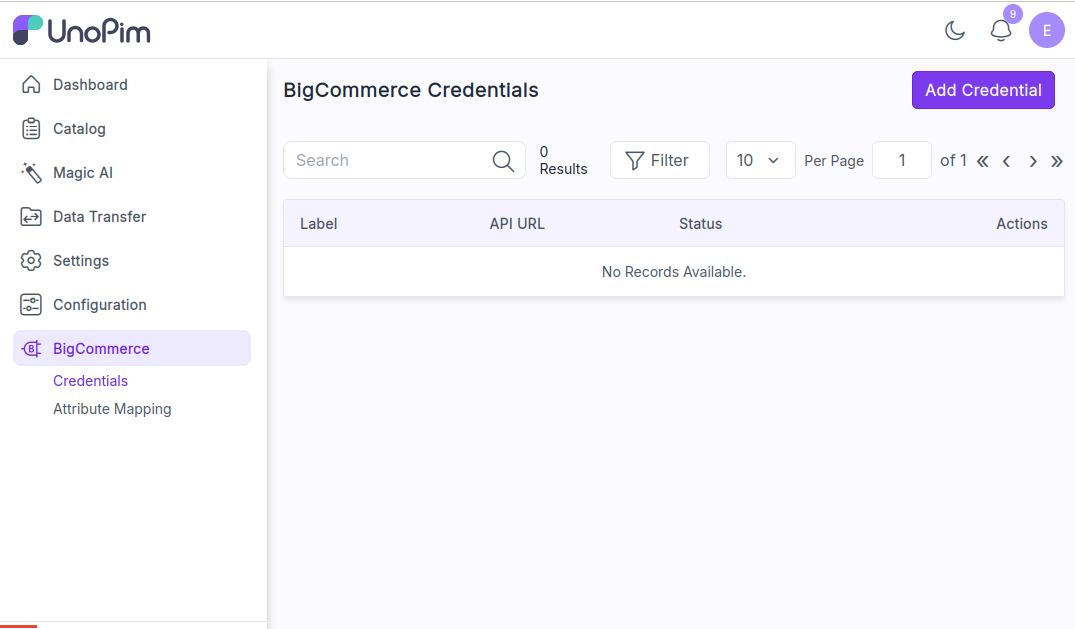
You can search by label, sort columns, or click Filter to narrow the list. The pencil icon edits a row, the trash icon deletes it.
Generate the API account in BigCommerce
Before adding a credential in UnoPim, create an API account in BigCommerce:
- Log into your BigCommerce admin.
- Go to Settings → API → Store-level API accounts.
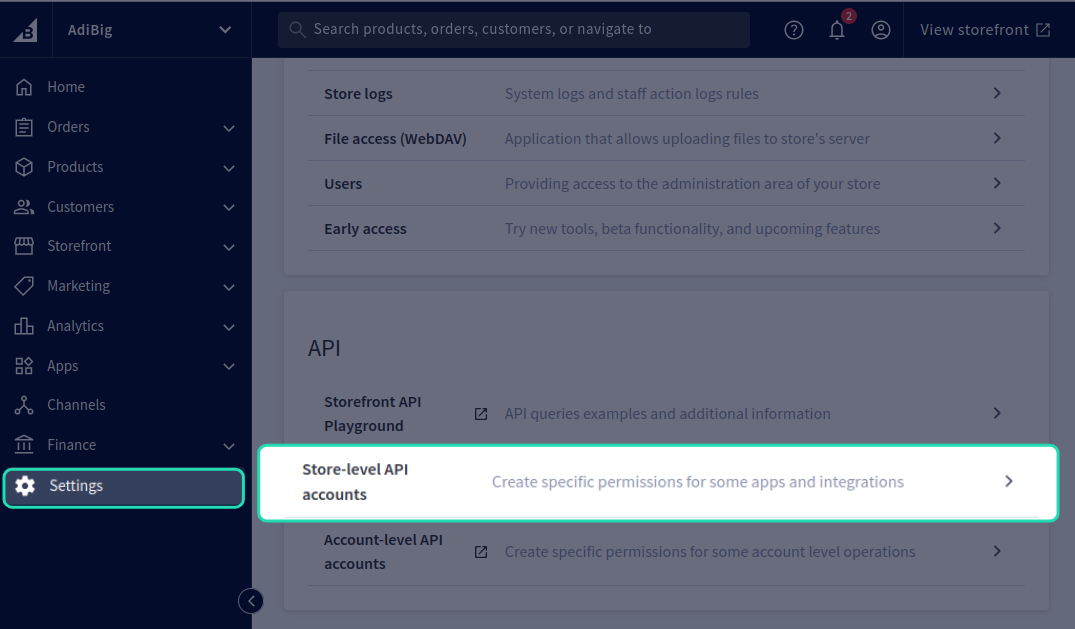
- Click Create API account.
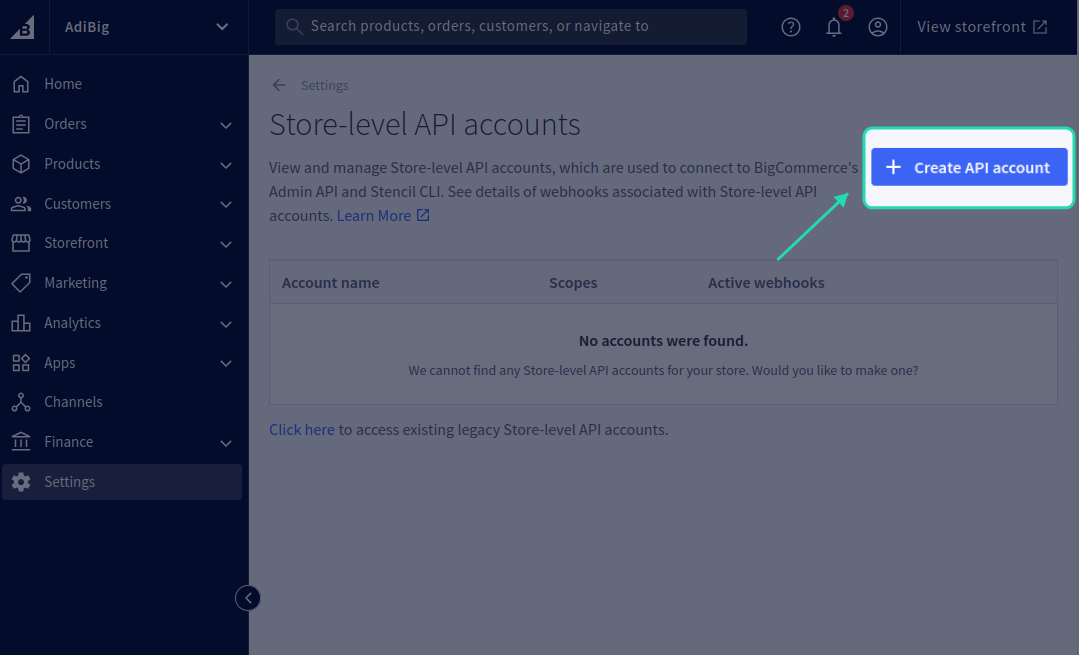
- Pick the Store API V2/V3 token type.
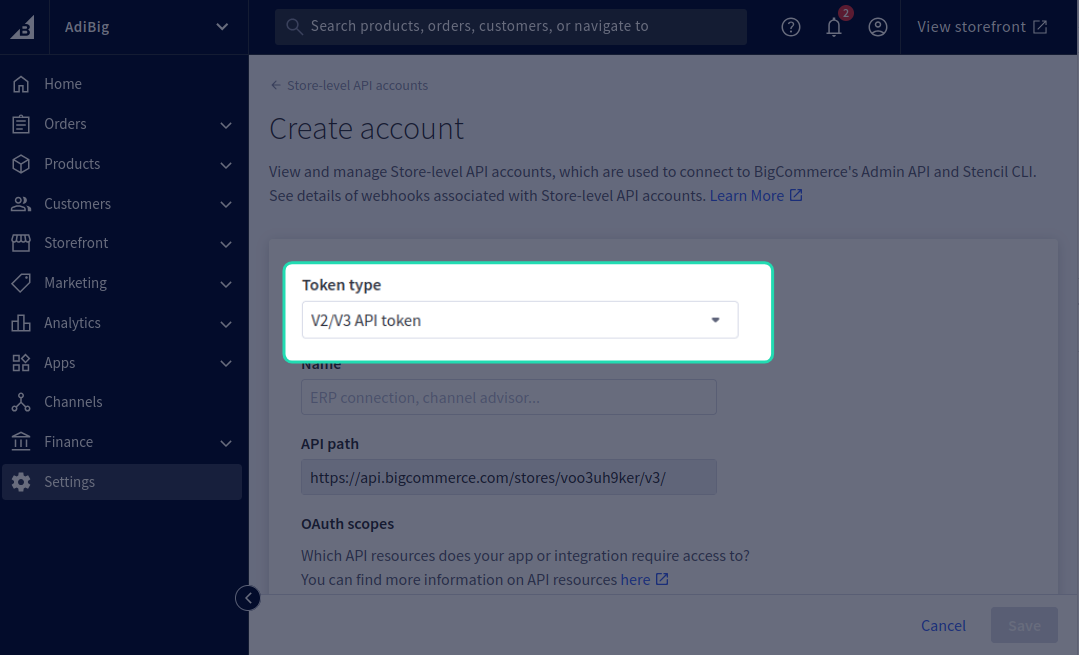
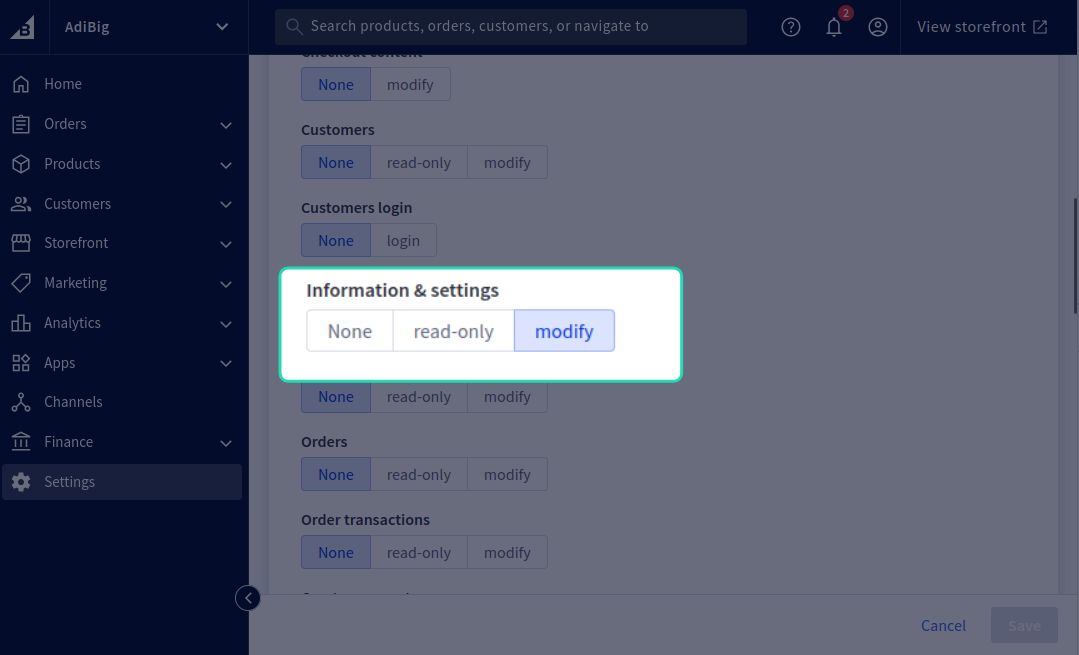
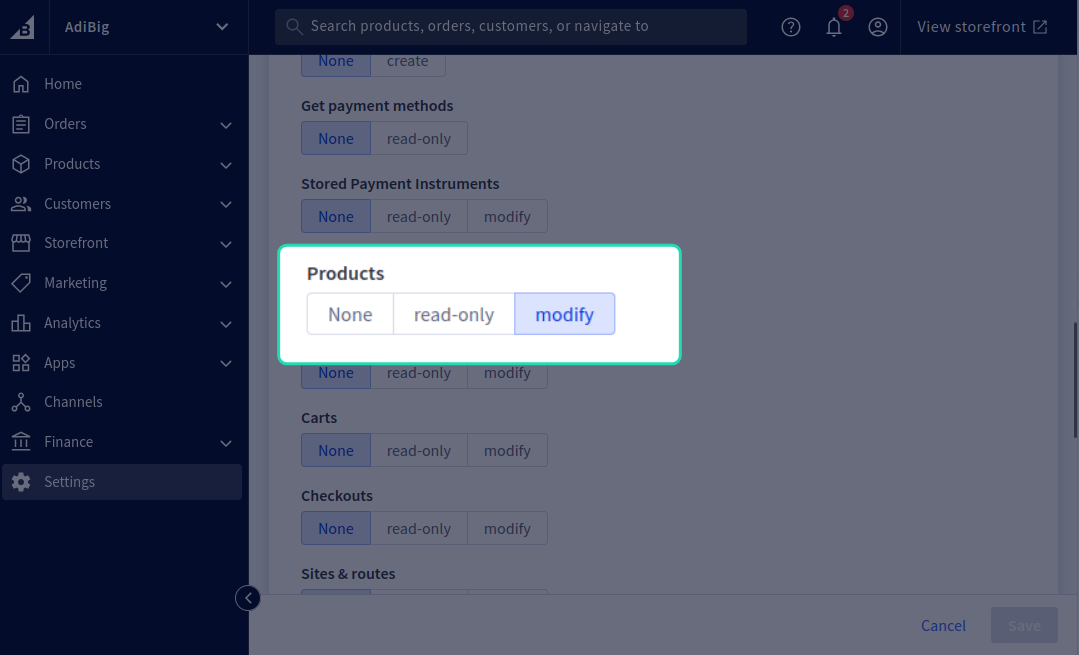
Give it a name (e.g. UnoPim Connector) and set scopes:
- Products - Modify (for export) or Read-only (import only).
- Information & Settings - Read-only / Modify.
Save the account. BigCommerce shows the Client ID, Client Secret, Access Token, and API path once - copy them now.
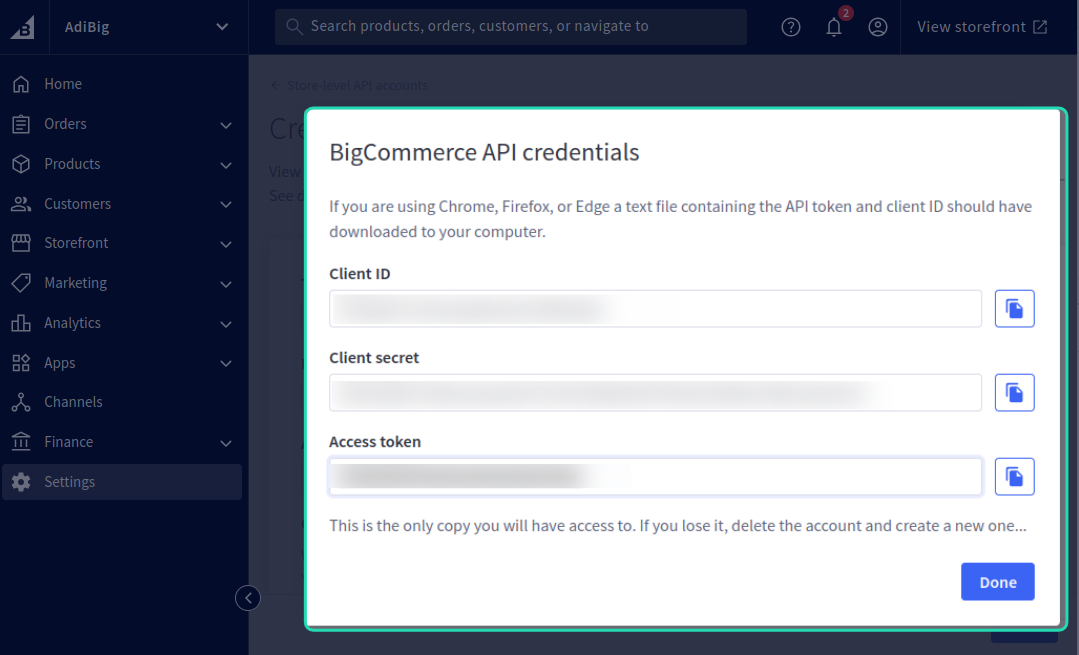
You'll paste these into UnoPim next.
Add a credential
In UnoPim, click + Create Credential in the top-right corner.
Fill in:
| Field | What goes here |
|---|---|
| Label | Any name you want, e.g. Production Store. Used to identify this credential everywhere. |
| API URL | The BigCommerce API path, e.g. https://api.bigcommerce.com/stores/<store-hash>/. Copy this from the BigCommerce API account screen. |
| Client ID | Client ID from the API account. |
| Client Secret | Client Secret from the API account. |
| Access Token | Access Token from the API account. |
| Status | Active / Inactive. Inactive credentials are hidden from the import / export filter dropdowns. |
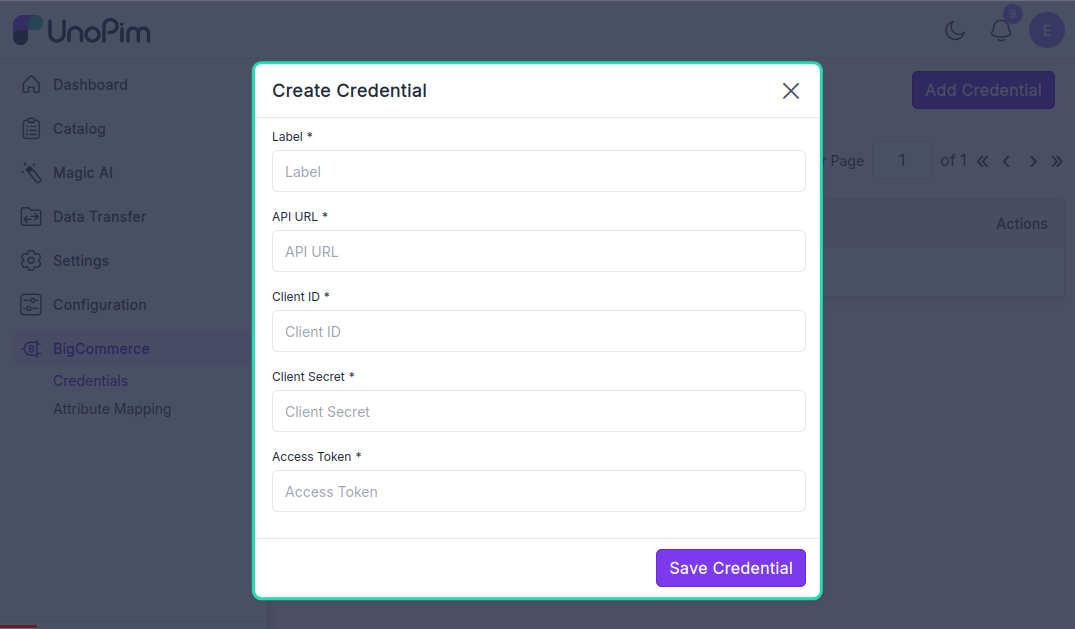
Click Save Credential.
The connector verifies the credentials against BigCommerce before saving. If anything is wrong you see a clear error and nothing is stored.
After saving, you land on the edit page where you can adjust the credential settings, locale mapping, and currency mapping.
Edit a credential
Click the pencil icon on any row.
You can:
- Change any of the values you set when creating.
- Leave Access Token and Client Secret blank (or as
**********) to keep the current values - type a new value to replace. - Set the Default Currency and Default Locale that BigCommerce expects when a product doesn't carry a locale-specific value.
- Configure the Locale Mapping - match each UnoPim locale to a BigCommerce locale.
- Configure the Currency Mapping - match each UnoPim currency to a BigCommerce currency.
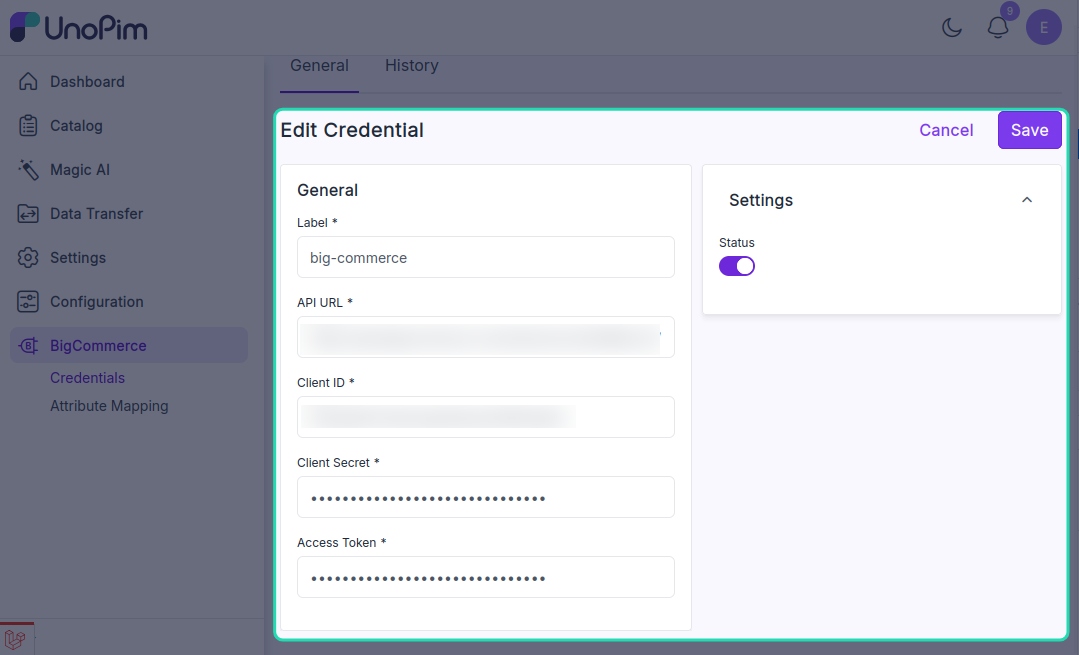
Click Update when done.
Delete a credential
Click the trash icon on a row and confirm.
CAUTION
Deleting a credential does not delete the products / categories already pushed to BigCommerce. It only stops future imports / exports from running through it.