

Mapping history
Every change made to attribute, custom, or other mapping is recorded automatically. Use the history page to see who changed what, when, and which mapping the change applied to.
Open it from: BigCommerce → Attribute Mappings → History
What the grid shows
Each row in the list is one change to a mapping:
| Column | What it means |
|---|---|
| Credential | The BigCommerce credential whose mappings were changed. |
| Mapping Type | standard, custom, or other. |
| Changed By | The admin user that made the change. |
| Action | created, updated, or deleted. |
| Changed At | Timestamp of the change. |
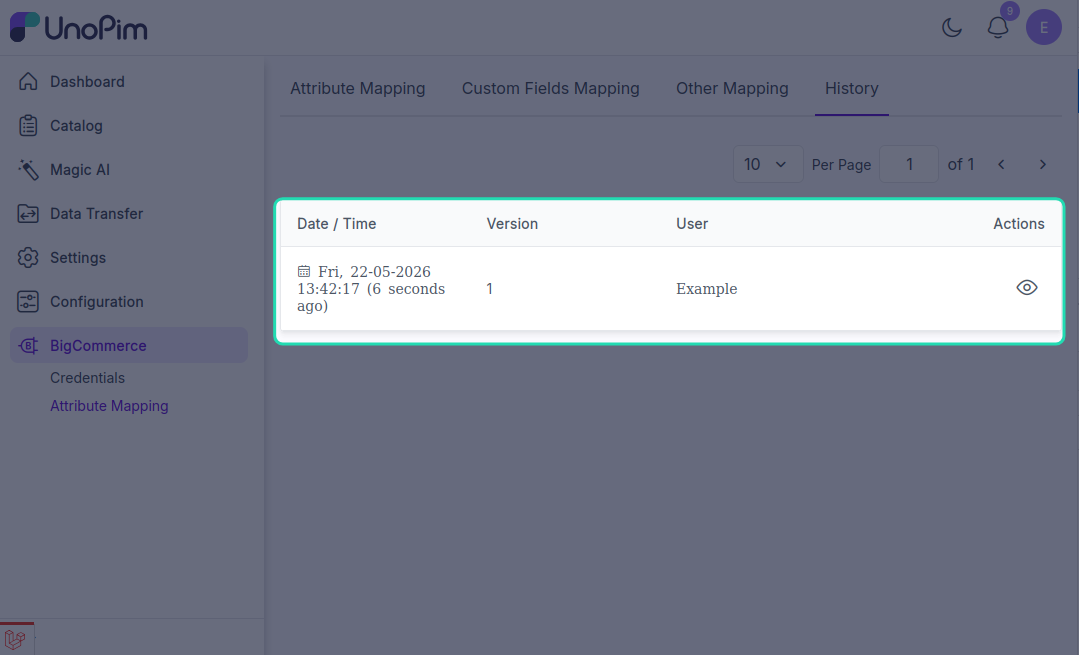
Click into a row to see the full before / after state of the mapping - which attributes were added, removed, or repointed.
You can search, filter by credential or by mapping type, and sort columns. The eye icon opens the detail view.
What's recorded
For each change the history captures:
- The complete before snapshot of the mapping.
- The complete after snapshot.
- Which specific fields changed (added, removed, or repointed to a different attribute).
That way you can answer questions like "who repointed the weight field last Tuesday?" without reading the audit log.
What's not recorded
- Changes to a credential's connection settings (label, API URL, tokens, status). Those are tracked separately on the credential edit page's history tab.
- Changes to products / categories themselves - the connector doesn't audit your catalog, only the mappings.
- Job runs (imports / exports). Those live in the Data Transfer Tracker.
Use history to debug an export
If yesterday's export sent products with the wrong values, the history is the first place to look:
- Open BigCommerce → Attribute Mappings → History.
- Filter by Credential to the one that ran the export.
- Sort by Changed At descending - look for changes around the time before yesterday's run.
- Open the detail view of any suspicious change and confirm which field moved.
This narrows down whether the problem is a mapping issue (recent change → fix here) or a catalog issue (no mapping changes → check the source data).