

Installation
This page is for installing the extension. Once it's installed, see Add BigCommerce credentials to start using it.
Steps
1. Drop the package in place
Unzip the extension and move the package folder into your UnoPim project:
packages/Webkul/BigCommerce/2. Add it to composer.json
In your project's root composer.json:
"autoload": {
    "psr-4": {
        "Webkul\\BigCommerce\\": "packages/Webkul/BigCommerce/src/"
    }
}
3. Register the provider
In bootstrap/providers.php:
use Webkul\BigCommerce\Providers\BigCommerceServiceProvider;

return [
    // ...
    BigCommerceServiceProvider::class,
];
NOTE
This registers BigCommerceServiceProvider in Laravel so the connector can bootstrap its services, routes, and package configuration during application startup.
TIP
For UnoPim < 2.0, add the provider to the providers array in config/app.php instead.
4. Run the install command
composer dump-autoload
php artisan bigcommerce:install
php artisan optimize:clear
php artisan queue:restart| Command | Purpose |
|---|---|
composer dump-autoload | Regenerates Composer's autoloader mapping to include the newly added namespace. |
php artisan bigcommerce:install | Runs the BigCommerce installer, including migrations and publish steps. |
php artisan optimize:clear | Clears all cached files (bootstrap, configuration, routes, and views) to load the new changes. |
php artisan queue:restart | Sends a safe restart signal to queue workers so they reload the latest code. |
5. Keep a queue worker running
php artisan queue:work| Command | Purpose |
|---|---|
php artisan queue:work | Starts a queue worker to process BigCommerce import/export jobs in the background. |
In production use Supervisor / systemd / Horizon. Every export and import is a background job - without a worker, nothing actually moves.
6. Give your role permission
Open Settings → Roles, edit the role, and tick the BigCommerce permissions you want them to have:
- Credentials - create, edit, delete BigCommerce credentials.
- Standard Mapping - open and update the standard attribute mapping.
- Custom Mapping - open and update the BigCommerce custom-fields mapping.
- Other Mapping - variant axes and category mappings.
- Mapping History - view the change history.
Without these the menu and buttons stay hidden.
Check it worked
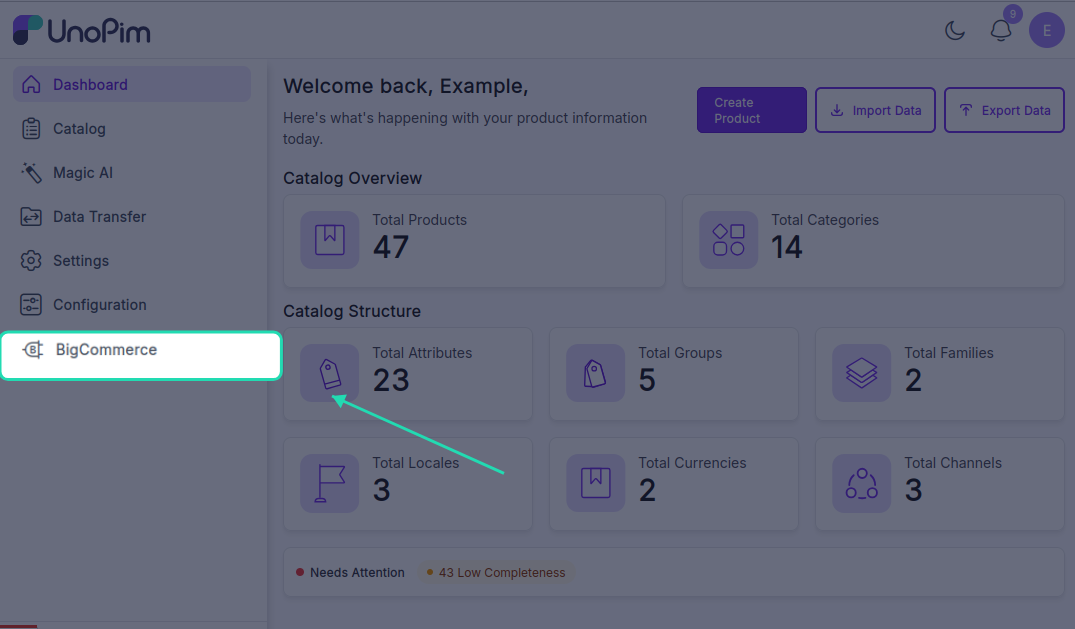
- Menu shows up. Open the admin panel - a BigCommerce menu appears in the sidebar with Credentials and Export Mappings under it.
Add a credential works. Open BigCommerce → Credentials → Create Credential, fill the form, and save. If the API URL or access token is wrong, you see a clear error.
Export profile shows up. Open Data Transfer → Export → Create Export Profile - Export Categories to BigCommerce, Export Products to BigCommerce, and Export Configurable Product to BigCommerce appear in the type dropdown.
Import profile shows up. Open Data Transfer → Import → Create Import Profile - Import Categories from BigCommerce and Import Products from BigCommerce appear in the type dropdown.
If any of these don't work, see Contact Support.