

Attribute mapping
You need to map UnoPim attributes with BigCommerce product fields before exporting products to your BigCommerce store.
While exporting products from UnoPim to BigCommerce, the connector sends product information based on the attribute mapping you configure for that credential.
Open it from: BigCommerce → Attribute Mapping
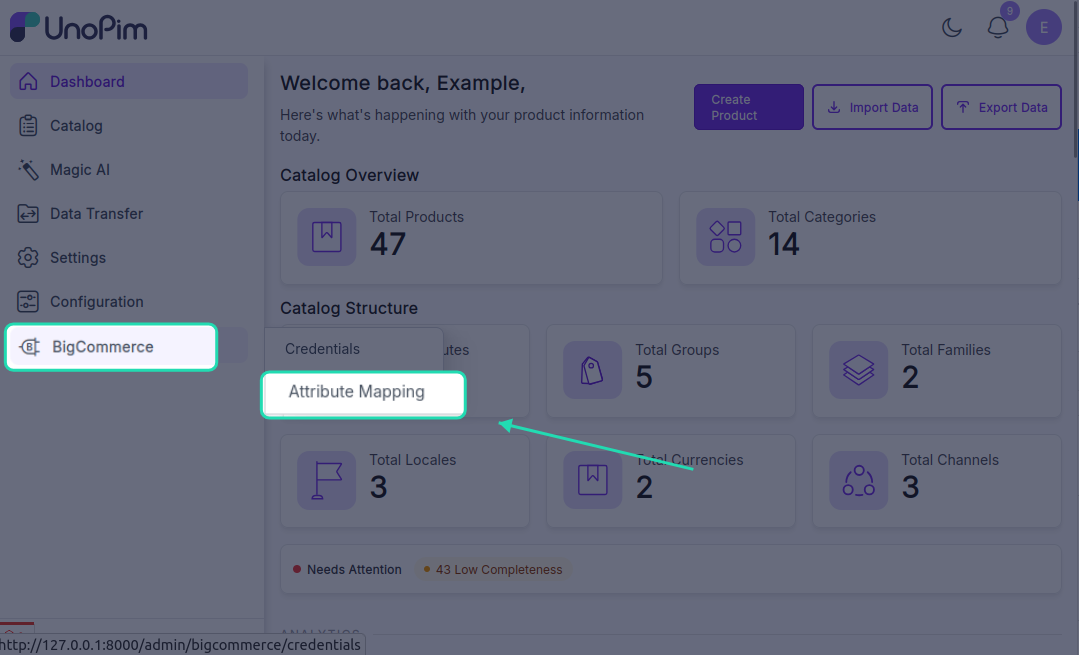
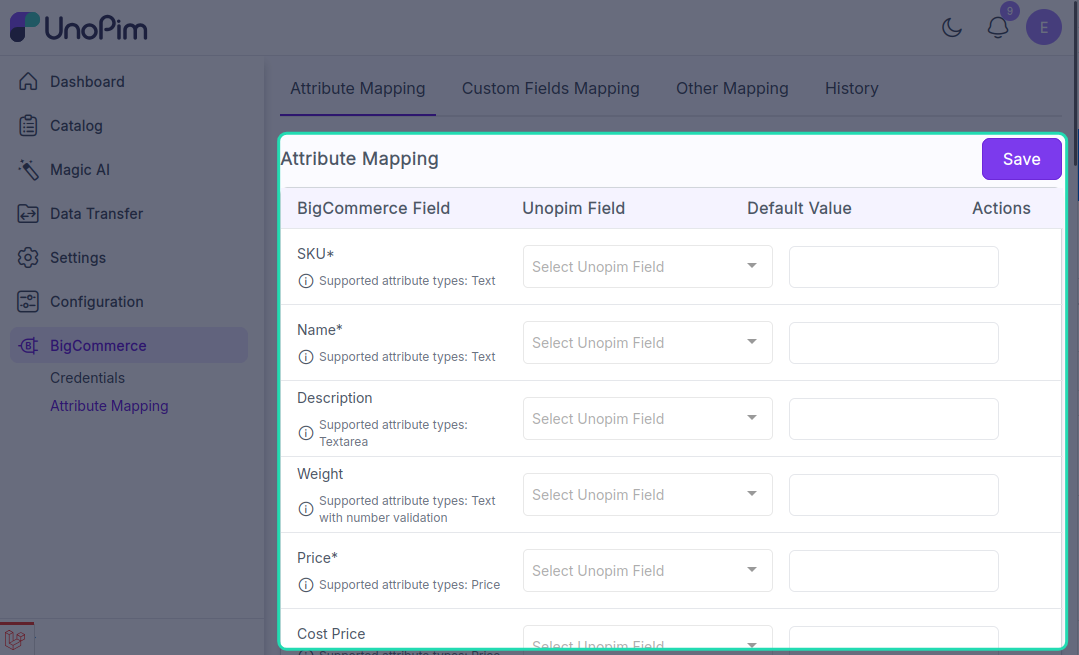
Attribute mapping fields
You can map the following BigCommerce product fields with UnoPim attributes:
SKUNameDescriptionWeightPriceCost PriceModel PriceProduct TypeMeta TitleMeta KeywordsMeta Description
Other mapping fields
You can also configure the following fields under Other Mapping:
Attributes to be used as ImageAttribute to be used as Cover ImageImage DescriptionIs FeaturedIs Free ShippingBrand Id
What you'll see
The page lists BigCommerce product fields with three columns:
| Column | What it means |
|---|---|
| BigCommerce Field | The built-in BigCommerce field you're mapping into. Hover the info icon for what the field accepts. |
| UnoPim Attribute | Pick the UnoPim attribute whose value populates this field. |
| Supported Types | The UnoPim attribute types the field accepts (e.g. Text only, or Text / Textarea). The dropdown filters to those types. |
The page is per credential - pick the credential first, then the mapping shown belongs to that store. Different stores can have different mappings.
Required mappings
At minimum, map these to run a product export:
| BigCommerce Field | Typical UnoPim attribute |
|---|---|
| Name | name |
| SKU | sku |
| Price | price |
| Weight | weight (or fixed value 0) |
| Type | physical or digital - usually a fixed value attribute. |
The rest are optional. BigCommerce uses default values for any unmapped optional field.
Add an additional attribute
Some BigCommerce stores need a few extra product fields that are not shown by default. Use + Add Additional Attribute at the bottom of the page to expose them:
- Click + Add Additional Attribute.
- Pick the BigCommerce field from the dropdown.
- Pick the matching UnoPim attribute.
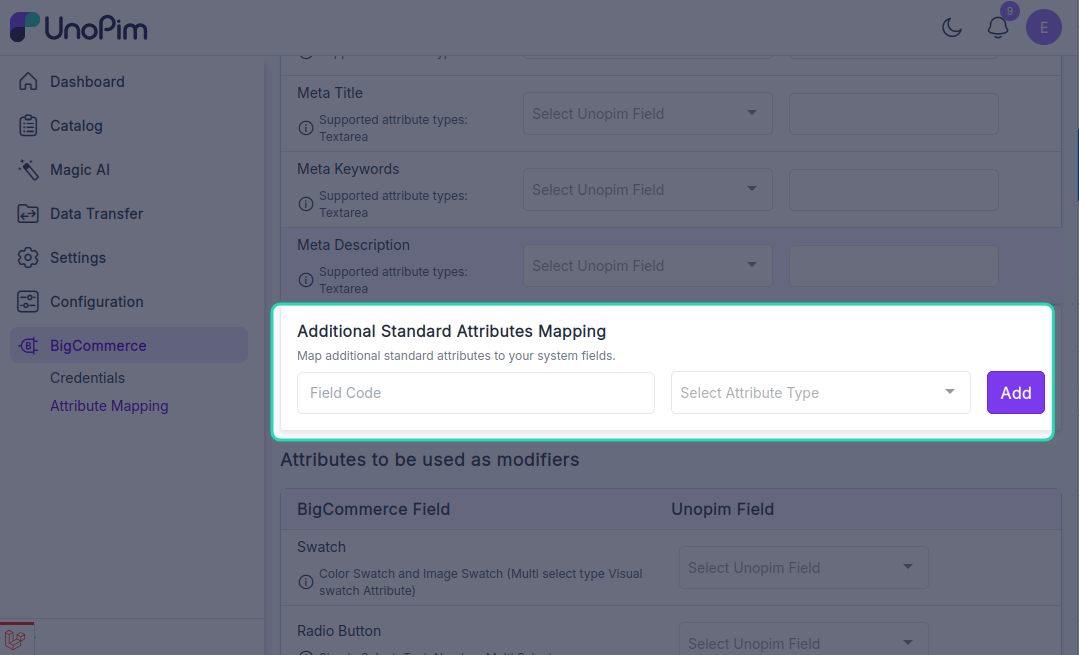
Click the trash icon next to a row to remove an additional attribute.
Save the mapping
Click Save at the top. You'll see a success message.