

Import Magento Category & Category Attribute
The Magento 2 connector provides two import jobs for bringing category-related data from your Magento 2 store into UnoPim:
- Magento Category Import - imports categories from Magento 2 into UnoPim.
- Magento Category Attribute Import - imports category attributes from Magento 2 into UnoPim.
These jobs are useful when you already have a well-structured category catalog in Magento and want to bring it into UnoPim without manual re-entry.
Part 1: Import Magento Categories
What This Job Does
This job reads the category tree from your Magento 2 store and creates the corresponding categories in UnoPim. It preserves the category hierarchy, localized names, and category attributes.
How to Create the Import Job
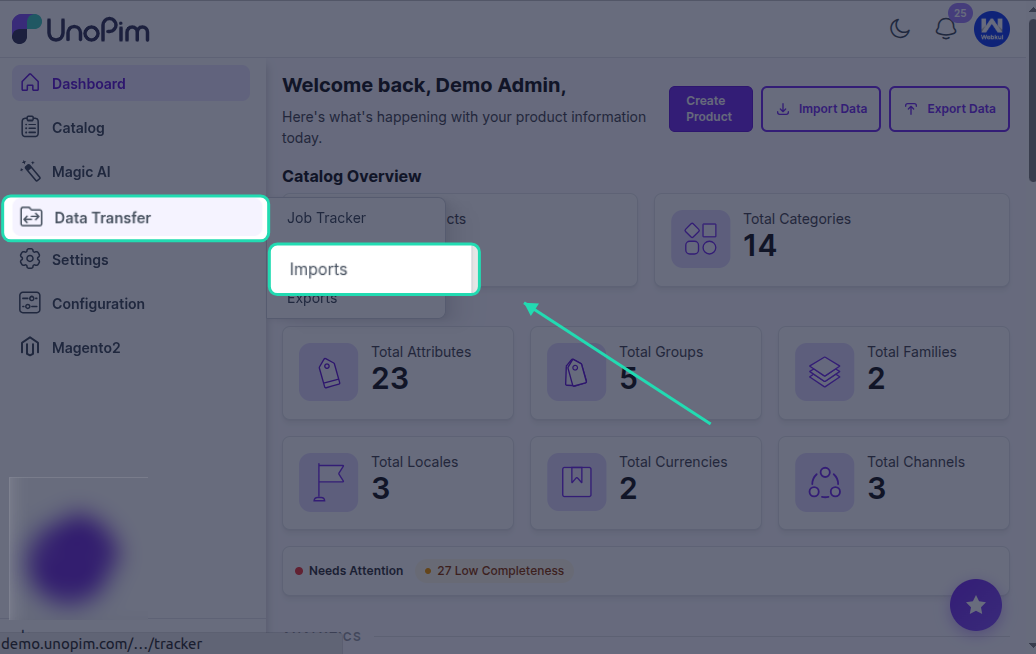
Go to Data Transfer > Imports > Create Import Profile.
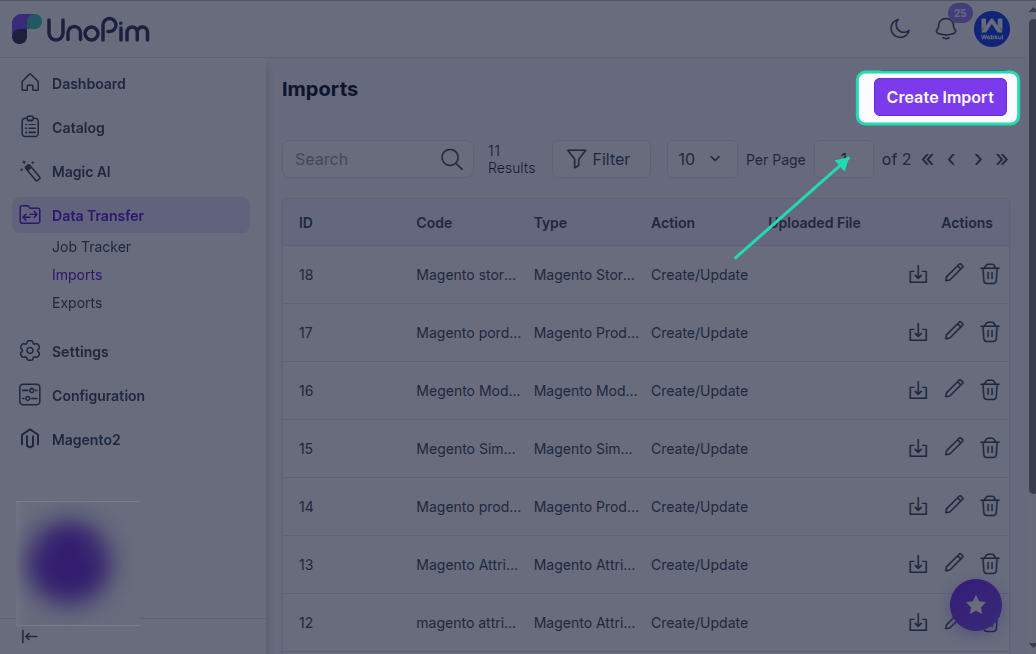
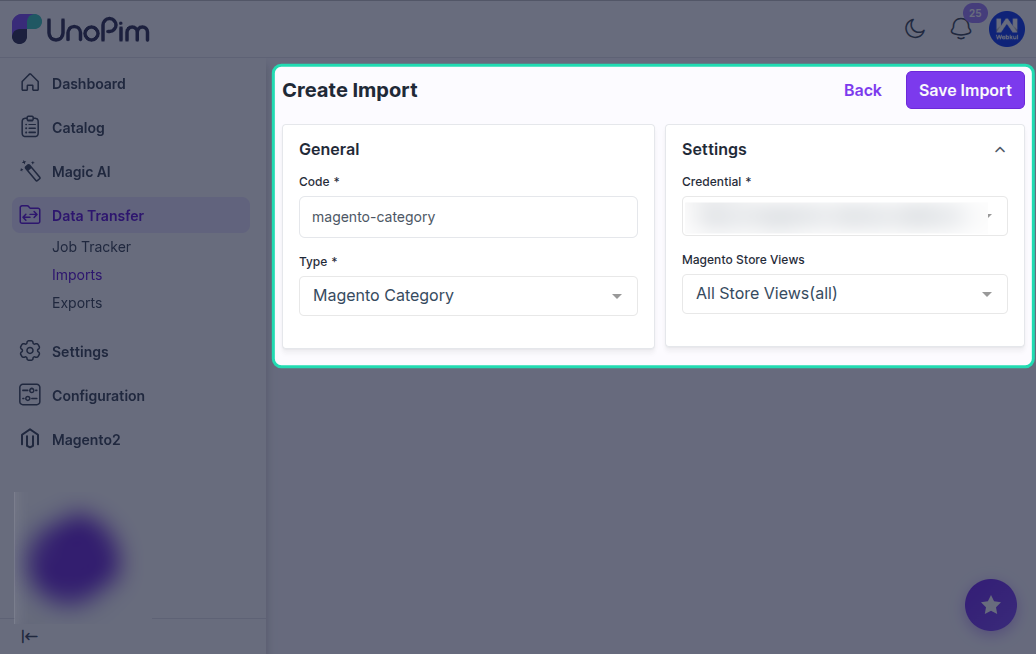
Select Magento Category Import as the import type.
Enter a unique code and a recognizable name for this job, then save it.
Available Filters
| Filter | Required | Description |
|---|---|---|
| Credential | Yes | Select the Magento 2 store credential to import categories from. |
| Store Views | No | Select a Magento store view. This controls which locale-specific category names and data are imported. |
What Gets Imported
- Category name - pulled from the selected store view.
- Category hierarchy - parent-child relationships are preserved in UnoPim.
- URL key - imported from Magento where available.
- Enabled status - active and inactive categories are imported.
- Locale-specific values - category names are imported using the store view mapping configured in your credentials.
- Category attributes - common and locale-specific category field values are imported.
Running the Import
Click Import Now to start the category import process.
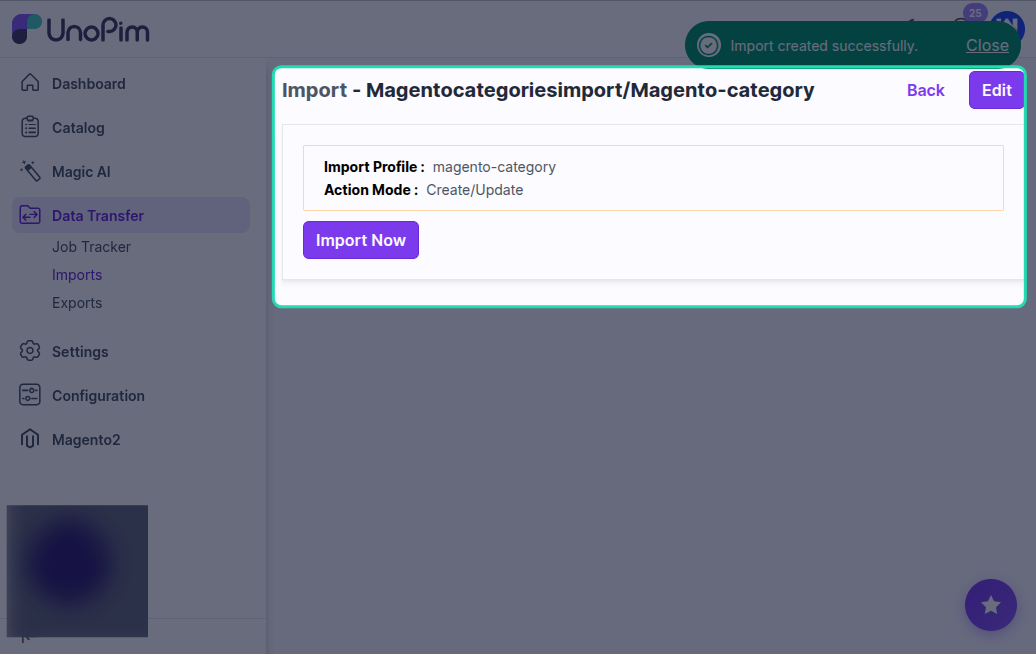
After the job completes, check the import summary to see:
- How many categories were created or updated.
- Any categories that were skipped or had errors.
After the Import
Log in to UnoPim and go to the Catalog > Categories section.
You should see the Magento categories now available in UnoPim with their correct hierarchy and names.
Part 2: Import Magento Category Attributes
What This Job Does
This job imports the category attributes defined in your Magento 2 store into UnoPim as category fields. This allows UnoPim to store the same category-level data that Magento uses.
How to Create the Import Job
Go to Data Transfer > Imports > Create Import Profile.
Select Magento Category Attribute Import as the import type.
Enter a unique code and a name for the job, then save it.
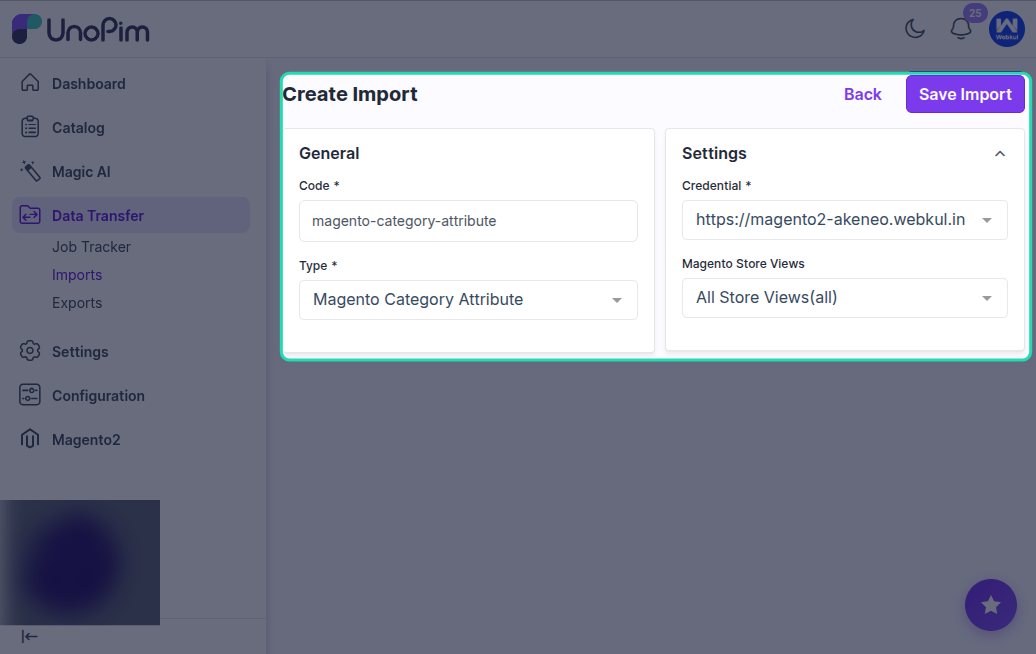
Available Filters
| Filter | Required | Description |
|---|---|---|
| Credential | Yes | Select the Magento 2 store credential to import category attributes from. |
| Store Views | No | Select a Magento store view to determine which locale-specific labels are imported with the attributes. |
What Gets Imported
- Attribute code - the unique code for each category attribute.
- Attribute label - the display name from the selected store view.
- Attribute type - resolved to the closest matching UnoPim field type.
- Attribute options - for select-type attributes, available options are also imported.
Running the Import
Click Import Now to start the process.
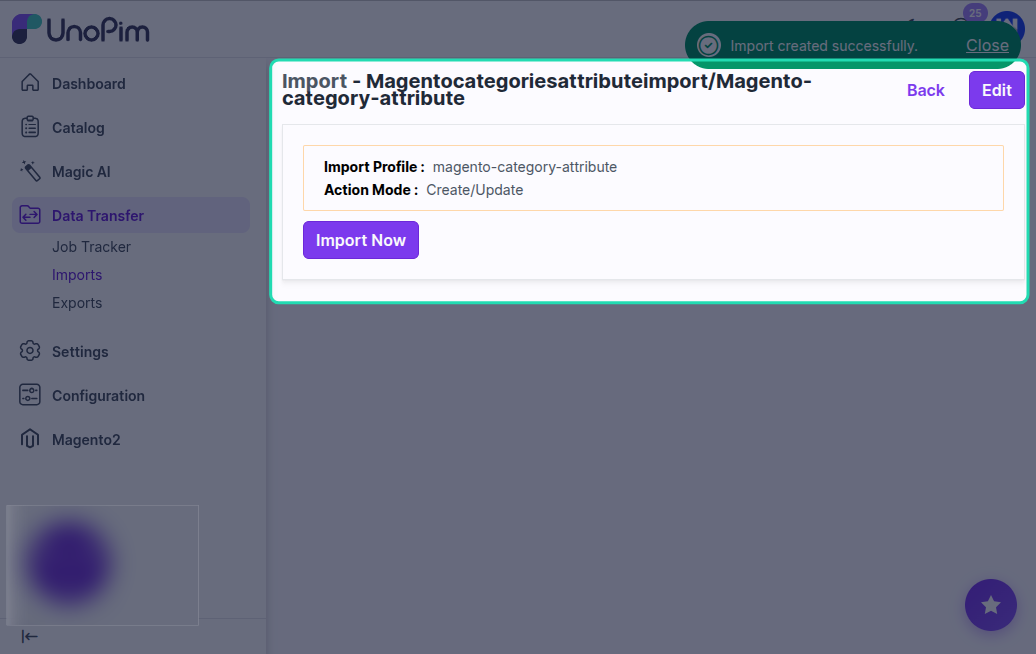
Once complete, review the import summary for the number of category attributes created or updated.
After the Import
Go to Catalog > Category Fields in UnoPim. You should see the category attributes from Magento available in UnoPim and ready to be used on your categories.
Recommended Import Order
For the best results when setting up your UnoPim catalog from Magento:
- Import Category Attributes first so UnoPim knows about the available category fields.
- Import Categories second so category data can be stored against those fields correctly.