

Import Magento Store View Details
The Magento Store import job fetches the full structural details of every website, store group, and store view configured in your Magento 2 installation and saves them against the matching UnoPim credential.
This is a one-time setup step (run after creating a credential, and re-run whenever your Magento store structure changes) that lets the connector show accurate, up-to-date store view options everywhere they're needed - credential mapping, export filters, and import filters.
How This Differs from Shop View Mapping
There are two related jobs - use both, in this order:
| Job | What it does |
|---|---|
| Magento Shop View Mapping | Pulls just the store view codes and labels so you can map them to UnoPim channels / locales / currencies in the credential. |
| Magento Store (this page) | Pulls the full website + store group + store view hierarchy with all related details. |
If you only want to set up channel mapping, the Shop View Mapping job is enough. Run Magento Store in addition when you also need:
- The list of websites (top-level Magento structure).
- The store groups that sit under each website.
- The full hierarchy showing which store view belongs to which group and website.
How to Create the Import Job
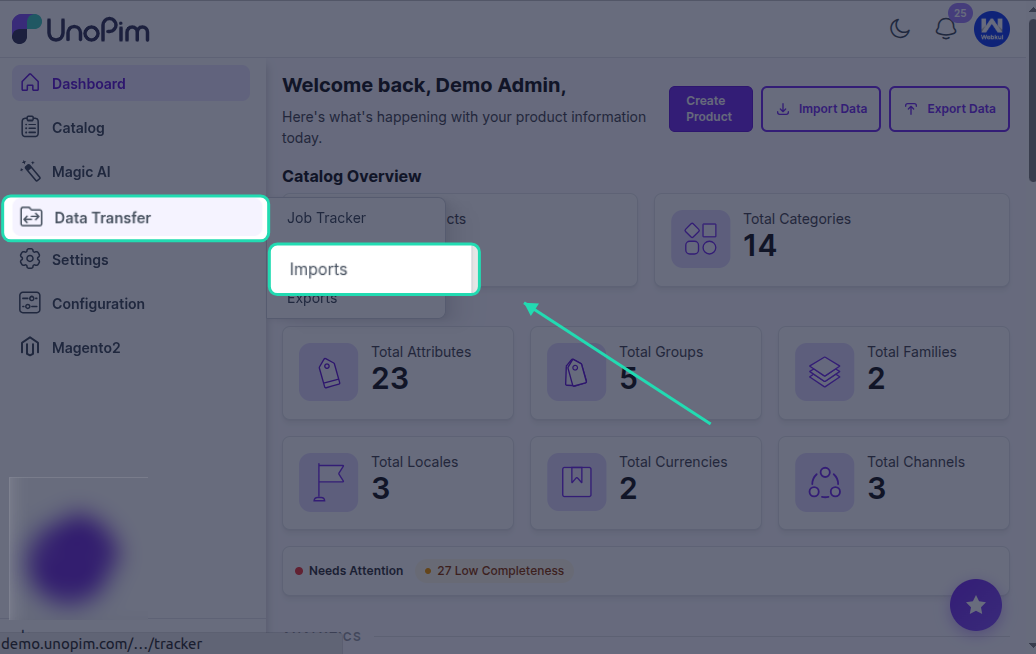
Go to Data Transfer > Imports > Create Import Profile.
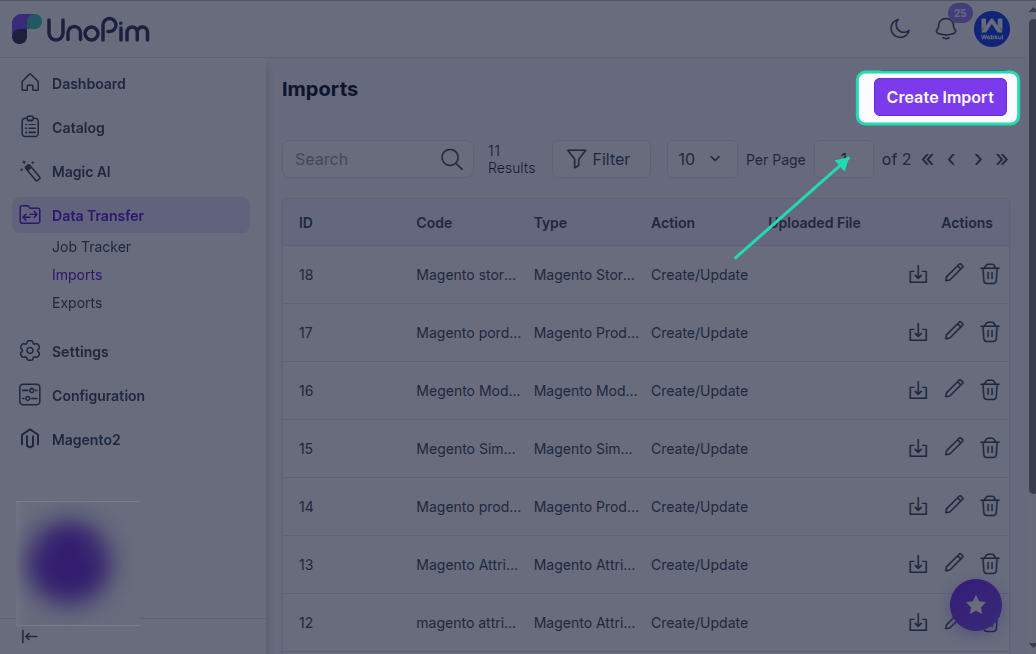
Select Magento Store as the import type.
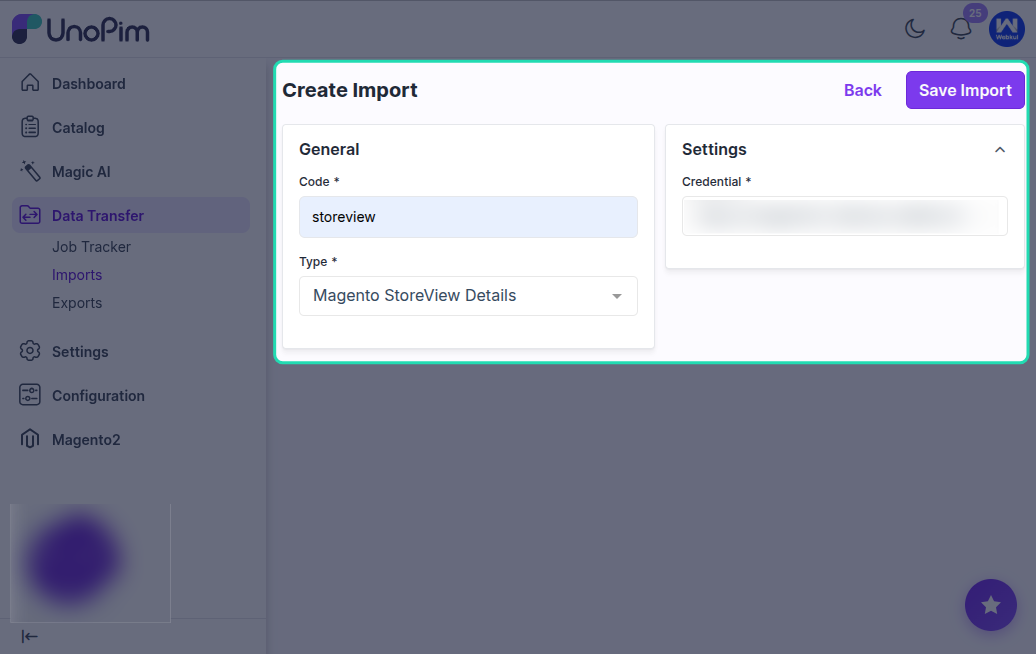
Enter a unique code and a recognizable name for the job, then save it.
Available Filters
| Filter | Required | Description |
|---|---|---|
| Credential | Yes | Select the Magento 2 credential you want to fetch the store structure for. |
There are no other filters - the job pulls the complete store hierarchy from the connected Magento instance.
What Gets Imported
The job reads the following from Magento 2's GET /V1/store/storeConfigs, GET /V1/store/storeViews, GET /V1/store/storeGroups, and GET /V1/store/websites endpoints:
- Websites - every website configured in Magento with its code, name, and default group.
- Store groups - for each website, every store group with its code, name, and root category.
- Store views - for each store group, every store view with its code, label, locale, base currency, and active flag.
All of this is saved into the extras field on the Magento credential in UnoPim so the connector can render it back in filters and credential mapping without going back to Magento every time.
Running the Import
Click Import Now to start the process.
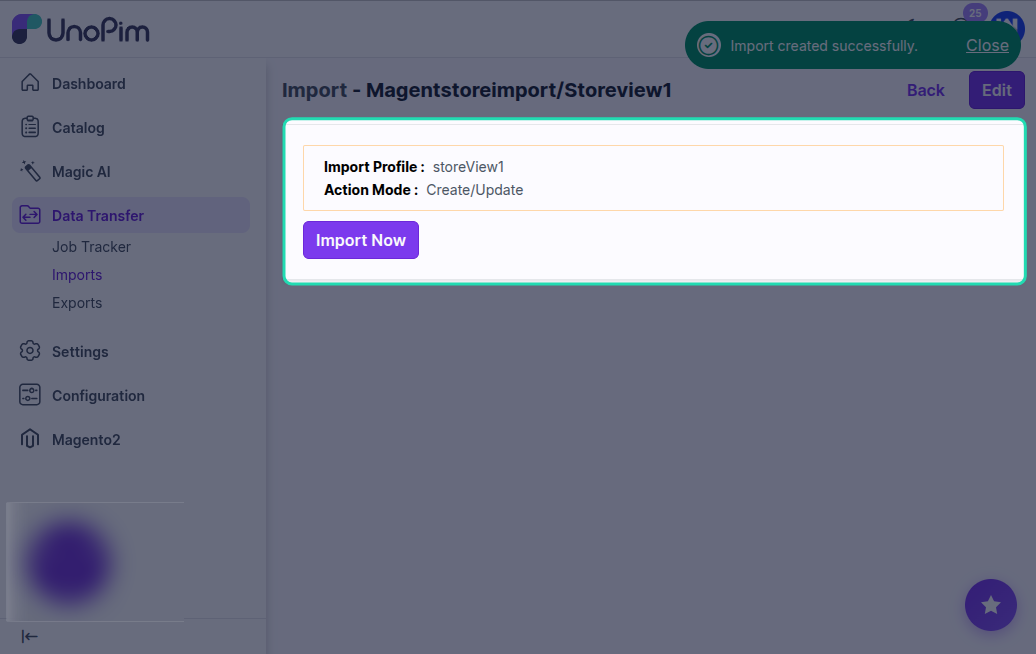
The job runs quickly - usually a couple of seconds, since it's pulling configuration, not product data.
Once complete, check the job summary. The store hierarchy is now stored on the matching Magento credential.
After the Import
Go to Magento 2 Connector > Credentials > Edit Credential.
The Store View Mapping section now shows every store view grouped under its store group and website. From here, configure the channel / locale / currency mapping for each store view - see Magento Shop View Mapping → Map Store Views to UnoPim Channels.
When to Re-Run This Job
Re-run the Magento Store import whenever:
- A new store view, store group, or website is added in Magento.
- An existing store view's code, label, locale, or currency changes.
- A store view is disabled or deleted in Magento.
After re-running, revisit the Store View Mapping in the credential and adjust the mapping to match the new structure.
Best Practice
- Run this job immediately after creating a Magento credential - that way the credential's store view mapping UI is populated from the very first time you open it.
- Add a reminder to re-run it after any Magento configuration change. It's quick and idempotent - the worst case of re-running it is wasted seconds.
- Pair it with the Shop View Mapping import; together they give the credential everything it needs to drive accurate, locale-aware imports and exports.