

Category Mapping
Map UnoPim category fields to Odoo category fields before exporting categories.
Overview
When you export categories to Odoo, UnoPim uses your category mapping to decide which category data is sent to each Odoo field. Configure these mappings once so every export uses the same field alignment.
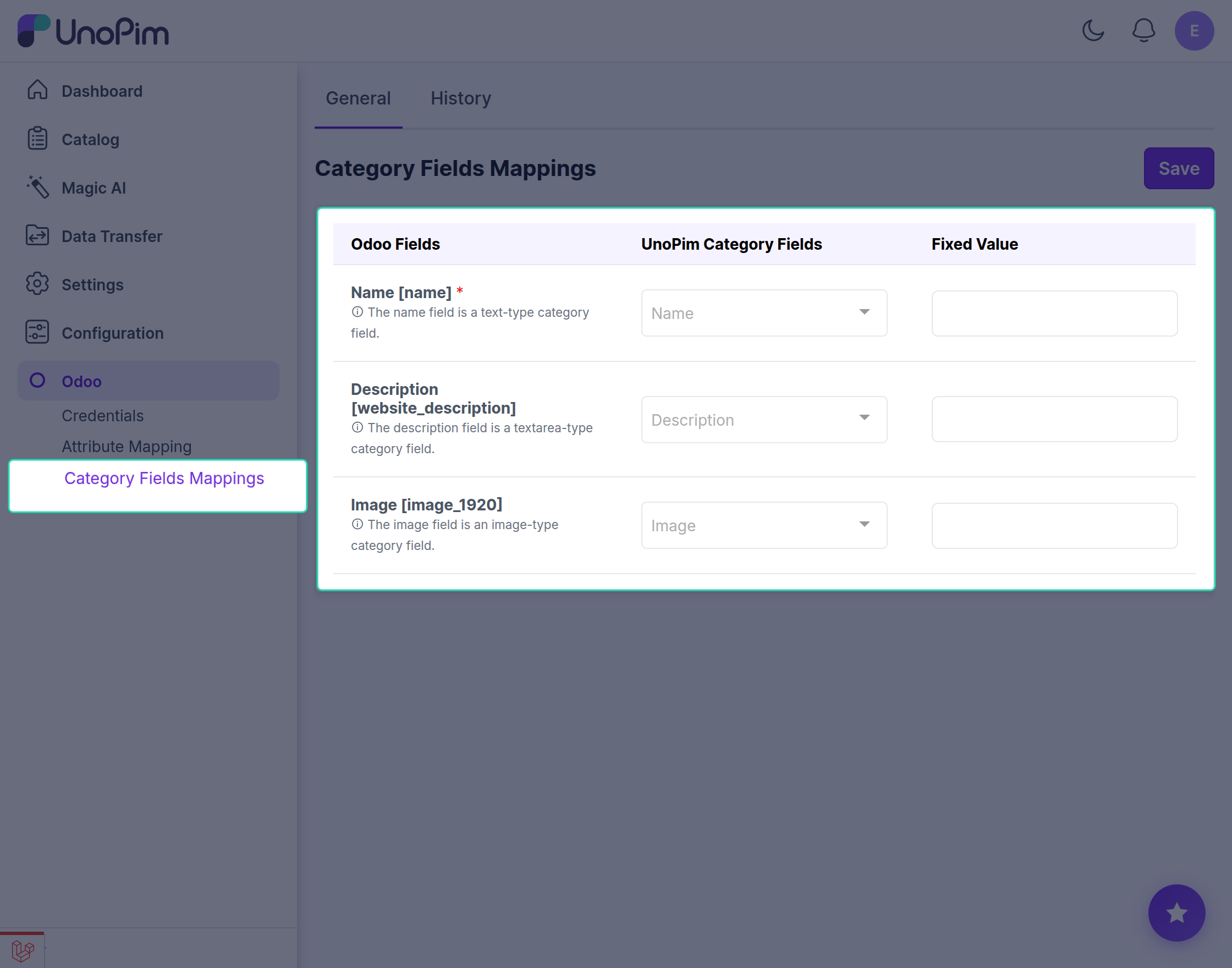
How the mapping screen works
The category mapping screen has three columns:
| Column | Purpose |
|---|---|
| Odoo Fields | Destination fields in Odoo where UnoPim category data is written during export. |
| UnoPim Category Fields | Source fields in UnoPim. Choose the category field that should populate each Odoo field. |
| Fixed Value | Optional default value applied to an Odoo field for every exported category, regardless of UnoPim data. |
Use Fixed Value when all exported categories should share the same value for a specific Odoo field.
Default mappable category fields
The following Odoo category fields can be mapped to UnoPim category fields out of the box:
| Odoo field | Type | Notes |
|---|---|---|
| Name | Text | Required category name that identifies the category in Odoo. |
| Description | Textarea | Detailed category description. |
| Image | Image | Category image or logo. |
Configure category mapping
Step 1 — Open category mapping
In the Odoo connector settings, open the Category Mapping section.
Step 2 — Map Odoo fields to UnoPim category fields
For each Odoo category field you want to export:
- Select the Odoo field (or confirm it is already listed).
- Choose the matching UnoPim category field from the dropdown.
- Optionally enter a Fixed Value if every exported category should use the same value for that field.
Step 3 — Add more mappings
Repeat Step 2 for any additional category fields you need in Odoo.
Step 4 — Save configuration
Click Save to store your mapping. New category exports will use this configuration.