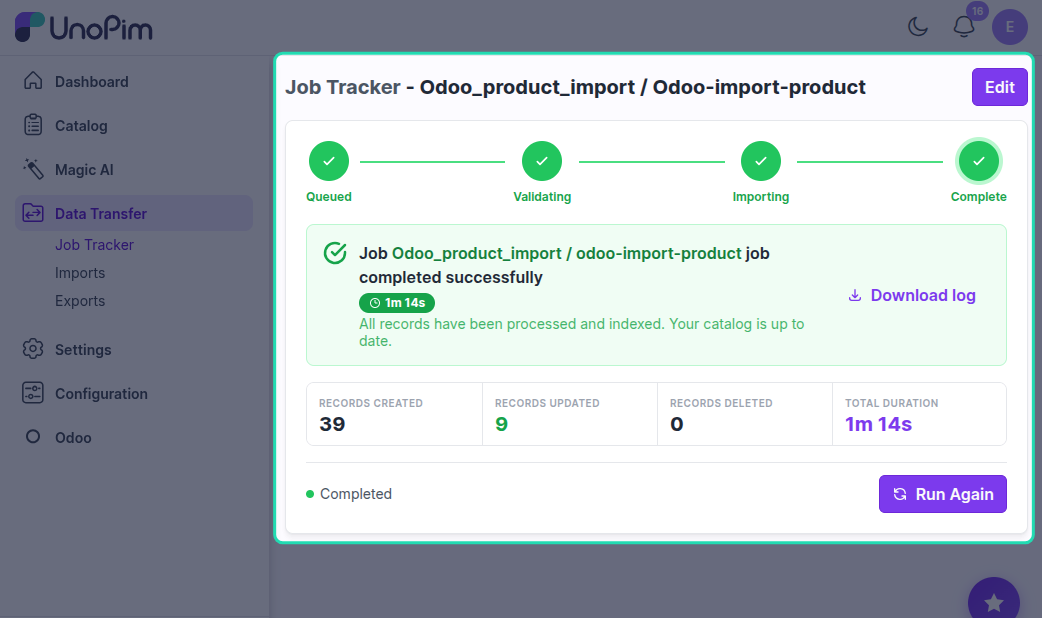
UnoPim - Odoo Import Product
Importing Products from Odoo
Overview
This import job will import all the products from Odoo to UnoPim.
Prerequisites
Before importing products from Odoo, ensure that you have configured your Odoo credentials in UnoPim. It is also recommended to first import attributes and categories from Odoo.
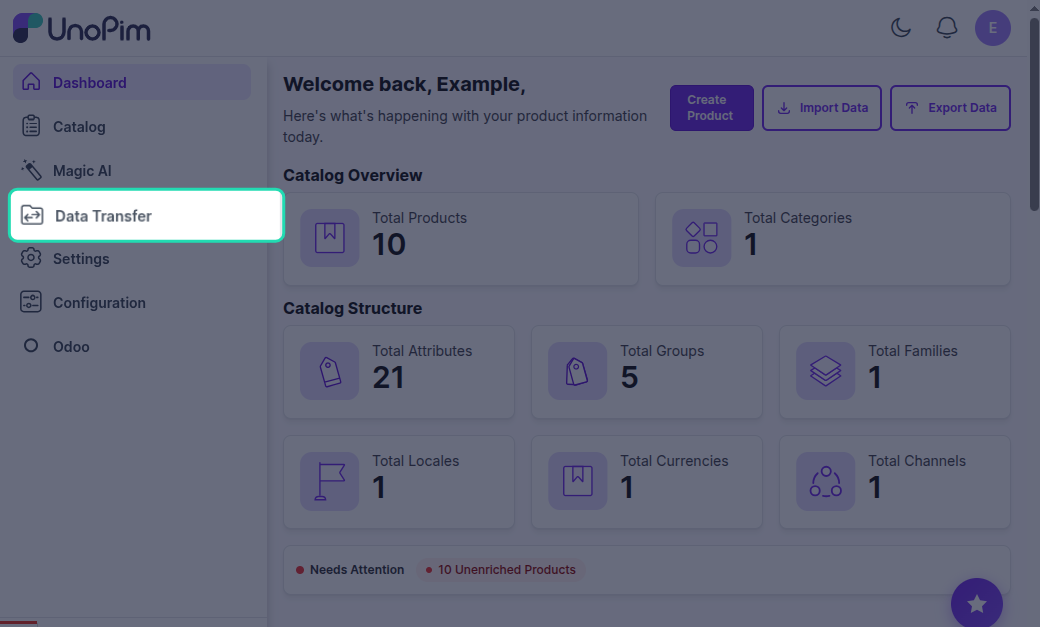
Step 1: Go to Data Transfer
Navigate to the Data Transfer section from the main menu in UnoPim.
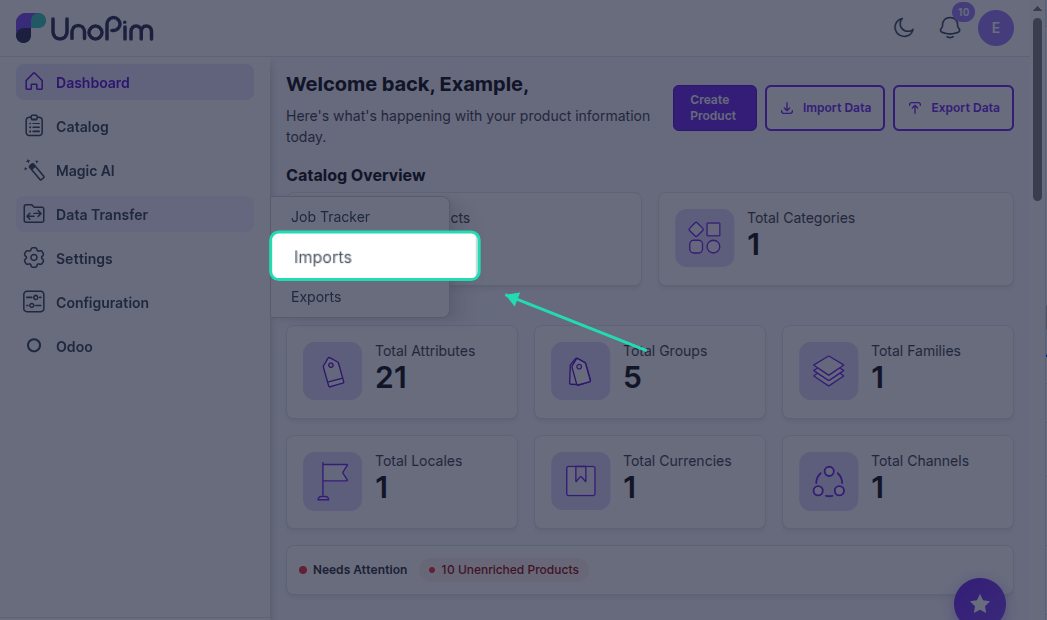
Step 2: Go to Imports
Click on Imports to view the available import options.
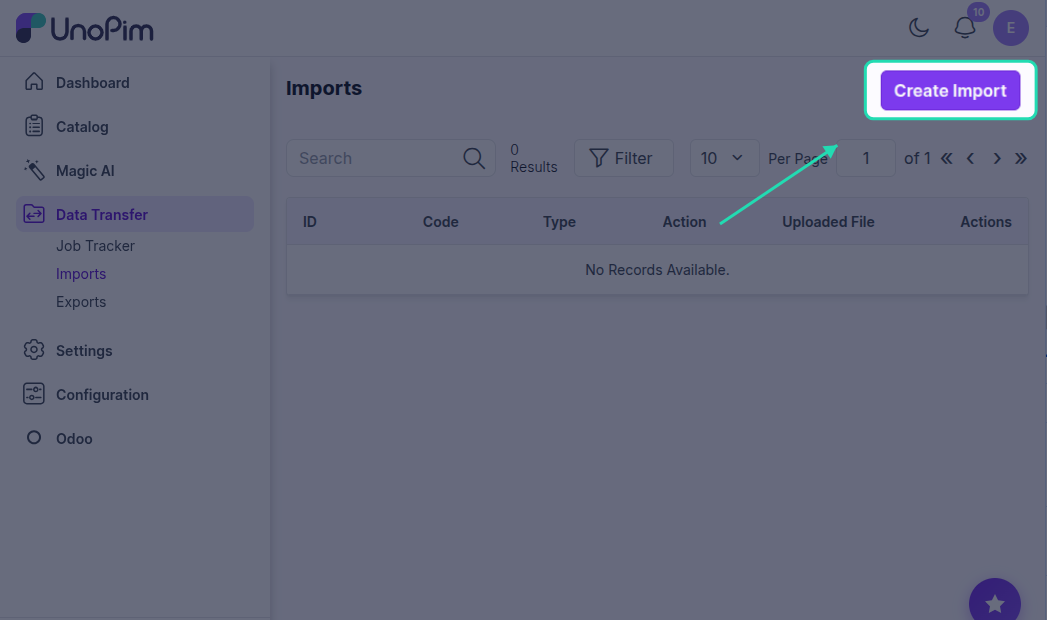
Step 3: Create Import
Click on Create Import to create a new import profile.
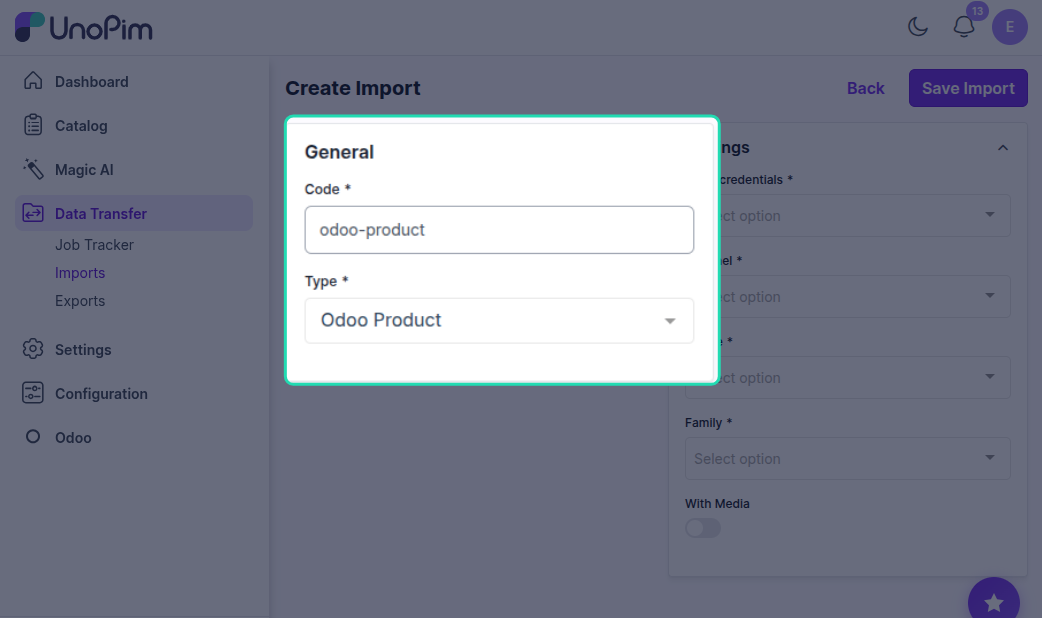
Step 4: Enter Code and Select Type
In the General section, configure the following:
Code
Enter a unique code for your import profile. This code will help you identify the import profile.
Example: odoo_product_import_001
Type
In the Type field, select Odoo Product from the dropdown menu.
Step 5: Configure Settings
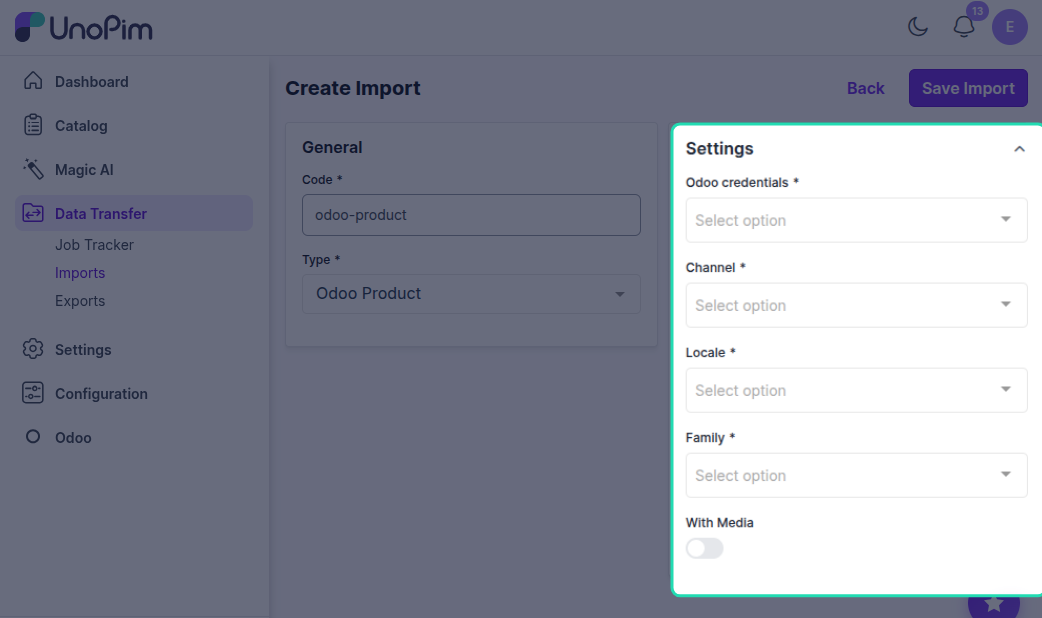
In the Settings section, configure the following required fields:
Odoo Credentials
Click on the Odoo credentials dropdown and select the specific Odoo credentials or connection you want to import from. This is a required field.
Channel
Click on the Channel dropdown and select the appropriate channel or store view from your Odoo setup. This is a required field.
Locale
Click on the Locale dropdown and select the language or regional settings for importing product data. This is a required field.
Family
Click on the Family dropdown and select the product family you want to import products into. This is a required field.
With Media
Toggle the With Media option to include or exclude product images and other media assets in the import.
ON - Import products with all associated images and media files
OFF - Import products without media files
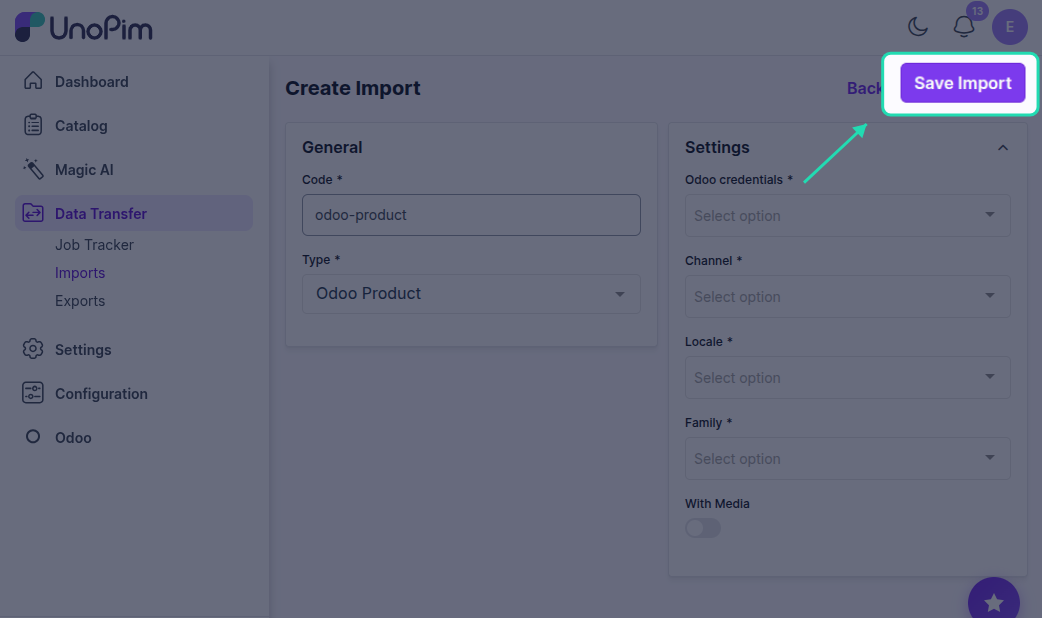
Step 6: Save Import
Click the Save Import button to save your import profile configuration.
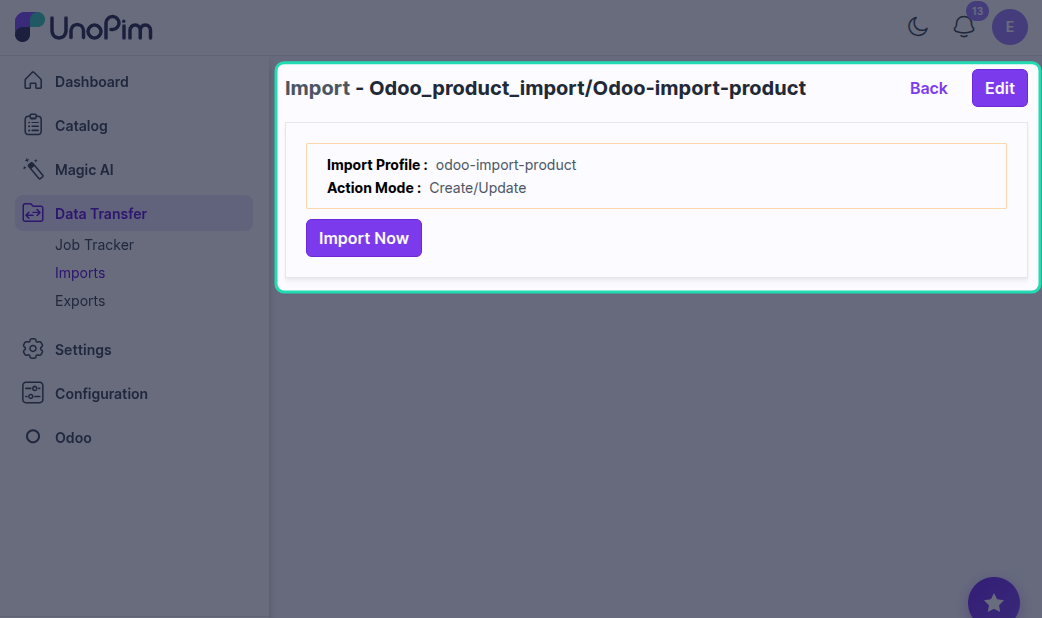
Step 7: Import Now
Once the import profile is saved, click the Import Now button to start the import process and import all Odoo products to UnoPim.
Step 8: Monitor Progress
In the execution process, you can check the progress of the import job and view any errors in the log.