

Installation
Follow the steps below to install the UnoPim Odoo Connector on your UnoPim instance. Make sure you have terminal access to your server before getting started.
Step 1 - Add the Package Files
Unzip the extension ZIP file you downloaded. Inside, you'll find a packages folder - merge this into the root directory of your UnoPim project.
Step 2 - Register the Service Provider
Open the bootstrap/providers.php file and add the following:
use Webkul\Odoo\Providers\OdooServiceProvider;

return [
    // ...existing providers...
    OdooServiceProvider::class,
];
NOTE
This registers OdooServiceProvider in Laravel so the connector can bootstrap its services, routes, and package configuration during application startup.
Step 3 - Update Composer Autoload
Open composer.json and add the following line under the autoload > psr-4 section:
"Webkul\\Odoo\\": "packages/Webkul/Odoo/src"Step 4 - Run the Setup Commands
Run the following commands one by one in your terminal. Wait for each one to finish before running the next.
Dump Composer autoload
composer dump-autoloadRun database migrations
php artisan migratePublish the connector assets
php artisan vendor:publish --tag=unopim-odoo-connectorInstall the Odoo XML-RPC client package
composer require alazzi-az/odoo-xmlrpcClear the application cache
php artisan optimize:clear| Command | Purpose |
|---|---|
composer dump-autoload | Regenerates Composer's autoloader mapping to include the newly added namespace. |
php artisan migrate | Runs pending database migrations required by the connector. |
php artisan vendor:publish --tag=unopim-odoo-connector | Publishes the package configuration/assets into the application. |
composer require alazzi-az/odoo-xmlrpc | Installs the Odoo XML-RPC client dependency required by the connector. |
php artisan optimize:clear | Clears all cached files (bootstrap, configuration, routes, and views) to load the new changes. |
Verify the Installation
Once all commands have run successfully, log in to your UnoPim dashboard. You should see an Odoo icon in the left sidebar - this confirms the connector has been installed correctly.
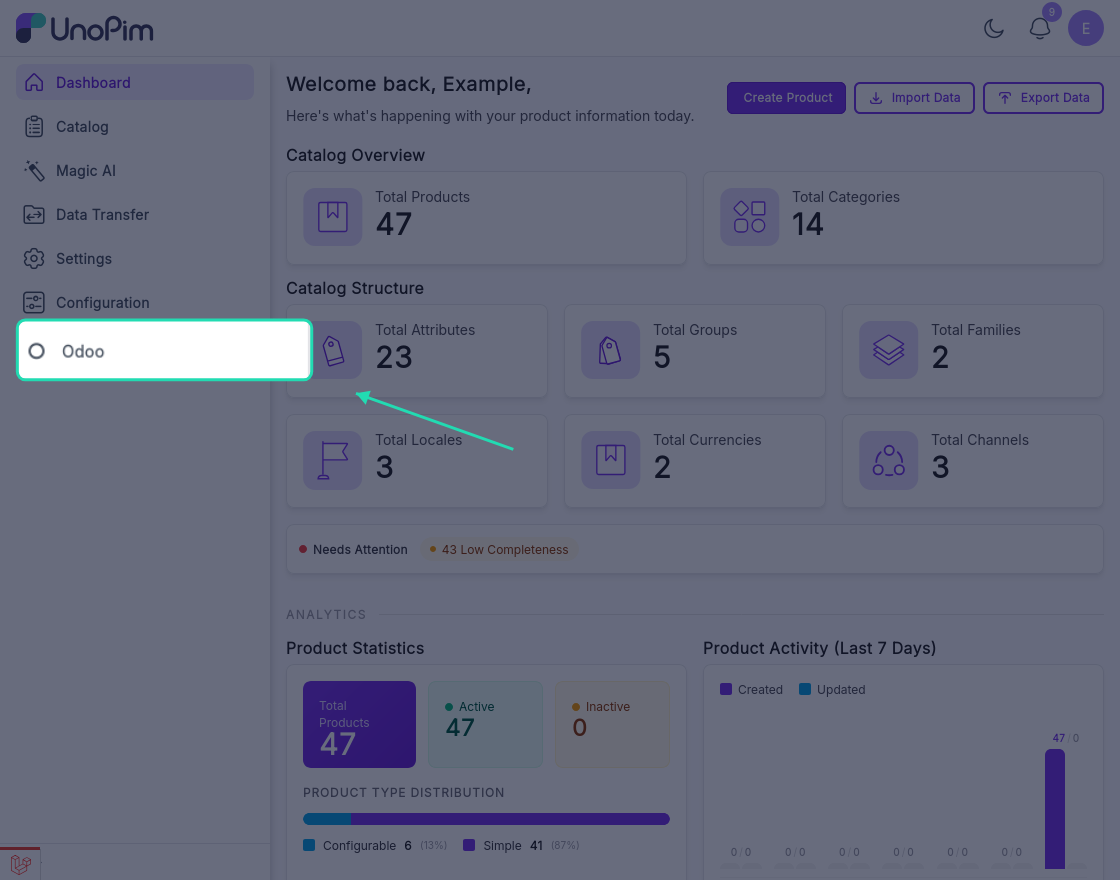
If the icon doesn't appear, try running php artisan optimize:clear again and refresh the page.