

Export Attribute Mapping
Before you can export products from UnoPim to Shopify, you need to tell the connector which UnoPim attribute maps to which Shopify product field. This is called attribute mapping — and you only need to set it up once.
How to Access Export Mappings
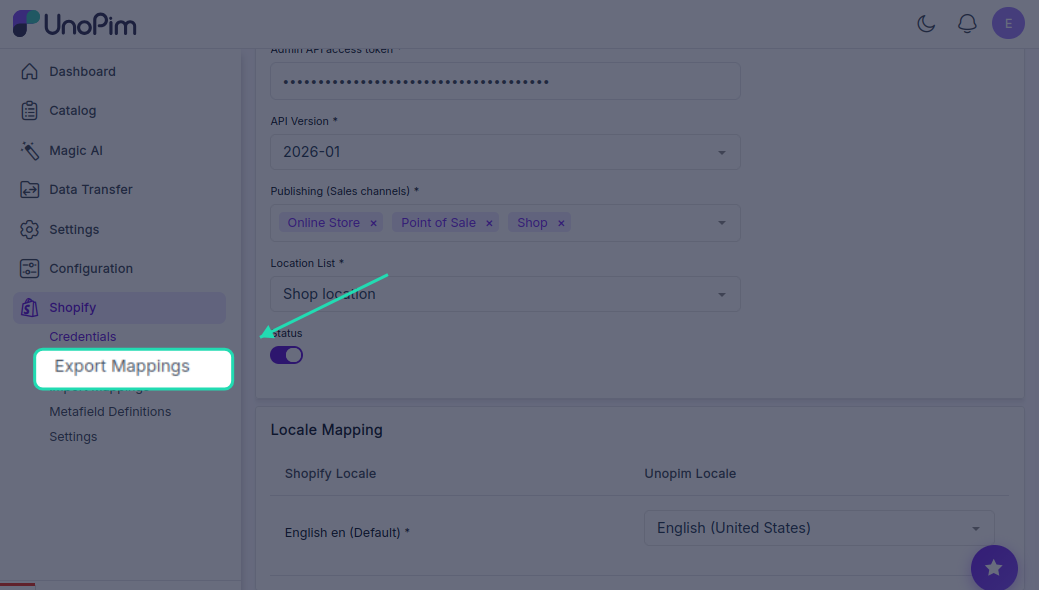
Click the Shopify icon in the left sidebar of your UnoPim dashboard, then click on the Export Mappings tab.
On this screen, the left side lists all available Shopify product fields. For each field, use the dropdown on the right to select the matching UnoPim attribute.
Available Field Mappings
Here's a breakdown of every Shopify field you can map, what it does, and when you'd use it:
| Shopify Field | Field Code | What it does |
|---|---|---|
| Name | title | The product title shown on your Shopify storefront |
| Description | descriptionHtml | Full product description — supports HTML formatting |
| Price | price | The selling price of the product |
| Weight | weight | Product weight used for shipping calculations |
| Quantity | inventoryQuantity | How many units are available in stock |
| Inventory Tracked | inventoryTracked | Turns on inventory tracking for the product |
| Allow Purchase Out of Stock | inventoryPolicy | Allows customers to still buy the product when stock hits zero |
| Vendor | vendor | The brand or supplier name |
| Product Type | productType | The category or type the product belongs to |
| Tags | tags | Keywords used for search and filtering in Shopify |
| Barcode | barcode | Product barcode or unique identifier for inventory scanning |
| Compare Price | compareAtPrice | The original price — shown as a strikethrough to highlight a discount |
| SEO Title | metafields_global_title_tag | Custom page title used by search engines |
| SEO Description | metafields_global_description_tag | Meta description shown in search engine results |
| Handle | handle | The URL-friendly slug for the product page (e.g. blue-running-shoes) |
| Taxable | taxable | Marks whether tax should be applied to this product |
| Cost per Item | cost | Cost of goods sold (COGS) — used for profit reporting |
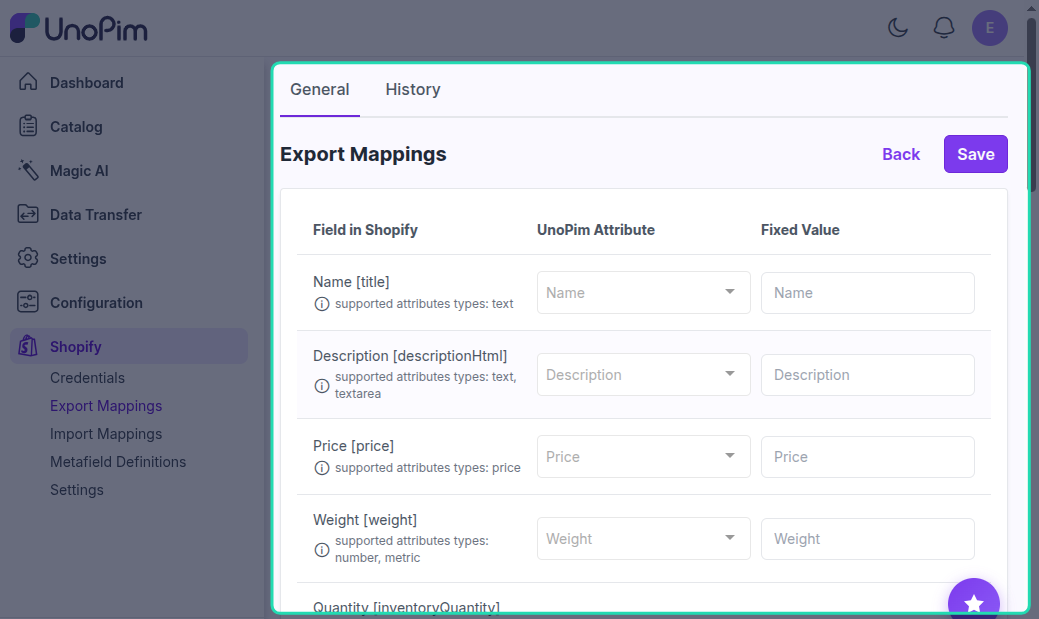
Using Fixed Values
Sometimes you don't want a field to pull from a UnoPim attribute — you just want every exported product to have the same value for that field. That's what the Fixed Value option is for.
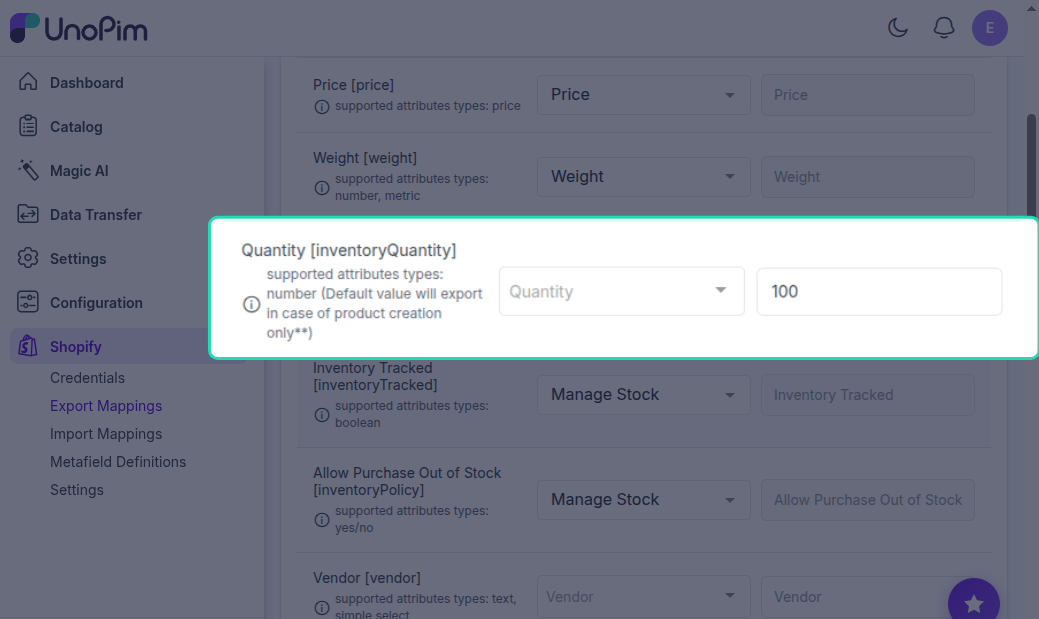
Example: You want all exported products to have a quantity of 100 in Shopify, regardless of what's stored in UnoPim.
Here's how to do it:
- Find the Quantity field in the mapping list.
- Deselect the UnoPim attribute from the dropdown — the Fixed Value input will become editable once the attribute is cleared.
- Type
100in the Fixed Value field. - Save your mapping.
From now on, every product exported to Shopify will have its quantity set to 100 — no matter what value exists in UnoPim.
Tip: Fixed values are useful for fields like Taxable, Inventory Tracked, or Status where you want a consistent default across your entire catalog.