

Creating an Export Job
Once your products are ready in UnoPim and your mappings are configured, you can export everything to Shopify by creating an export job.
Go to Data Transfer → Exports → Create Export.
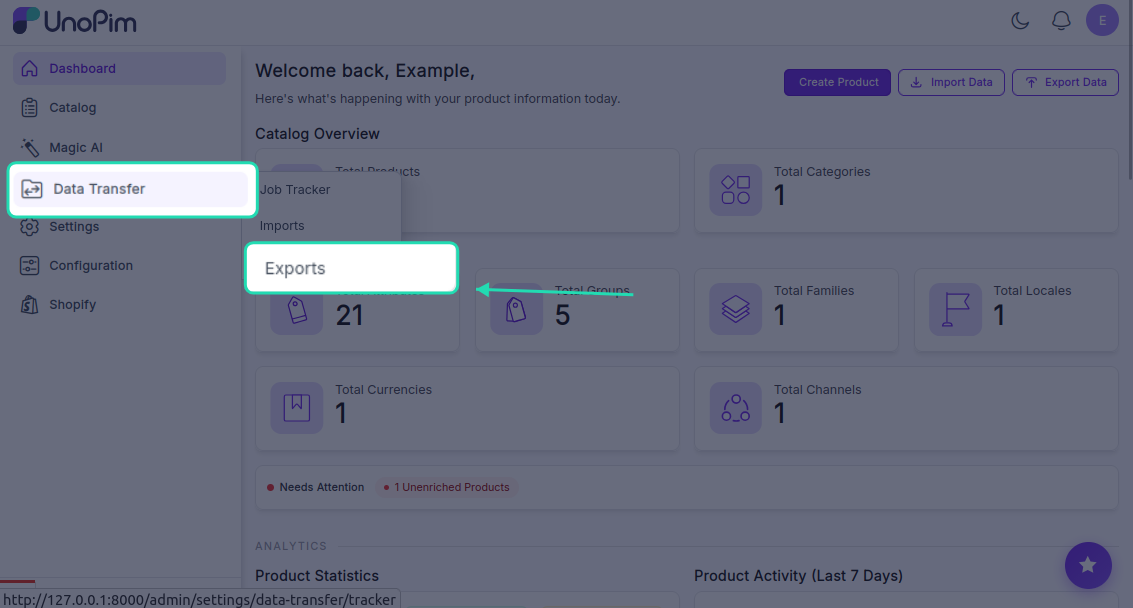
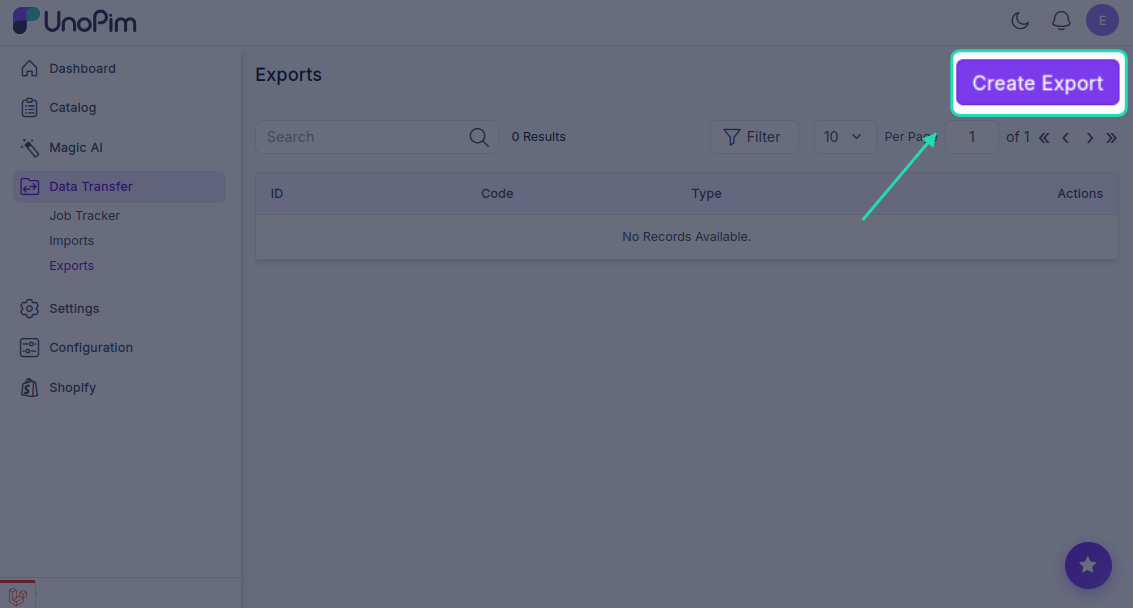
There are three types of export jobs available:
- Shopify Category — exports UnoPim categories to Shopify as Collections
- Shopify Product — exports simple or configurable products to Shopify
- Shopify Metafield Definitions — exports your metafield definitions to Shopify
Export Categories
Exporting categories first is a good idea — it means your products can be assigned to the right collections as soon as they land in Shopify.
- Click Create Export.
- Enter a unique Code to identify this job (e.g.,
shopify-category-export), set the Type toShopify Category& select your shopify credentials.
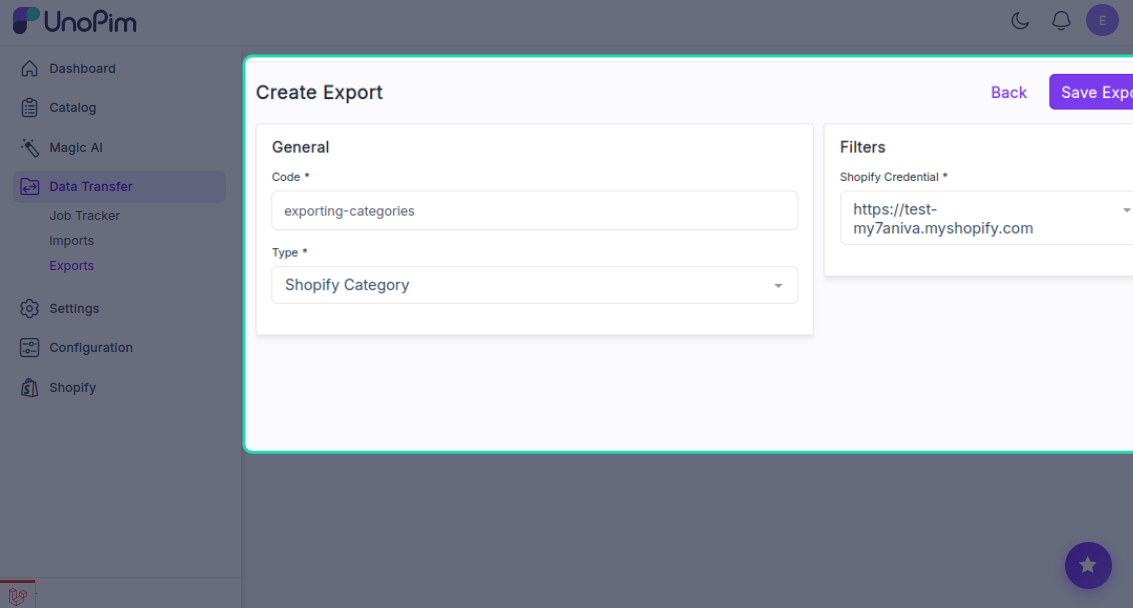
- Click Save Export.
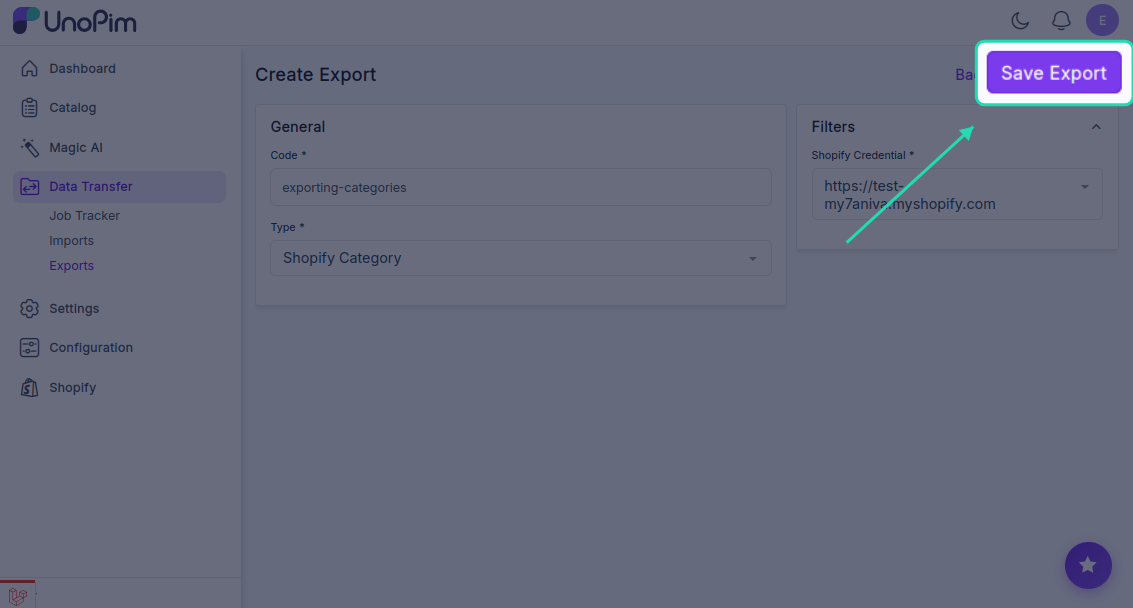
- Click Export Now to start the export immediately.
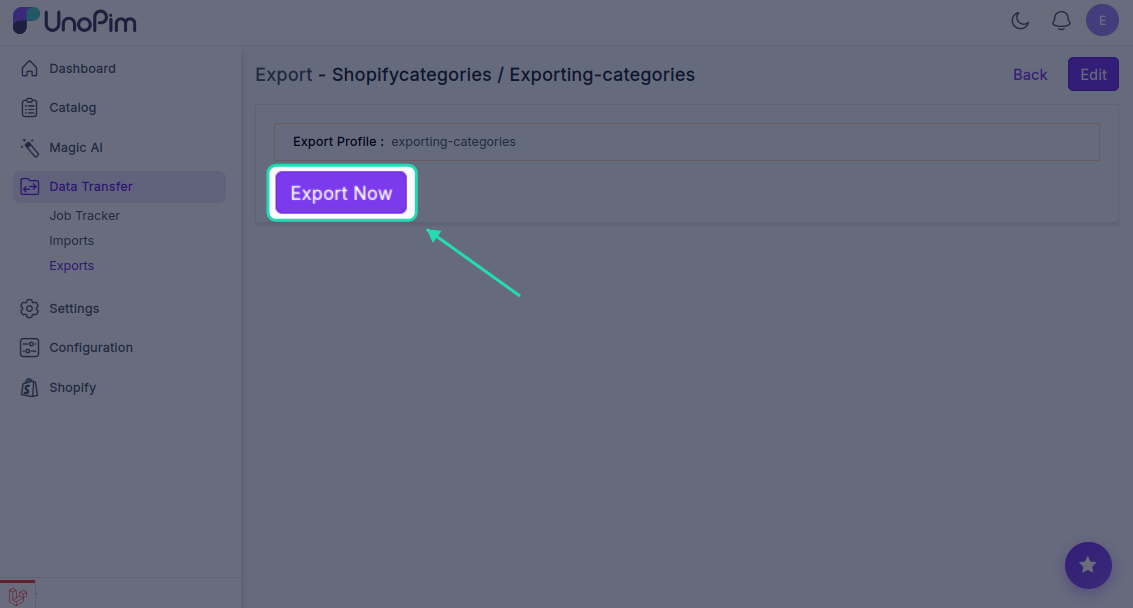
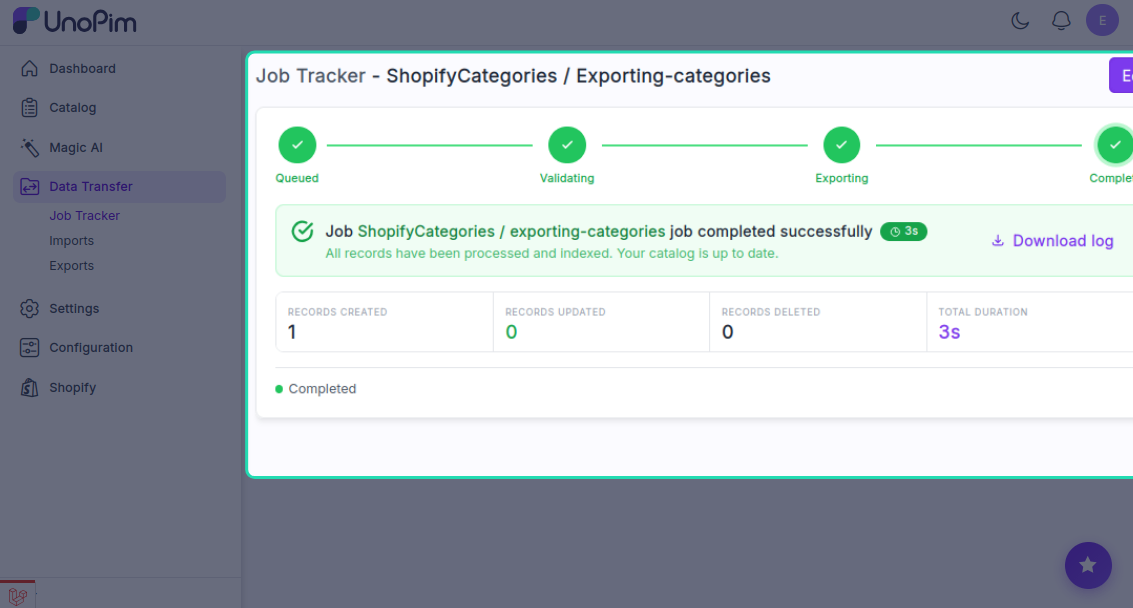
Your UnoPim categories will appear as Collections in your Shopify store once the job completes.
Export Products
This job handles both simple products and configurable products with variants.
- Click Create Export.
- Enter a unique Code (e.g.,
shopify-product-export) & set the Type toShopify Product..
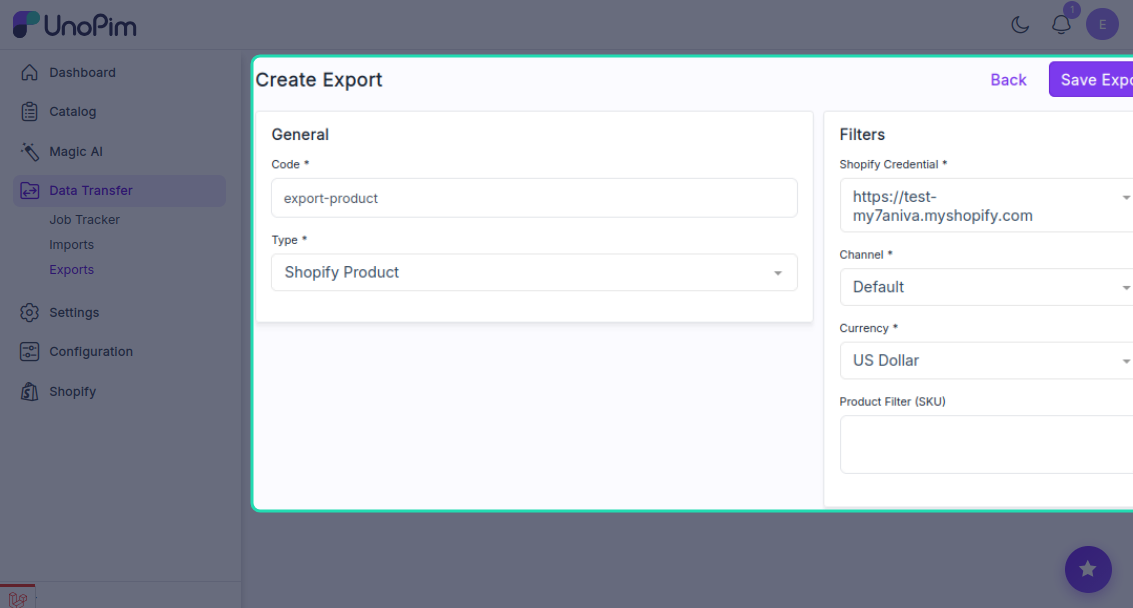
- In the Filters panel, configure the following:
| Filter | What to do |
|---|---|
| Store Credentials | If you have multiple Shopify stores, select which store to export to |
| Channel | Select the channel your products belong to |
| Currency | Choose the currency for the exported product prices |
| SKU (optional) | Enter a specific SKU if you only want to export one product |
- Click Save Export.
- Click Export Now to start the export immediately.
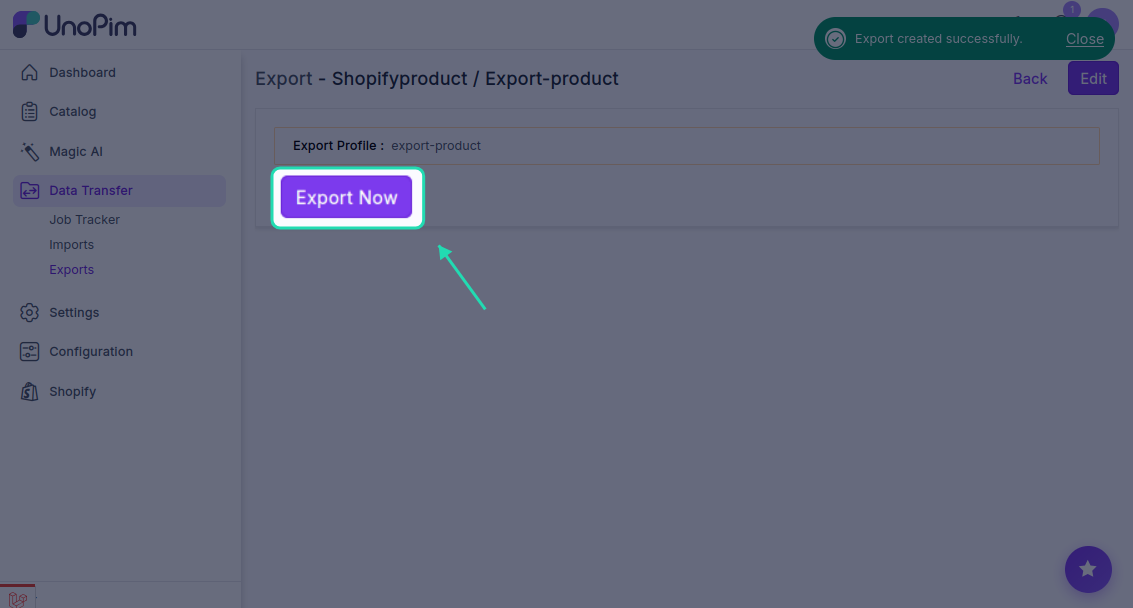
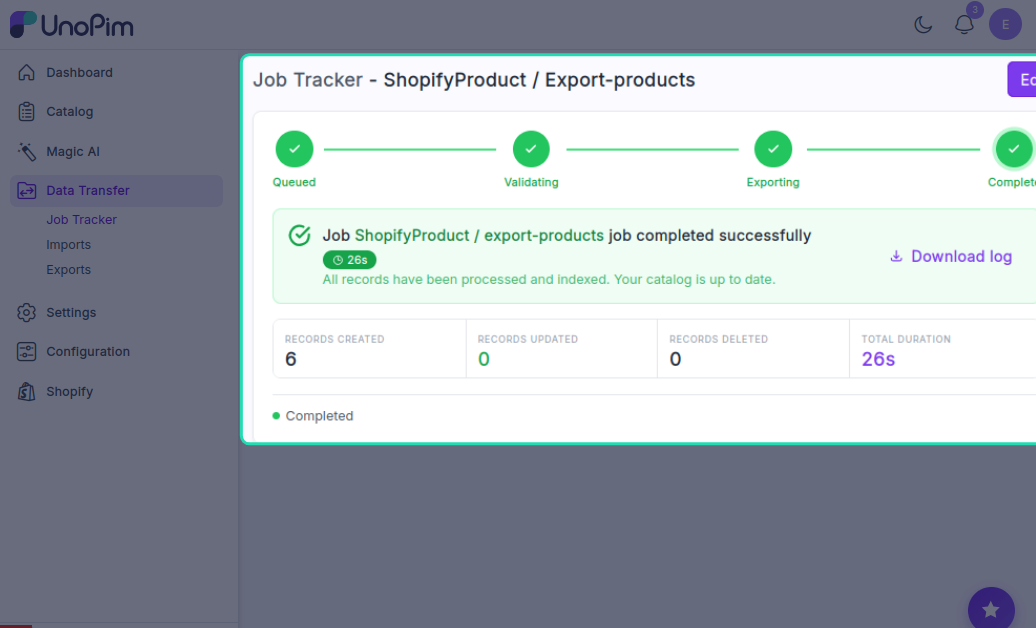
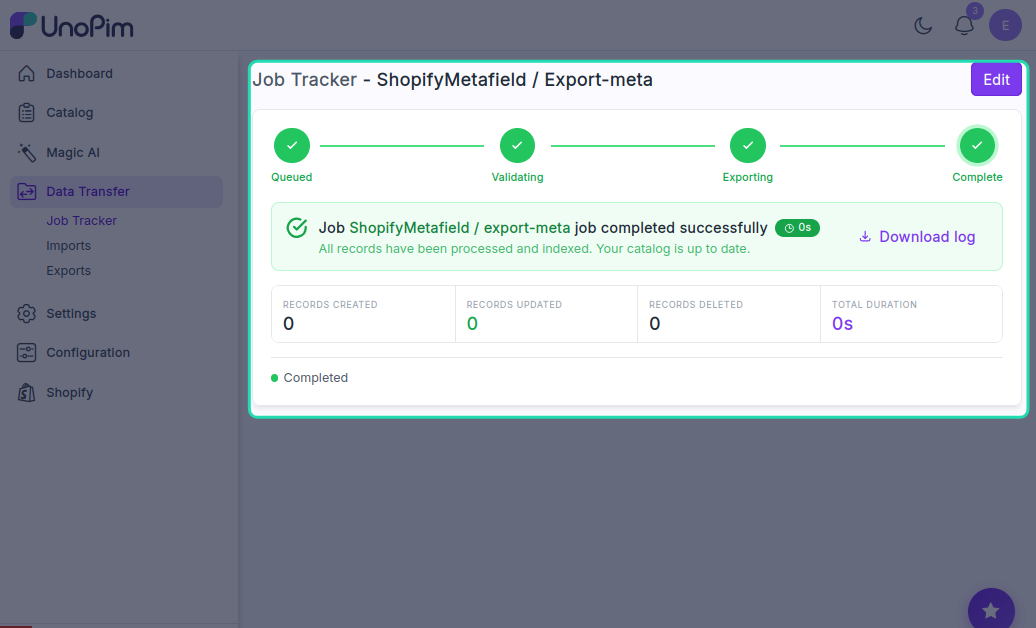
The export will begin immediately. You can watch the progress in real time — once it's done, the status will update to Completed and you'll see a count of how many products were successfully exported.
Click Download Log to get a detailed report of everything that was exported, skipped, or flagged.
Note: Product inventory is only added to Shopify on the first export. Re-running the job later will update product details but will not override the inventory quantity in Shopify.
Export Metafield Definitions
If you've set up metafield definitions in UnoPim and want to push them to Shopify:
- Click Create Export Profile.
- Enter a unique Code (e.g.,
shopify-metafields-export), set the Type toShopify Metafield Definitions& Select your Store Credentials.
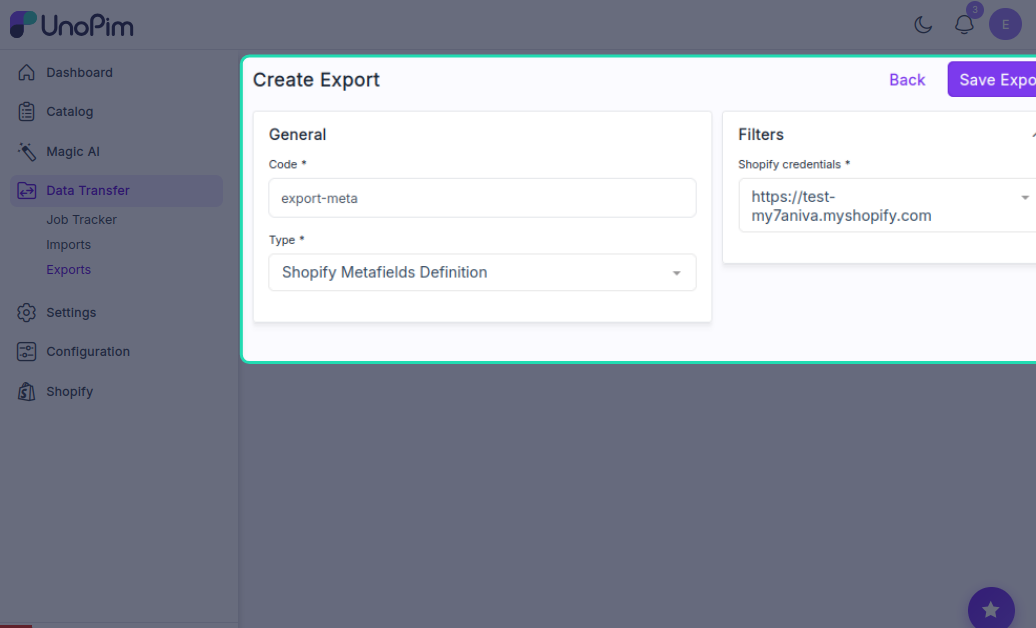
- Click Save.
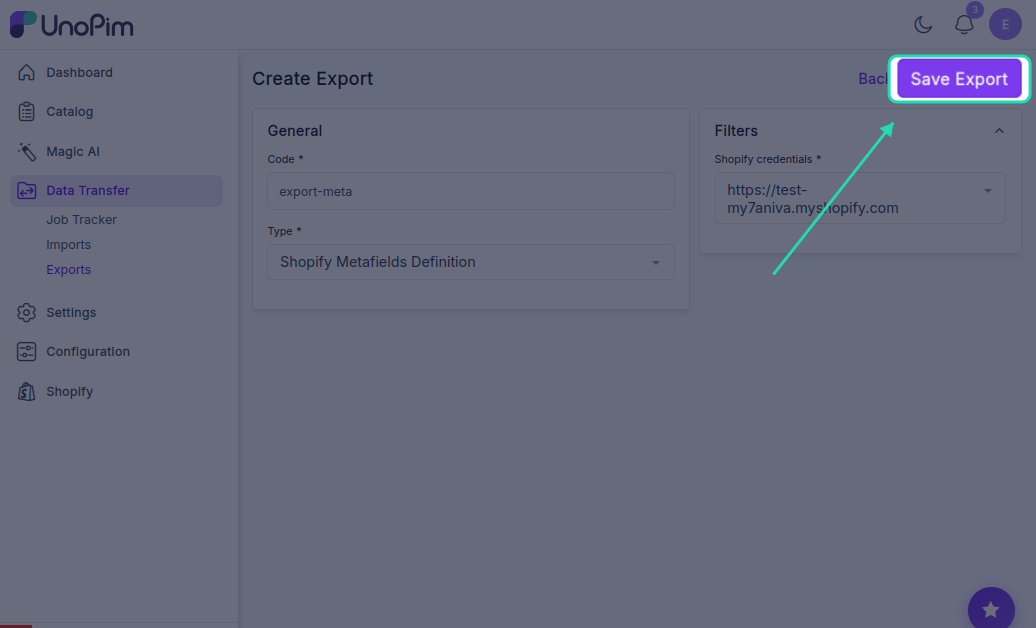
- Click Export Now to start the export immediately.
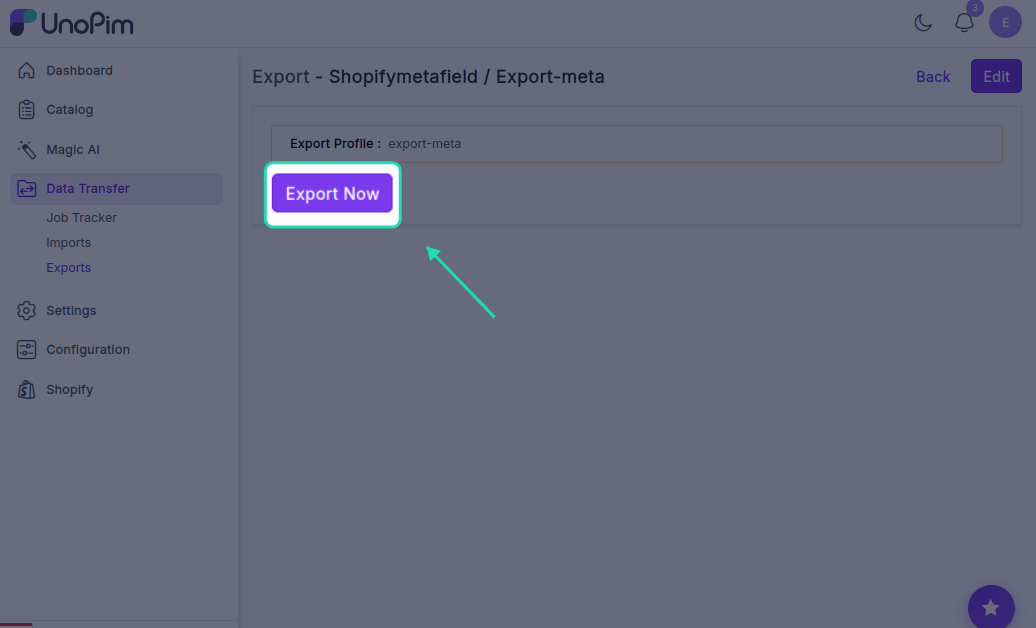
Viewing Exported Products in Shopify
Once the export job completes, log in to your Shopify admin panel and go to Products. You'll find all the exported products there, complete with their details, images, prices, and descriptions — exactly as they were set up in UnoPim.
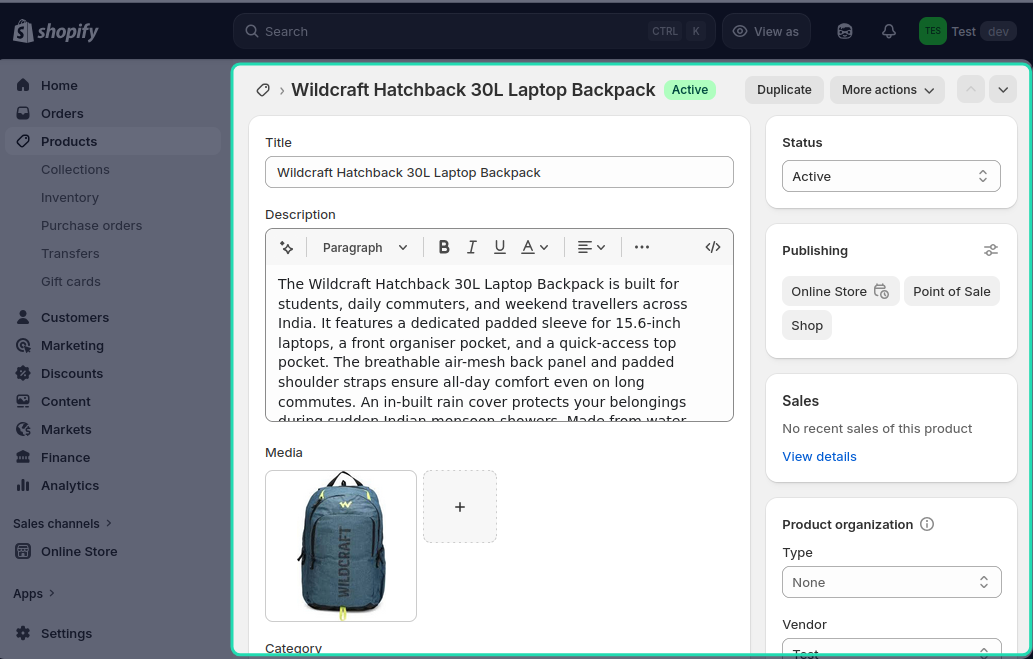
You can edit or update any product directly in Shopify if needed.
If you exported products with multi-language content, switch to the relevant locale in Shopify to verify that the translated values came through correctly.